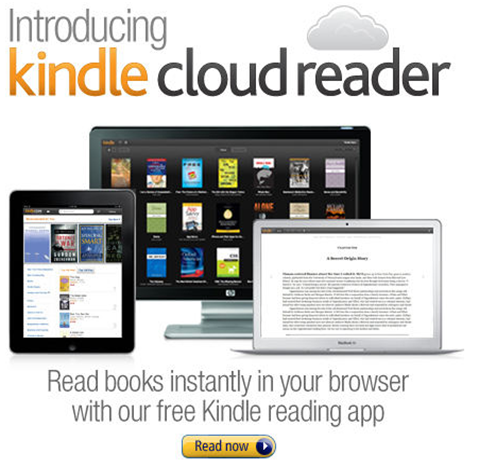
It would have been difficult to not notice Amazon’s launch of their new web app for reading Kindle books last week. Part of the reason is because it’s a very easy-to-use and intuitive app. But mostly the noise was about the fact that Amazon had very cleverly bypassed Apple’s 30% cut.
Apple, as any app developer knows, take a 30% cut of anything sold in their App Store. Recently this was extended and enforced for in-app and subscription-type purchases. For many applications this is a tough but reasonable ask. Apple have created the infrastructure and provided the customers to allow them to make money; they deserve some money to continue to build and enhance this infrastructure.
But for other companies it was tougher to swallow. Companies like Amazon who already make very slim margins on book sales may not be able to spare 30% of that price and break even, let alone make a profit. Other companies, like iFlow Reader, were already making less than 30% profit on sales of in-app purchases, and Apple’s updated terms forced them to go out of business.
So I am not alone in rejoicing for Amazon’s success here, as it proves that small publishing companies and companies with low profit margins don’t have to sigh and accept the revenue loss as part of the system. The Kindle Cloud Reader is not a complex app, and as you’ll see below, it actually has some nice benefits over the native app in terms of user experience.
WILL PEOPLE USE THIS IN LIEU OF THE NATIVE KINDLE READER?
Yes, but it may take time. The updated version of the native Kindle Reader application for iOS now has had to remove all links to the Amazon store, so you can’t shop for new books via the iOS app. Granted, it previously just bounced you into Safari anyway, but now it’s extra awkward. Not everyone will notice this right away, but as people finish their books and go looking for more books to purchase or download, they will realize this isn’t an option anymore and have to go to the Amazon website instead.
The other thing Amazon has going for it is very valuable ad placement: the front page of http://amazon.com. Millions of people will see that link and click to find out what it is. The developers have done a great job of making this transition very easy so I don’t expect they will lose many people in the move from the native to the web app.
DOES IT WORK EVERYWHERE?
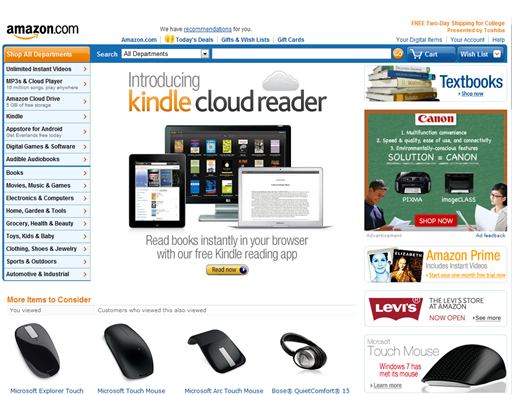
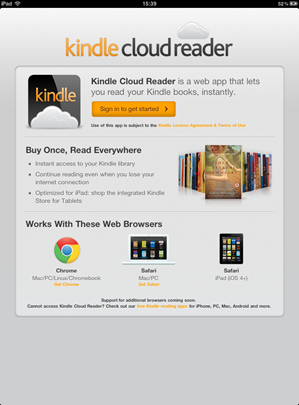
Visiting http://read.amazon.com on my iPhone showed me a “your browser is not supported” message. Scrolling down showed that Kindle Cloud Reader is supported in Chrome for Mac/PC/Linux/Chromebook, Safari for Mac/PC and Safari for iPad (iOS 4+), but I have to imagine the iPhone is just a matter of time. It doesn’t mention anything on the horizon for iPhone, Android, Windows Phone 7 or anything else, hopefully that will be updated soon. Amazon have stated that they’ve built the app from the ground up in HTML5, so for browsers which support HTML5 it will likely just be a bit of time for them to have it working in more places.
HOW DOES IT COMPARE TO THE NATIVE KINDLE APP?
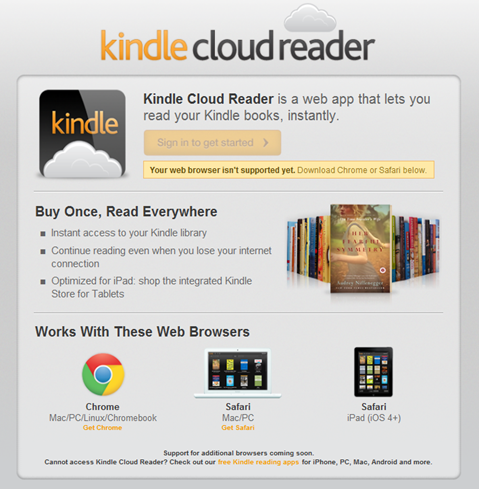
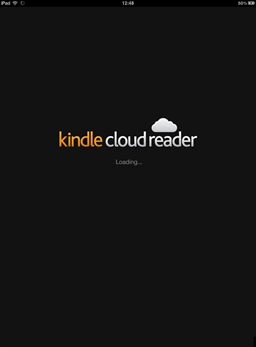
There’s no denying that the native app and the web app are incredibly similar. Launching both apps takes about the same amount of time and differs only by the splash pages.
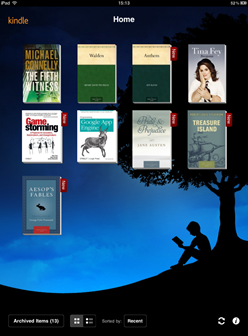
Once you’ve opened the app, you’re presented with two options: view the items you’ve purchases (called “Archived Items” in the native app, “Cloud” in the web app) or view the items you’ve downloaded (called “Home” in the native app, “Downloaded” in the web app).
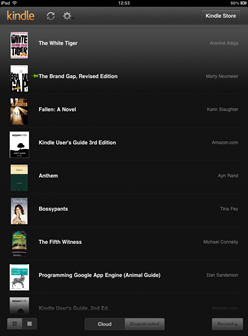
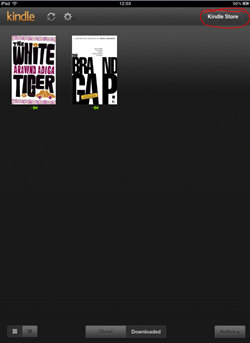
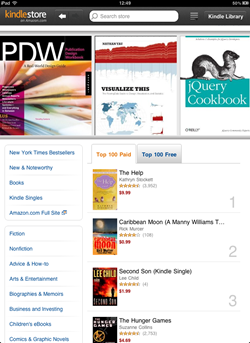
From there, the main difference is the ability to browse and purchase books, and this is where the Kindle Cloud Reader really shines. You have a button for “Kindle Store” in the top right, and this takes you to a very nicely designed store where you can get recommendations, search, view lists of bestsellers, download sample chapters and read descriptions and reviews of books.
Because it’s customized for the iPad, the size and touch aspects of the store are excellent. Browsing, reading and searching are very easy and much smoother than the previous experience of having the Kindle Reader open Safari and then zooming and panning to browse and search for books.
LET’S TAKE A QUICK TOUR:
Using the Kindle Cloud Reader is as easy as visiting http://read.amazon.com. On the iPad, you’ll first need to log in to your Amazon account so it can sync any books you’ve purchased already.
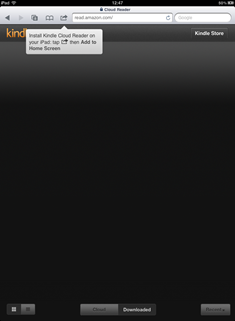
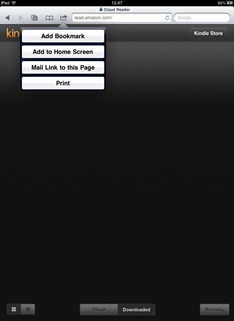
After signing in, you’re presented with some pretty standard instructions for adding a bookmark to your Home Screen, followed by requesting permission to increase the database size so it can store books on your iPad for you to read offline.
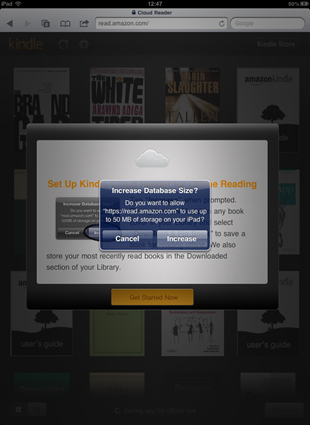
After these few quick steps, you’re in your “Cloud” page, which shows you any purchases you’ve ever made from the Kindle store. To read any book, click on its cover. It will open the book in a reading view and you now have the familiar Kindle reading experience. Swipe to change pages, use the navigation at the top to move between the current page, the cover, the table of contents, etc.
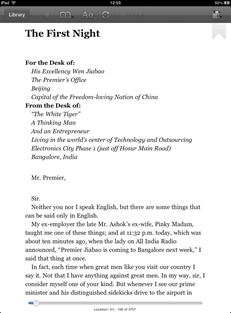
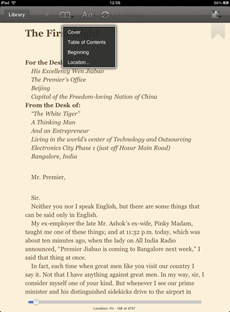
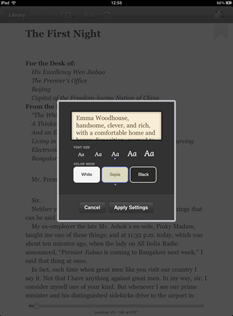
You can change font size, background and text colours, and set bookmarks for yourself.
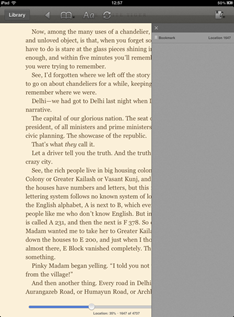
When you’re finished reading, Kindle Cloud Reader syncs your position so that should you go back to that book on another browser, a Kindle device, or a different Kindle Reader app (such as the native iPhone app), you’ll sync to wherever you left the book. Simply click the “Library” button to go back to the main page or close the app by pressing the home button on your iPad.
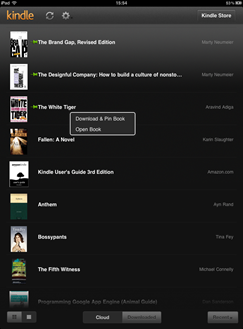
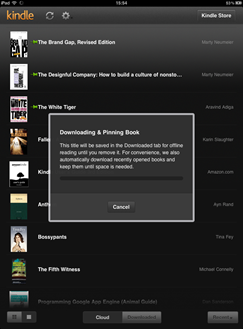
If you’re planning on being offline for a while, you can download books to your iPad as well. Press and hold a book cover, and you’ll get an option to “Download & Pin Book” and an option to “Open Book.” Downloading and pinning the book will save the book so you can read it even when you’re not connected to the internet.
OVERALL:
Well done to Amazon. This is an easy-to-use app built in HTML5 which works very well wherever it is currently supported. This means they can add new features and update the app more quickly across all platforms and of course, very important for publishers and distributors of print and media, can retain their profits without paying the Apple tax. The performance is no different to its counterpart native app, so I can’t see any reason that I would continue using the old native Kindle Reader iPad app. The store is very cleanly integrated and a great way to browse and purchase. I’m looking forward to seeing more applications like this and less companies like iFlow Reader failing.
(And for those who noticed it all over my reading lists, yes Bossypants by Tina Fey is a fantastic and hilarious book and you should go read it. On the Kindle Cloud Reader.)