Tuesday Newsday: Zite and the Best Aggregators

With the announcement yesterday that Zite is in talks with CNN for a very sweet deal, today seemed like a great day to review a handful of my favourite news aggregator apps. 
zite iPad app


ZITE:

Zite has been a favourite app of mine for a while, and I have even recommended it in the past on the PC Live podcast.  It’s still one of the only apps I use every single day.  Simply put, Zite is a free, personalized magazine which begins to understand your likes and dislikes, therefore improving the content it provides you.
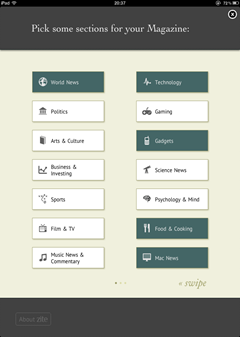
 Zite front page   Zite section selector

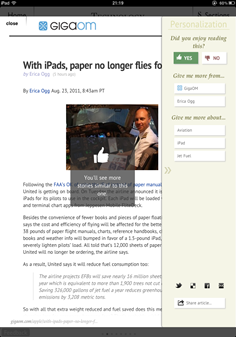
I love Zite for its simplicity.  The “choose your topics” section is easy-to-use.  The layout makes sense. The app uses familiar “thumbs up/thumbs down” icons so you can let it know if you want more or less like the article you’re reading.  The reading layout is uncluttered and relaxed.  Customization allows you to change font size and move from serif to sans-serif fonts.
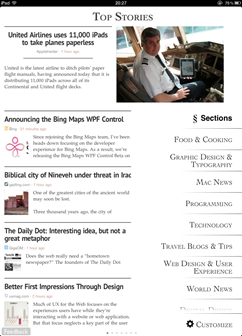
Zite Top Stories    Zite story with Preferences

But behind all the simplicity, Zite has a lot of smart things going on. Zite is also taking note of whether you prefer longer or shorter articles, news or opinion content, various sources you click on more than others, and building all of this into its intelligent algorithms. At the same time, it tries to still bring you new content that you might not have otherwise found to help avoid the information silo problem.

If you haven’t used it, this video is a great short overview of what to expect, and it says a lot more in just about a minute than I can:

Zite pro – This app provides the best information to me out of all of them with surprising new sources but always interesting content.

Zite con – I could spend all day reading it.


AOL EDITIONS:

AOL Editions is one of the more recent additions to my iPad assortment of news readers.  Launched just a few weeks ago, it’s a bit later to market than most others mentioned here, but for that reason it has taken the time to add some unique features.
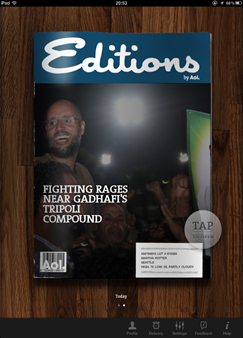
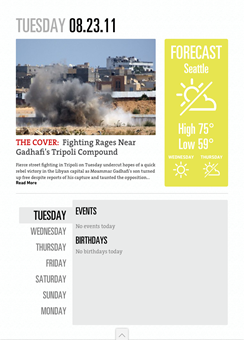
AOL Editions Front Page   AOL Editions Opening Page

First of all, Editions is very personalized. Almost to a fault. It pulls information out of iCal and your Facebook friends list to give you a sort of agenda.  It gives you a weather forecast.  Mine however has to be from Seattle as the input section for location is zipcode, so location information is not usable outside the United States.  It lets you add sources and interests, but not remove them.  For example, I don’t want local (since it’s not relevant as I’m outside the US) or entertainment news, but I cannot remove those sections.
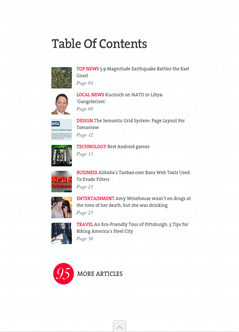
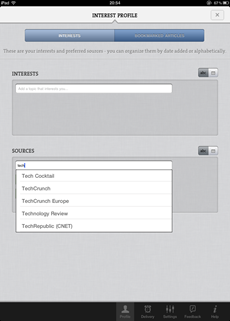
AOL Editions Table of Contents      AOL Editions Interest Profile

Now for the good stuff.

One nice and unique feature is that AOL Editions actively weighs the importance of each story.  So as your daily edition is being built, stories appearing towards the top of a source’s homepage as well as stories being shared very actively are featured more prominently.  Many times, when you click on a story, you get some keywords to select or remove to help train the app for future news.
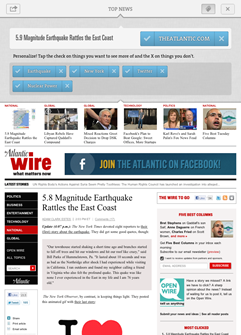
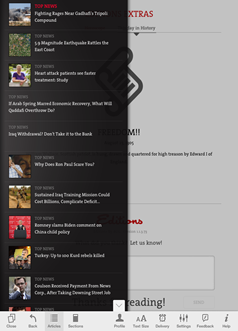
AOL Editions Article View    AOL Editions Article List

Something else AOL Editions has which other apps don’t is an end point. With most of the apps, you feel like you can read forever.  That’s good if you’re bored, but bad if you’re one of those people who never feels like you’ve “caught up.”  Each daily edition is designed to be about 20-25 minutes worth of reading time, so it’s possible to get through the whole thing each day if you like.

AOL Editions Pro – The personalization features will appeal to many folks, and regular users will benefit greatly from the way the app learns and weights their content

AOL Editions Con – Keeping the content in the original website view is ugly and doesn’t make for a nice reading experience. Also, the US-ness of the app is a bit of a turn-off for folks outside the United States.


NEWS.ME:

News.me is the only app discussed here that isn’t free.  It’s subscription-based: you pay 99 cents a week or $34.99 for an annual subscription.  The app was created by the folks at bit.ly & betaworks, and it works only if you have a Twitter account.  On News.me you can read your filtered stream as well as the stream of people you follow on Twitter who also use News.me.  It’s great if you are curious to know what someone like Clay Shirky or Hilary Mason or Anil Dash is reading.
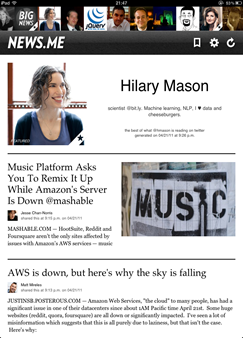
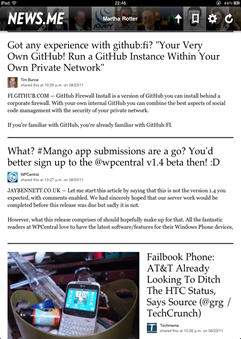
News.me Individual Page    News.me Article List

News.me partners with publishers like the New York Times and the Associated Press which haven’t been very friendly to other aggregators.  Because there’s no search or “subscribe to a specific publication” features, people can’t use the app to get around paywalls.  The subscription fee charged by News.me goes towards paying the partner publications for their content, which is a nice surprise.
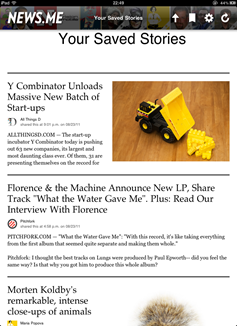
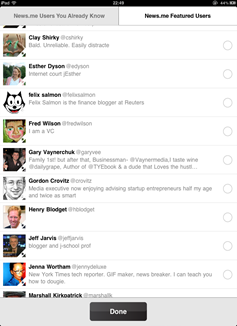
News.me Saved Stories    News.me Add People

For me, it’s very much like when Twitter first came out.  If you were an early user of Twitter, clicking on someone’s profile showed you what they were seeing, instead of just their tweets.  That was a long time ago, though; I can’t imagine it could handle doing that anymore!  The idea grew from people simply wanting to know what others they follow are reading and what’s important to them.  You can get some of that from their retweets and +1s on Twitter and Google+, but this is more like looking at someone else’s Flipboard or Zite. How meta is that?

News.me pro – Perfect for feeling like you can get inside the head of people you follow on Twitter, whether they’re your smart friends or celebrities or tech icons or whatever.

News.me con – It *is* the only aggregator that is charging these days, albeit for some content that you probably can’t get on other apps. If you use it, it’s a very small price to pay (less than a weekly paper), but if you don’t use it it adds up.


PULSE:

Pulse is an underestimated player in this space who has focused on making their content the highlight in lieu of a sexier UI.  If the name sounds familiar to you, it’s likely because last year it was mentioned by Steve Jobs in his keynote at WWDC as one of the most promising new apps for the iPad. Later that afternoon, Apple pulled it as the New York Times sent a written notice that Pulse was infringing on their rights.  Those problems were solved and the app has been successful in the App Store since.
Pulse Splash Screen    Pulse Front Page

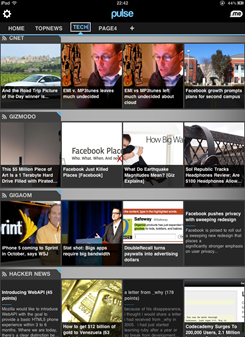
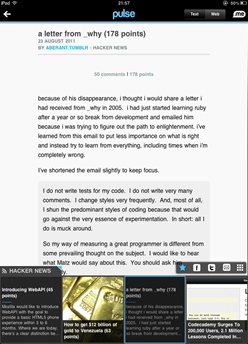
The thing that Pulse gets right that other apps like AOL Editions have missed is a focused reading experience.  It’s even less cluttered than Zite’s, but it does let you view on the web if you prefer (here’s a spoiler: you won’t).  Pulse integrates feeds from Google Reader and, like Flipboard, has a few prepopulated categories you can choose from.
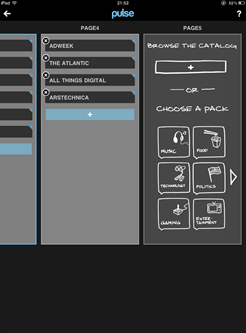
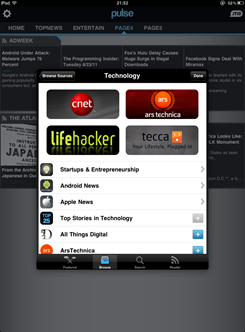
Pulse Add Section    Pulse Technology Section

I mentioned that their UI is slightly less sexy than some other apps, but it’s only because the app has been around longer. I probably would not have said the same thing this time last year.  Last year, this UI with its large images and alternating text was pretty ground-breaking.  However now several apps have stolen the same layout so it’s fairly familiar.  They haven’t replaced it because it still works really well.
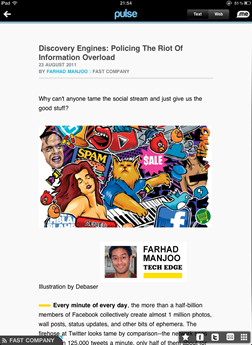
Article View    Pulse Article with Index

Pulse pro – I love reading in this app. If you prefer a visual UI for the blogs and websites you read, this is custom-made for you.

Pulse con – It’s the least personalized content. Integrating from Google Reader is clunky and manual so it’s not great as an RSS reader unless you have a lot of time to set it up.


FLIPBOARD:

No discussion of iPad news aggregators would be complete without mentioning Flipboard of course.  However if you have an iPad, I am pretty sure you have used Flipboard, the original, free social iPad magazine, so I’m going to skip it.
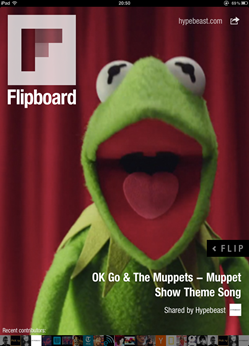
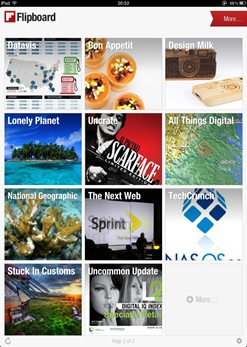
Flipboard Splash Screen   Flipboard Index Page


SUMMARY:

There are loads of news aggregators showing up for the iPad, and with Zite’s announcement this week, I’m guessing there will be a lot more competition in the very near future.  Check out the above apps if you’re looking for a new one or use the “Genius” feature of the App Store to find one that suits your taste and needs.  Be sure to let me know if you find any new and interesting ones.

AUGH, My Eyes! My Eyes!

Having recently read both Des Traynor’s article on magazine versus print advertising and Andy Rutledge’s article on digital news being broken, I have a new problem.  I notice I’m suddenly much more conscious of advertisements on websites and applications I use.

Hotmail - martharotter@hotmail.com - Windows Live-1

This is a problem because I used to be so good at tuning out the bouncing “HERE I AM LOOK AT ME LOOK AT ME” ads on the side of my browser.  Today when I logged into an unnamed online account, I actually felt offended that this company decided it was okay for this obnoxious, attention-deprived ad to be in my face while I was trying to read and respond to email.  I ended up sliding the browser over so the ad was off the page in order to actually concentrate on my email.

We shouldn’t have to do that.  How effective can an advertisement be if people are so annoyed by it they move it out of view? 

And furthermore, do ads like this actually work?  The image on Des’ blog post indicates that for many categories, click-through rates are under .1%. I’d love to know what the click-through rate is for specifically those ads that bounce around screaming “CLICK ON THE DANCING MONKEY NOW FOR A FREE IPAD!” and “OMG YOU’RE THE 5,553,024,203 VISITOR AND YOU *WON*!!!!!!!!!!!” 


GUESS WHAT? I LIKE ADS.

Here’s something that may surprise some website owners: I like ads. I read ads, I forward ads to my friends that are entertaining, I re-watch ads when they’re clever or funny, and I can still sing many jingles of ads I heard as a kid on the radio or television.  In fact, as someone who spends a lot of money buying magazines and print publications, there are even some I buy for the ads.  Magazines like Bon Appétit and Elle have such gorgeous pictures that I rarely read the majority of the articles, I flip through images, and I never care if they’re ads or part of the magazine. I am not anti-advertisements. 

Magazine creators, unlike website owners, are not surprised that their readers like their ads.  They already knew this, and that’s why their ad prices can be so high for their printed publications.


WHO IS MAKING MONEY FROM THESE ADS?

What I don’t understand is if or how these ugly website ads actually work.  Google AdSense must make some people money, because I know people who have gotten cheques from them.  But they’ve never made any money from me clicking on things. 

I’d love to see a website that curated its advertisementsAtlantic Magazine Ad as carefully as the print magazines I read do.  If the advertisements online were as good as they are in print, I’d likely click or interact with them more.  As an example, in the Atlantic app review I did last week, the single ad was a very well done advertisement for the new 2012 Mercedes-Benz CLS. I played with the ad for a while & spent some time with it because it was cool and nicely done.  (I’m not currently car shopping, but I would have interacted with many ads which were as well-designed as this one.)

Is that unrealistic?  Most websites probably don’t have the time or money to hand-select advertisements or to be picky about them or send them back when they’re ugly.  Plus many websites and applications use advertisement placement services, like Google AdSense, AdMob and Microsoft pubCenter, which don’t give them any control at all other than possibly the dimensions and the placement on the site for the ads and the option to exclude competitors or certain URLs.


A BETTER WAY?

What if there were another way?  If you could use an ad placement service like AdSense and guarantee that the advertisements were of a certain quality bar or that they had been vetted by a graphic designer or someone with taste, wouldn’t you?

People complain all the time about the fact that there is less and less money to be made from online advertising. I think many people are wasting opportunities by creating obnoxious and tasteless ads that don’t do any justice to their product.

Starting today I’m going to run a small experiment.  I’m going to see how long I can go without looking at bad online advertisements. When I come across a site that uses ads which drive me crazy, I’m going to put it on my “blocked” list.  By the end of next week I will either have long since abandoned the idea as impossible or have created a list of sites that I no longer need to visit.  But also I am hoping to find some sites that are shining examples of how to use great ads online.

CS Forum: Designing Narrative Content Workshop

If you’re working in the area of content strategy, writing, developing or designing web sites, marketing or anything in between, you should probably be planning on heading to the Content Strategy Forum in London from September 5th – 7th.

image

CS Forum has excellent speakers including Karen McGrane, Gerry McGovern, Kristina Halvorson, Erin Kissane.  They’ll be covering everything from the value of content, techniques and tools, user experience design, business models, videos and much more. If you look closely you may even recognize some local speakers including Des Traynor, Cory-Ann Joseph, and myself.


image

WORKSHOP DETAILS:

My workshop, Designing Narrative Content, is designed to help people answer the question of “How can I make sure that everything I’m doing helps to reach the widest audience possible with my content, technology and overall strategy?”  It’s a hands-on workshop, so attendees will actually walk away with their own publishing strategy and even a sample publication online and live!

In order to build and lay everything out, we’ll use a new technology called Treesaver to dynamically produce our content and allow people to view it everywhere.  But don’t be scared if you think you’re not a developer, we’re not focusing on the dev part, we’re just focusing on the content.  You won’t have to know how to create HTML from scratch.  If you are familiar with HTML & CSS, then you’ll be able to customize your experience a good bit more but it won’t be necessary.

If you are working with narrative content, long-form content, any form of digital publishing (including magazines, newspapers, eBooks), this workshop will save you a lot of time and money in understanding how to design more content with small teams and small budgets.

If you’re interested in the workshop and want to know more about it, please feel free to e-mail me for more information or contact me on Twitter.  If there is something you’d like to see added to the workshop, now would be a great time to let me know while I still have time to alter the presentation and exercises.


INTERVIEW:

Randall Snare interviewed me recently about my workshop and views on the field as well as what Indian palm readers predict for my very near future.  You can read that interview here for a bit more insight: http://blog.csforum.eu/articles/narrative-content-martha-rotter-preview.

See you in London in September!  If you haven’t registered for the conference, the workshops or the excellent barbecue and wine reception, you can still do that here: http://2011.csforum.eu/register.

Tuesday Newsday: Amazon’s Kindle Cloud Reader

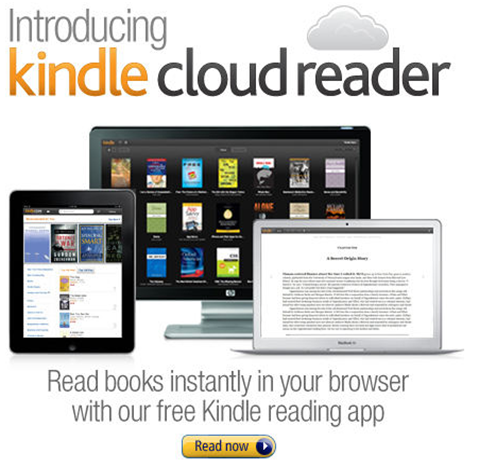
It would have been difficult to not notice Amazon’s launch of their new web app for reading Kindle books last week.  Part of the reason is because it’s a very easy-to-use and intuitive app.  But mostly the noise was about the fact that Amazon had very cleverly bypassed Apple’s 30% cut.

Kindle Cloud Reader

Apple, as any app developer knows, take a 30% cut of anything sold in their App Store.  Recently this was extended and enforced for in-app and subscription-type purchases.  For many applications this is a tough but reasonable ask.  Apple have created the infrastructure and provided the customers to allow them to make money; they deserve some money to continue to build and enhance this infrastructure.

But for other companies it was tougher to swallow.  Companies like Amazon who already make very slim margins on book sales may not be able to spare 30% of that price and break even, let alone make a profit.  Other companies, like iFlow Reader, were already making less than 30% profit on sales of in-app purchases, and Apple’s updated terms forced them to go out of business.

So I am not alone in rejoicing for Amazon’s success here, as it proves that small publishing companies and companies with low profit margins don’t have to sigh and accept the revenue loss as part of the system.  The Kindle Cloud Reader is not a complex app, and as you’ll see below, it actually has some nice benefits over the native app in terms of user experience.


WILL PEOPLE USE THIS IN LIEU OF THE NATIVE KINDLE READER?

Yes, but it may take time.  The updated version of the native Kindle Reader application for iOS now has had to remove all links to the Amazon store, so you can’t shop for new books via the iOS app.  Granted, it previously just bounced you into Safari anyway, but now it’s extra awkward.  Not everyone will notice this right away, but as people finish their books and go looking for more books to purchase or download, they will realize this isn’t an option anymore and have to go to the Amazon website instead.

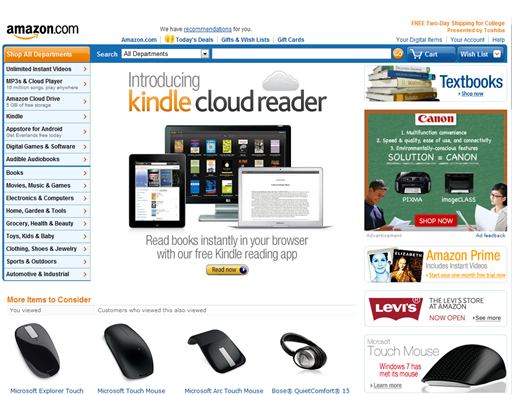
The other thing Amazon has going for it is very valuable ad placement: the front page of http://amazon.com.  Millions of people will see that link and click to find out what it is.  The developers have done a great job of making this transition very easy so I don’t expect they will lose many people in the move from the native to the web app.

Amazon.com home page


DOES IT WORK EVERYWHERE?

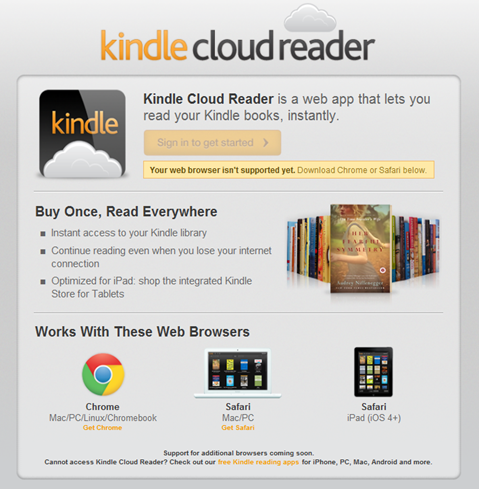
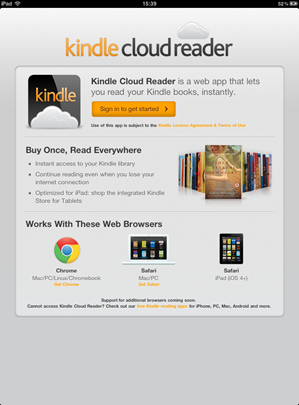
Visiting http://read.amazon.com on my iPhone showed me a “your browser is not supported” message.  Scrolling down showed that Kindle Cloud Reader is supported in Chrome for Mac/PC/Linux/Chromebook, Safari for Mac/PC and Safari for iPad (iOS 4+), but I have to imagine the iPhone is just a matter of time.  It doesn’t mention anything on the horizon for iPhone, Android, Windows Phone 7 or anything else, hopefully that will be updated soon.  Amazon have stated that they’ve built the app from the ground up in HTML5, so for browsers which support HTML5 it will likely just be a bit of time for them to have it working in more places.

Unsupported Message


HOW DOES IT COMPARE TO THE NATIVE KINDLE APP?

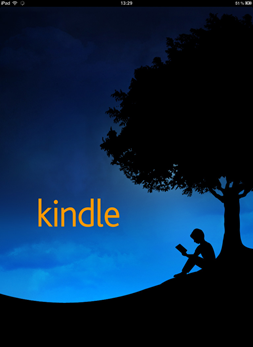
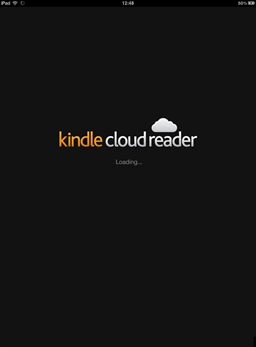
There’s no denying that the native app and the web app are incredibly similar.  Launching both apps takes about the same amount of time and differs only by the splash pages.

Launching Kindle native app  Launching Cloud Reader

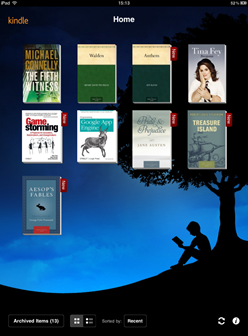
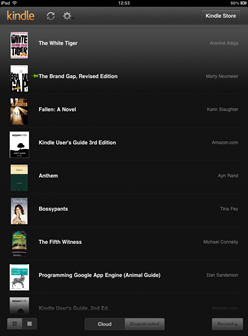
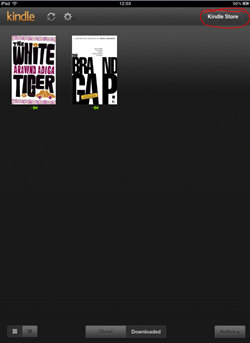
Once you’ve opened the app, you’re presented with two options: view the items you’ve purchases (called “Archived Items” in the native app, “Cloud” in the web app) or view the items you’ve downloaded (called “Home” in the native app, “Downloaded” in the web app).

Native Kindle Main Menu  Kindle Cloud Reader Main Menu

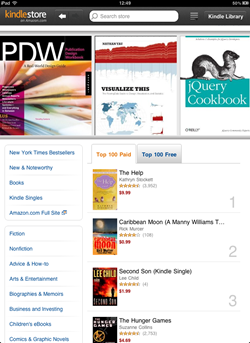
From there, the main difference is the ability to browse and purchase books, and this is where the Kindle Cloud Reader really shines.  You have a button for “Kindle Store” in the top right, and this takes you to a very nicely designed store where you can get recommendations, search, view lists of bestsellers, download sample chapters and read descriptions and reviews of books.

Because it’s customized for the iPad, the size and touch aspects of the store are excellent.  Browsing, reading and searching are very easy and much smoother than the previous experience of having the Kindle Reader open Safari and then zooming and panning to browse and search for books.

Button for Kindle Store in Cloud Reader     Cloud Reader Store


LET’S TAKE A QUICK TOUR:

Using the Kindle Cloud Reader is as easy as visiting http://read.amazon.com. On the iPad, you’ll first need to log in to your Amazon account so it can sync any books you’ve purchased already.

Sign in to Kindle Cloud Reader

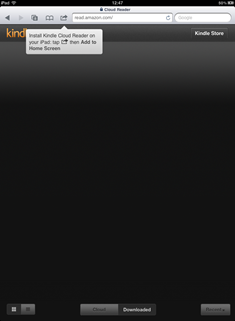
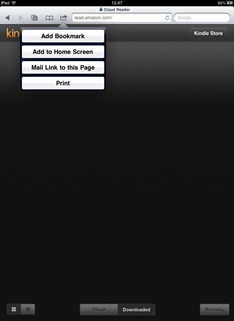
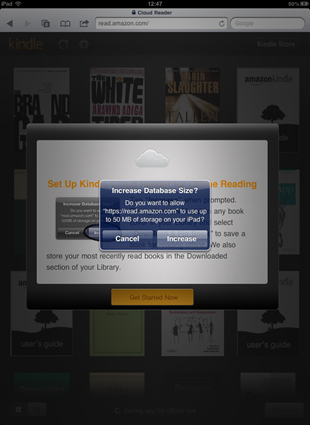
After signing in, you’re presented with some pretty standard instructions for adding a bookmark to your Home Screen, followed by requesting permission to increase the database size so it can store books on your iPad for you to read offline.

Kindle Cloud Reader Install Instructions  Adding Kindle Cloud Reader to Home Screen

Giving Kindle Cloud Reader permission to store books

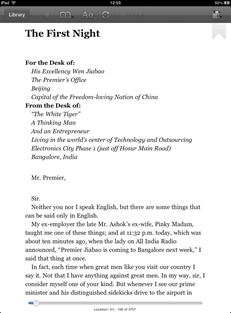
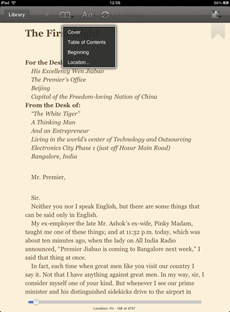
After these few quick steps, you’re in your “Cloud” page, which shows you any purchases you’ve ever made from the Kindle store.  To read any book, click on its cover.  It will open the book in a reading view and you now have the familiar Kindle reading experience.  Swipe to change pages, use the navigation at the top to move between the current page, the cover, the table of contents, etc.

Reading View of Kindle Cloud Reader  Navigating in Kindle Cloud Reader

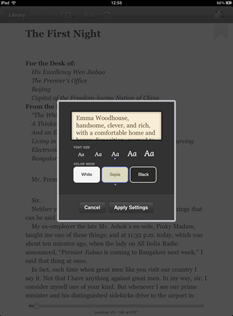
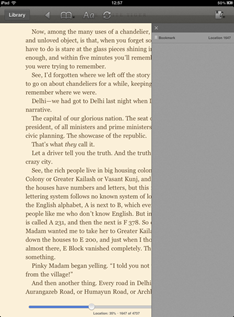
You can change font size, background and text colours, and set bookmarks for yourself.

Changing font size and colour  Setting bookmarks

When you’re finished reading, Kindle Cloud Reader syncs your position so that should you go back to that book on another browser, a Kindle device, or a different Kindle Reader app (such as the native iPhone app), you’ll sync to wherever you left the book.  Simply click the “Library” button to go back to the main page or close the app by pressing the home button on your iPad.

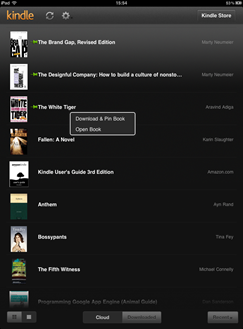
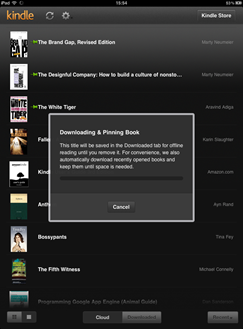
If you’re planning on being offline for a while, you can download books to your iPad as well.  Press and hold a book cover, and you’ll get an option to “Download & Pin Book” and an option to “Open Book.”  Downloading and pinning the book will save the book so you can read it even when you’re not connected to the internet.

Download & Pin Book  Saving the book to your iPad


OVERALL:

Well done to Amazon.  This is an easy-to-use app built in HTML5 which works very well wherever it is currently supported.  This means they can add new features and update the app more quickly across all platforms and of course, very important for publishers and distributors of print and media, can retain their profits without paying the Apple tax.  The performance is no different to its counterpart native app, so I can’t see any reason that I would continue using the old native Kindle Reader iPad app. The store is very cleanly integrated and a great way to browse and purchase.  I’m looking forward to seeing more applications like this and less companies like iFlow Reader failing.

(And for those who noticed it all over my reading lists, yes Bossypants by Tina Fey is a fantastic and hilarious book and you should go read it.  On the Kindle Cloud Reader.)

Tuesday Newsday: The Atlantic Magazine

The Atlantic has some of the best contemporary writing and photography today, showcased in their excellent monthly magazine (10 issues annually), their news and updates website The Atlantic Wire and now their iPad version: The Atlantic Magazine: Digital Edition, which was just relaunched a week ago after a year in development.

Link to The Atlantic Magazine: Digital Edition on the App Store

Many iPad magazines go with the model of “download our app for free and you can browse issues, then buy a subscription or single edition when you want to actually read the content.”  In the same way that paying the same price for a Kindle version as a paperback version seems odd to many, paying $5 or so for a sort-of-PDF copy still feels expensive to a lot of people, which is one of many reasons tablet magazine revenue is still slow.

The Atlantic, however, takes a nice approach and delivers both free and paid content in the same app.  The universal app (works on the iPad, iPod and iPhone) was released on July 29th, and its top purchase is already the annual digital subscription, which is promising.


WILL PEOPLE PAY WHEN THERE’S A LOT OF FREE CONTENT?

News and magazine apps are full of regularly updated content, and in the case of The Atlantic, it’s very well-written and professional content as well.  So why would someone pay for a subscription or individual magazine?

In the case of well-known publications respected for their high quality content like The New Yorker, The Economist and The Atlantic: yes.

In the case of this app, I would easily pay for certain issues like the fiction issue for its excellent writing.  But after spending some time with it, it’s obvious that while the free articles are great, the quality and reading experience are better in the actual magazine.  I bought one issue to test it out, and it made me realize that a lot of people may miss out on seeing this experience because there isn’t a way to try that out.  The style, layout and UI of the magazine and free content are both good but both very different.

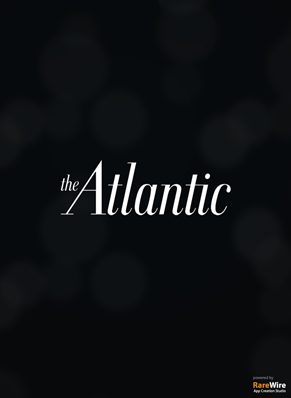
Opening Page of The Atlantic on the iPad


iPAD VERSUS iPHONE/iPOD EXPERIENCE:

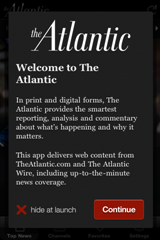
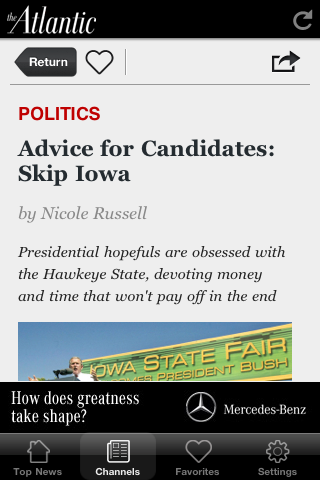
iPhone Intro ScreenThe experience on the iPad is slightly different from that of the smaller devices.  On the iPhone, there is no option to subscribe, so the content is all from the web.  It’s a well-designed experience for a compact screen.  Instead of trying to cram in the rows of image boxes, it has a nice sliding panel with the eight top stories of the moment, so you can swipe through the top stories and see larger pictures before you decide which one you want to read.  The navigation is mostly the same with the category titles at the top.  Clicking on the individual articles puts in sort of a frame-within-a-frame.  I found this to feel a bit “squished” since the menu and ad below take up a good amount of vertical space.  It would be nice to take this to a full-screen view to get a bit more space.
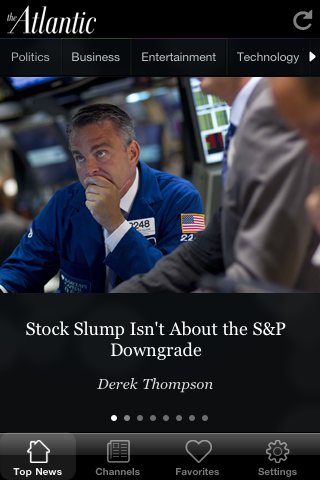
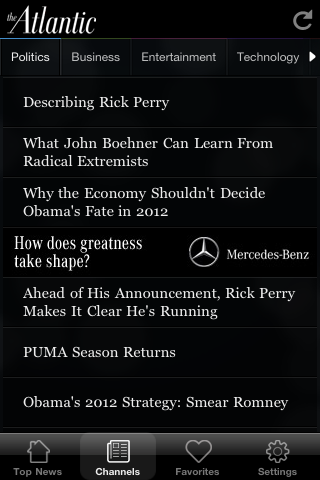
Top Stories NavigationArticle List Article on iPhone

The iPad on the other hand does allow users to subscribe and purchase individual issues.  I’ll focus mostly on the iPad since that experience has a good bit more content and has the interesting contrast between the magazine and web content.


WHAT IS THE TECHNOLOGY?

The Atlantic’s app was built by RareWire, who have stated that the app consists mostly of XML, around 3,000 lines to be more exact.  RareWire mentioned at the launch of The Atlantic that they are planning on making their “RareWire App Creation Studio” available in the upcoming weeks for other publishers who want to create a similar app based on existing feeds and don’t have the skills in-house to build Objective C apps themselves.


GIVE US THE RUN-DOWN

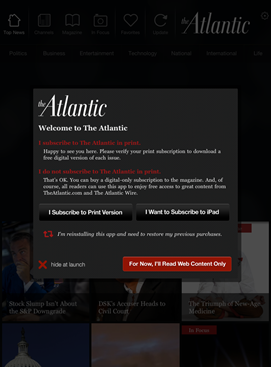
Subscription OptionsOpening the app looks good, the design is nice and the navigation is very intuitive.  Upon launching the app you get an option to connect your already-purchased subscription with the app, subscribe, or just read the free content.  The app updates the content with live feeds which takes a very short amount of time.  Almost instantly you have an ad in front of you which you can easily close.

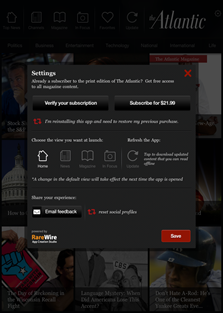
The settings of the app allow you to subscribe for a year or connect an existing subscription.  There’s a way to set the default view of the app so that it goes to the main page, the magazine, the photo stories or the news channels when it launches.  Settings also includes a link to e-mail feedback or get tech support.

Advertisement     App Settings

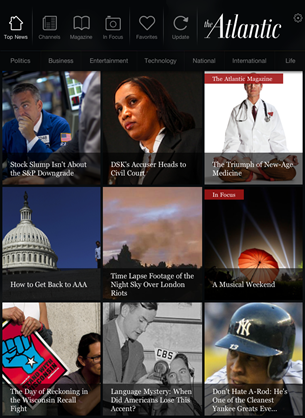
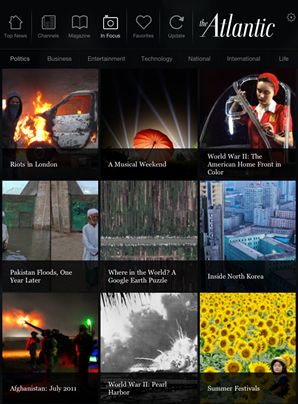
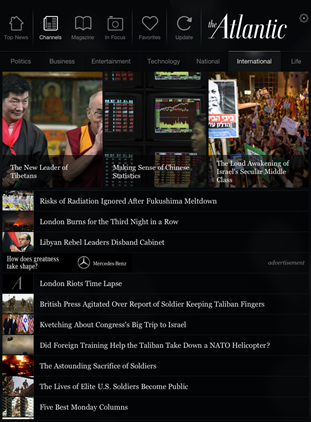
There’s just something very Flipboard-y or Pulse-y about the layout, however, which I can’t put my finger on.  When you click on the “Top News” button, everything is the same size and therefore given the same amount of importance. For some reason it doesn’t feel right. The place where that layout works great, on the other hand, is in the “In Focus” section, the collection of photo essays.  The photographs are beautiful and you can choose to swipe through different collections with or without the captions and credits.

In Focus: Photo Gallery

In the individual channel pages, such as Business or Technology, it’s not clear whether the articles are ordered by most recent story or by top stories.  I assume that the top three images are the top stories for that category.

International News Category

I mentioned above about the articles on the iPhone app feeling a bit squished.  The iPad app in portrait mode has a similar feeling although it’s less obvious.  The menu and navigation at the top and the related articles and ad at the bottom make it feel crowded.

Photo 09-08-2011 16 29 07

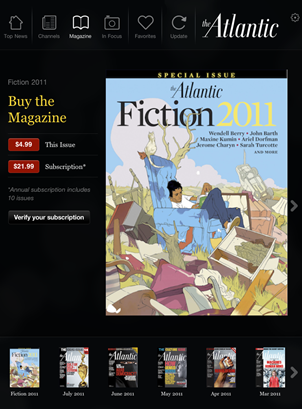
Moving in to the magazine feels very familiar to many existing magazine apps.  There is navigation at the bottom to select various issues, and the same navigation of the app remains at the top so you can go back to the news channels or photo gallery.  Each magazine issue allows you to swipe through the table of contents (although it is small so a bit difficult to read) as well as purchase that individual issue or an annual subscription.

Magazine Section

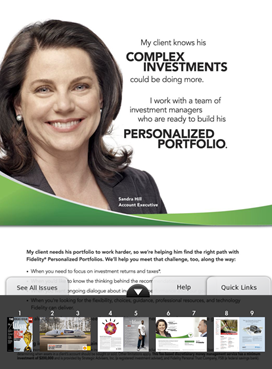
Once you’ve purchased and downloaded an issue, it’s again quite similar to many iPad magazine experiences.  You have a hideable navigation bar at the bottom, help information and links to specific regular columns.  The rest of the magazine is the same sort of PDF-ish feel.  Interestingly, clicking on a story name on the magazine cover or table of contents also navigates you to that article.

Navigating a Magazine

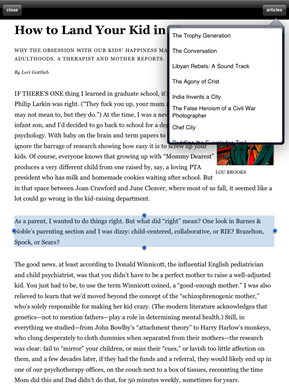
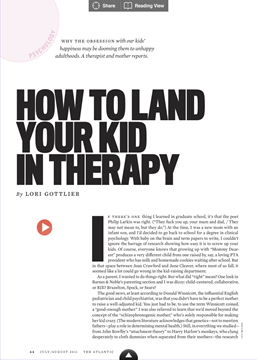
Magazine Reading ViewI want to discuss the reading experience in the magazine versus the free content.  In the magazine, each page is fairly static and you can pinch and zoom to increase text size or image size.  There are some videos but I couldn’t get any to play very long without crashing.  However clicking the “Reading View” button at the top was a very nice experience.  The chrome was gone, and I was left with no distractions in my reading: just a small picture and the article text.  In this view, you can also click an “articles” button at the top right to view other articles in the issue in the same way.  You can select and copy text (not an option in most magazines), pinch and zoom and scroll vertically through the article.  I loved this reading experience and it’s something I would definitely pay for: the lack of distractions.  I did feel as if I were missing out on some of the art of the articles, and I went back to several articles to page through them after reading them in the reading view, just to see the images.  In most of the articles, I hadn’t actually missed out on anything but ads.
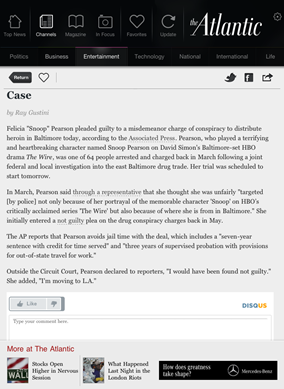
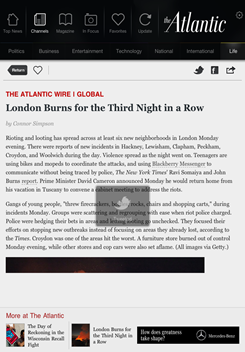
Reading Web ArticlesContrast that with the reading experience of the free content in the app.  Clicking on an article in one of the news channels gives you the article with photos and text, but there’s chrome around the article and no reading view.  Clicking the “Like” button added a less-than arrow in the article nav bar, but I never figured out what it was for.  Clicking the heart icon adds the article to your favourites section, but I couldn’t find a way to remove articles from there.  So there are a few odd UI things.   The disqus comments embedded at the bottom seem like a good idea, but they contribute to the reader feeling he or she is on the web anyway and not in an app designed for reading.  Plus the login mechanism is separate again so you have to also log in to disqus to post anything. The magazine reader in me wishes that stuff stayed on the website.  The good thing about reading the web content however is that it works fine in both portrait and landscape, whereas the magazine doesn’t seem to adjust (and usually crashed when I tried).
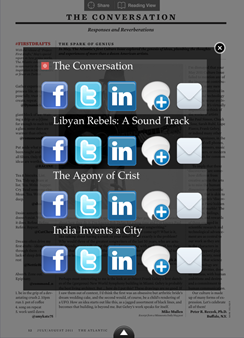
I’ll differentiate between sharing in a magazine article and sharing the free content as well.  In the magazine, you get a small overlay that actually contains the title of every article in the magazine issue.  For each one, you can select a variety of share options, and this is the first time I have ever seen the option to share via LinkedIn.  This overlay interface is strange because it looks confusing at first, and a few times I didn’t remember the exact title of the article I was reading. However in terms of actual implementation, it works much better than the free content sharing.  The e-mail sharing sends a link to the article on the website and it works great.

Sharing in Magazine     Sharing in Web Articles

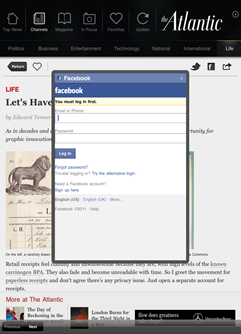
The free content gives you the option to share via Twitter, Facebook and e-mail like many publications.  I did not like it at all because you have no options to edit, you simply see a small fade-in message box telling you the article has been Tweeted or linked on Facebook.  This always bothers me because you have no idea what your tweet or Facebook link actually says.  In the case of Facebook, it kept giving me the login screen and never accepted my credentials.  It did end up posting one link however.  The Twitter integration never worked for me, but it did continue to tell me my links were being tweeted.

Something I expected to work at least in the iPad version is fast-app switching but the app does not support it and always starts from the beginning. So if you’re in the middle of an article you’ll have to remember where you were the next time you launch the app.


OVERALL

I’ll be honest, while the first time I downloaded and launched this application last week on my iPad it was fairly smooth, this week I have had a lot of problems just getting the iPad app to launch without crashing.  I don’t know if the app is very memory-heavy or if the technology is just new and buggy.  As it’s relying on live feeds, it could also suffer if one or more of those is overloaded or simply down.  I tried reinstalling a couple of times and killing all the other running apps on my iPad, but that didn’t seem to affect it. So hopefully it’s an intermittent issue or will be fixed in the next update.  I’ll try again tomorrow and see (note: this wasn’t an issue on the iPhone version, just the iPad).

Reading In MagazineTweeting from Free Article

Because the magazine is such a different reading experience, The Atlantic should consider offering one issue to download and read for free.  Or use The Economist model where they give you some of the editor’s recommendations for free in each issue.  I really loved the reading view and think it would encourage more people to pay up if they could try it out.

I hope more magazines start putting as much thought into their reader and making that reading experience great as the magazine section of The Atlantic does.  The app feels a little disjointed since the experience of the magazine and web content are so different, but I love the content and it’s fantastic to have the option to read both together in one app.  As digital magazines begin to need analytics showing large numbers of both downloads and paid subscribers to sell ads in their iPad editions, I think we’ll see more of this hybrid approach.  Too many magazine apps get downloaded and ignored or deleted because without spending $5 the reader has nothing to engage him or her.

Welcome to Web App Magazines

Having spent the last ten months working on a handful of digital magazine projects, I understand the feeling of fear that builds as you discuss growing your audience on different devices, different platforms, different screen sizes. There are a lot of additional factors beyond this that affect the quality of your publication to new readers.

It might be frightening because your team doesn’t have the skills in-house to build for a new phone OS.  It might make you nervous because you know there’s no money to design and create another version.  It could be scary because your team is small and in the fast-paced world of publishing, they’re already completely overloaded.

But there’s no denying the audiences and the ecosystems of the existing app stores.  You have to go where your customers are, right?

The answer, as always, is, “It depends.”

I was thrilled to see the positive responses the Financial Times received a few weeks ago when they announced their wonderful new web app.  The team behind the FT have mentioned many benefits of their web app, including better relationships with their customers, easier and instantaneous updates, and the ability to do more since they’re only building for one platform versus many.  They have a great, short Q&A on the technical how & why of their new web app here: http://aboutus.ft.com/2011/06/07/ft-web-app-technical-qa/

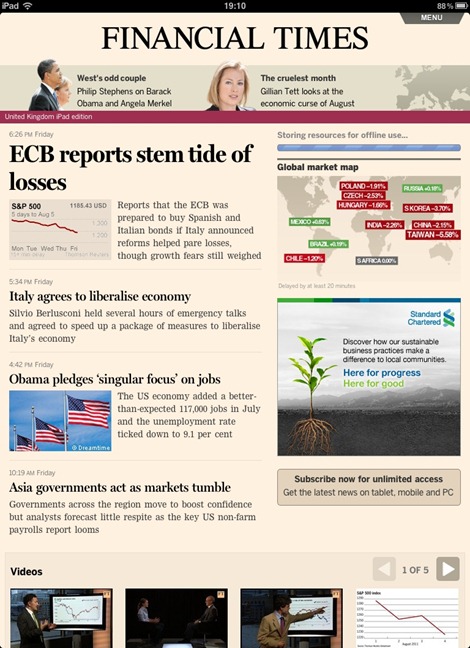
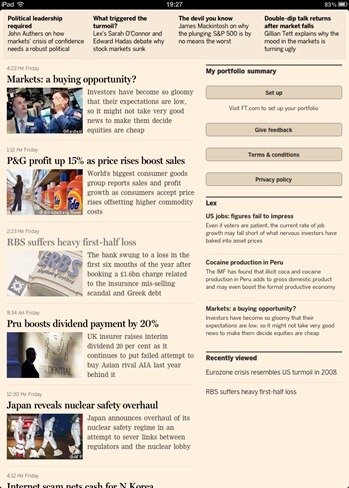
Front Page of Financial Times Web App

WHAT ABOUT VISIBILITY?

Perhaps the Financial Times is able to do this since they already have a large customer base with more than 224,000 paying online subscribers and digital revenue growth last year of 47%.  After only a week of being live, over 100,000 people had accessed the new web app. If you’re a new or small publication, would the same thing work?  Or do new companies need the visibility of the App Store to succeed?

WHAT ABOUT PERFORMANCE?

Another criticism of web app publications is speed.  Apple had updated mobile Safari in iOS 4.3 with the much faster Nitro Javascript engine, however that wasn’t extended to home screen web apps, causing web apps to perform much more slowly than native applications.  This has apparently been addressed in iOS 5 so perhaps that will help alleviate some of the perception that web apps are slow.

HOW DOES IT STACK UP?

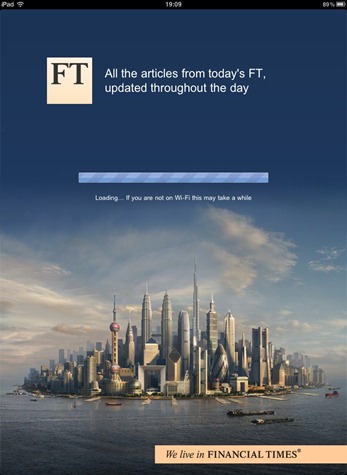
Launch Screen for Financial Times Web App

It’s slick.  Really slick.  Even launching the app feels native.  Although you can see ads and images download and appear a bit more slowly than text, as you would on a regular browser depending on your connection speed, the entire thing is very responsive.

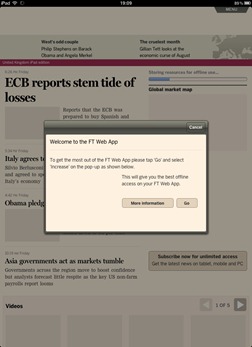
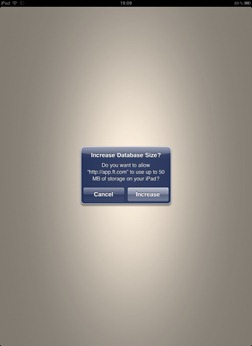
The first time the web app launches, it asks you to permit it increased storage so it can cache and store offline content.  It explains it very clearly and nothing seemed awkward or confusing.

Request Database Size Increase   Increase Database Size

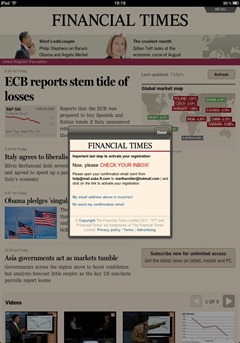
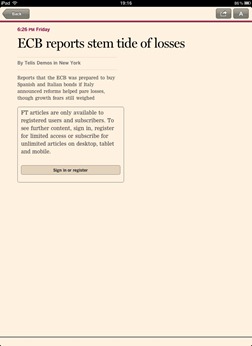
The registration process is very straightforward and fast, and registering allows you to access more articles than the casual viewer.  Without registering, some of the articles are little more than a line or two.

Finished Registration  Reading Article Not Signed In

Articles allow changing of type-size as well as sending the article link via e-mail, Twitter and Facebook.  All three of these things, however, drop you into a new Safari instance instead of using an overlay, which is a little annoying.  However, leaving the app & coming back takes you back to the article you were on, just like native iOS fast-app switching.

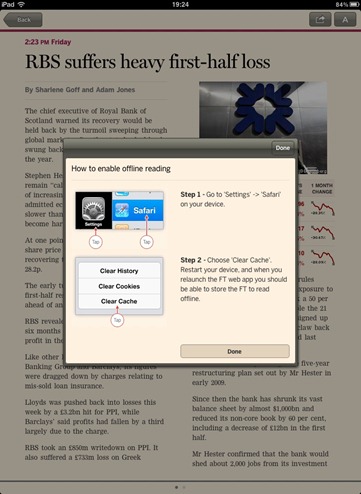
After a bit of reading or possibly a network interruption (I’m not entirely clear what triggered it), I received a nice overlay letting me know how to set up offline reading so I can presumably let the web app sync & then read the content offline.

Enable Offline Reading

A small section on the front page gives pointers to privacy policy, t&c, feedback link and a profile set-up, which seemed like a strange place for it to go, but maybe they thought since they already had configuration options at the top this would be a bit more clear.

Feedback, T&C and Privacy Policy

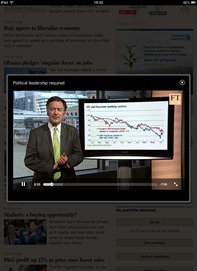
The streamed videos were quite nice as they create a nice light box effect which you can enhance by expanding the video to full screen.

Video with UI   Full Screen Video

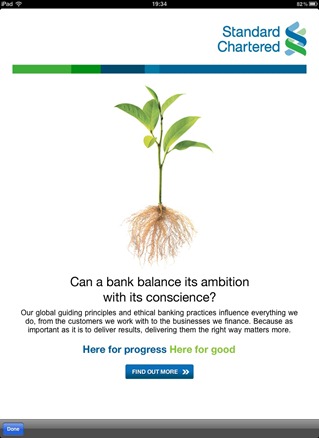
The advertisements remind me of print magazines.  They show up occasionally and allow you to close them or turn the page when you’re finished.

Advertisement

OVERALL

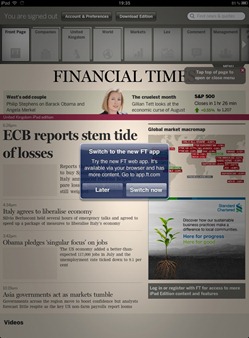
Check Out the Web AppAfter I finished taking a look at the web app, I launched the native app and thought it was funny to see a message box letting me know I could use their new web app instead.  I find very little difference between the two versions.  The images, ads and videos load slightly faster initially on the native app, but as I mentioned above, perhaps this will become a non-issue when iOS 5 comes around to boost web app speed.

This web app is a huge success and having come from an established publication like the Financial Times, it helps to pave the way for other media channels to avoid the app stores if they want to.  Web apps today may not have all the bells and whistles that native apps can have, but they can certainly deliver a world class title in an intuitive and well-designed way.

For small and new publishers who are scared of Apple’s 30% cut of their already-very-tight margins, it’s a great relief to know there are options available.