Tuesday Newsday: Pay walls, Freemium, Business Class – What Works?

There’s backlash against pay walls, dropping ad rates, and a serious amount of competition for viewer eyeballs.  How should online publishers navigate the world of pay walls and premium content, whether we’re talking about tablet publications or web publications? Will people pay for content? Especially given that there is so much available for free?

To investigate the different business models, today I’m looking at a few sites and apps: the Boston Globe premium site, The New York Times’ new paywall, and the blended model of The Atlantic.


BUSINESS CLASS NEWS: THE BOSTON GLOBE
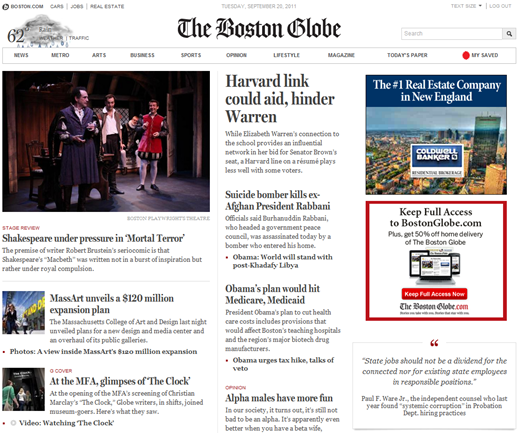
The Boston Globe

The Boston Globe made headlines last week with their beautiful new premium news site, http://www.bostonglobe.com.  The site is free until the end of September so that people can try it out for a few weeks and enjoy the new design and features.  Their previous site, http://www.boston.com, shown below, remains in place and is free.
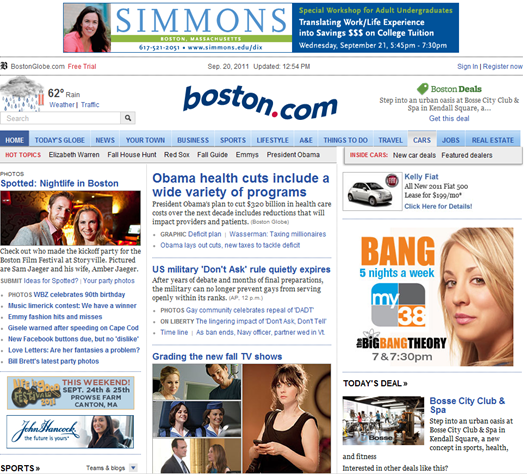
 

Current version of www.boston.com

What’s so exciting about the new site?  The new site appears to have been a complete overhaul, starting from scratch with no legacy.  It’s automatically customized for any device, uses a responsive design, and looks great everywhere. The design is clean and fresh and easy to use. There is no need to pinch or zoom no matter how you’re viewing it.
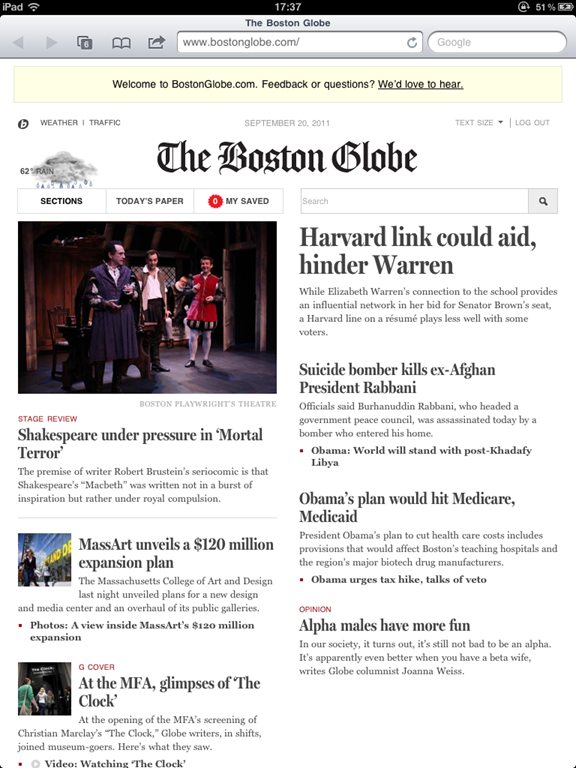

BostonGlobe.com on iPad   BostonGlobe.com on iPad

Additional nice touches include the ability to save stories for offline reading, additional video and photography, access to archives and back issues and a loyalty program for subscribers to get access to special events.

As a bonus, since the new Boston Globe site is in HTML5 and works in Mobile Safari, they can presumably ignore the App Store if they want and hang on to their subscriber information as well as the 30% apple cut.


  BostonGlobe.com on iPhone  BostonGlobe.com on iPhone  BostonGlobe.com on iPhone

Will this model work?  The Boston Globe already had over 6 million uniques each month on its previous site.  This is a very new site so we will have to wait and see what the numbers look like after the pay wall goes up in October.  I notice a lot of people online claiming they would be happy to pay small subscriptions for better content, fewer ads, access anywhere and other perks, so hopefully this works out and makes the extra effort of running two distinct sites worth it.


FREQUENT USER PAYWALL: THE NEW YORK TIMES
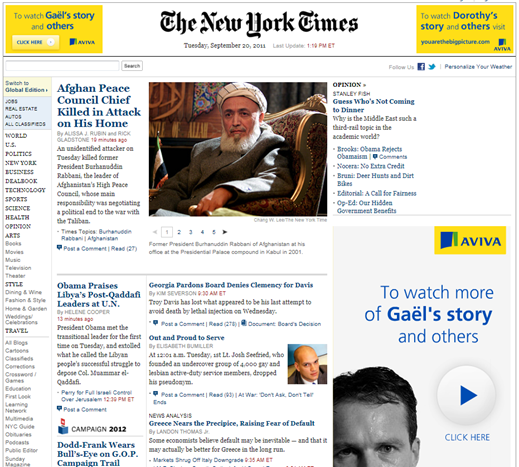
NYTimes.com Front Page

In March of this year, the New York Times site http://nytimes.com launched a new pay wall with a structure designed to draw a line between casual readers and avid readers of The New York Times.  Casual readers, those reading less than 20 articles per month, have free access to the articles.  Once a reader has crossed the threshold of 20 articles, he or she is asked to pay between $15 & $35 per month depending on the access requested (browser only, iPad app, etc.) as shown in the table below.
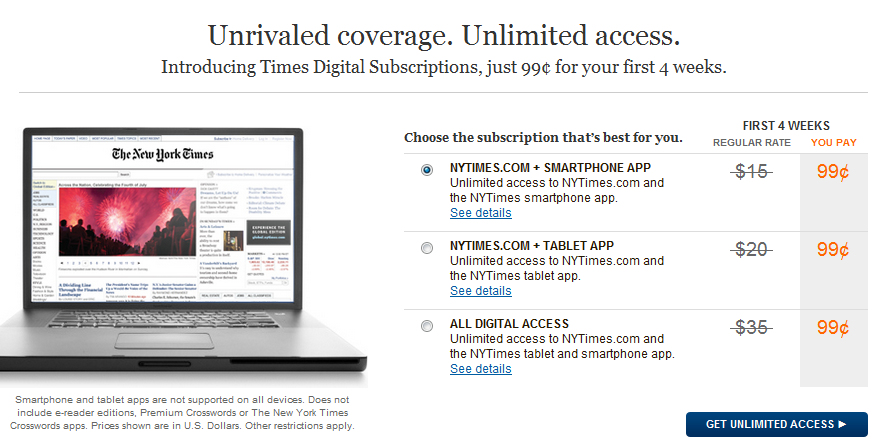
Digital Subscription Pricing for nytimes.com

Large business papers like The Financial Times and The Wall Street Journal have been charging for their content for a while now, but The New York Times has been offering free content, with occasional experiments in access restriction like requiring users to log in.  In January of this year, http://www.nytimes.com reported over 48 million unique visitors.  Once the pay wall went up in March, visits to http://www.nytimes.com were said to have dropped as much as 15 per cent almost immediately.
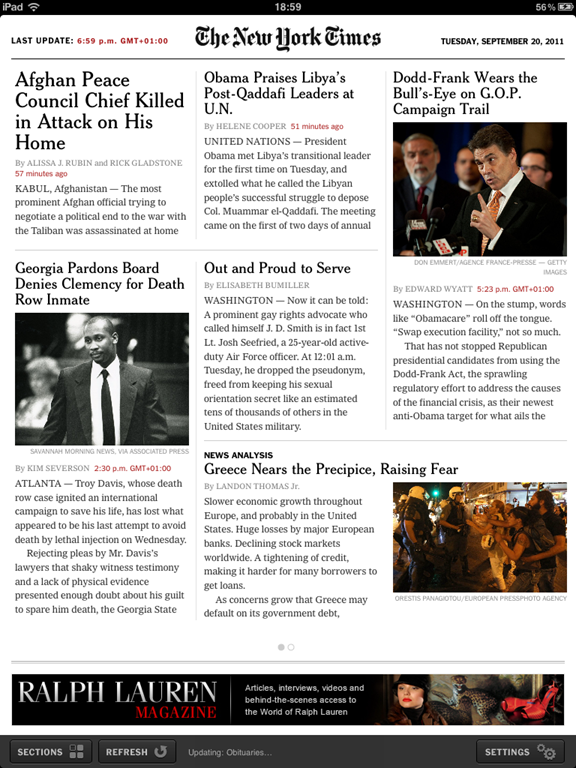
              NY Times on iPad

Many print+online newspapers are getting to the point where they realize they need to do something to monetize their online presence, especially given that print subscriptions are dropping.  But people get scared when they hear about reader drop-off from pay walls. 

“Oh no!” they shriek. “If everyone leaves, our advertisers will see the numbers and leave or demand lower ad rates!”

It seems like a big problem.

The New York Times thought about this a lot. They give all print subscribers free all access subscriptions.  Here are people who already like your content; if they’re not already reading it online why not let them for free, as it may add more regular website visitors.  For new digital subscribers, they have three different plans to suit various use cases, with a very heavily discounted starting rate of 99 cents.
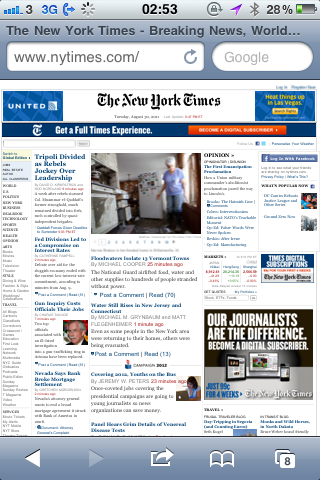
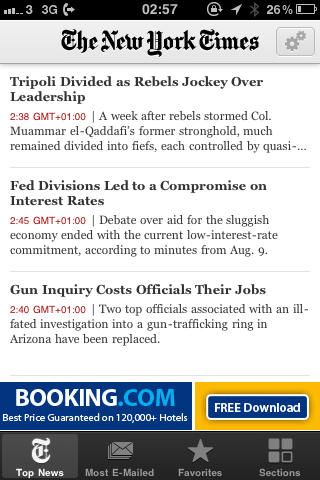
NY Times in Mobile Safari on iPhone    NY Times in iPhone App

Right, right, back to the reader drop off.  If you were never making any money from any visitors (only advertisers), certainly any subscriber paying you should increase your revenue, provided the numbers don’t drop so severely that you lose all the advertisers.  This is why the casual free access is critical, it keeps the visitor number relatively high.  There’s a balance to how much drop-off the site can sustain while gaining revenues from paying customers.  In May, a Citi analyst predicted that if the NY Times lost 20% of its visitors, it would need around 107k subscribers to break even.

107k subscribers is definitely a large number.  But is it unreasonable? In April they reported over 100,000 new digital subscribers and by August over 400,000.  Without exact visitor and advertiser revenue numbers it’s hard to say whether that equals success or not, but it sounds promising. 

It reminds me a lot of a blog post Marco Arment wrote earlier this year (and also discussed on his excellent podcast with Dan Benjamin, Build and Analyze) where he discussed the economics of removing the free version of Instapaper.  He mentions bad conversion rates, low demand, undesirable customers, and other pieces that contribute to why free apps might not make sense, both economically and psychologically in terms of dealing with people who take free things for granted.
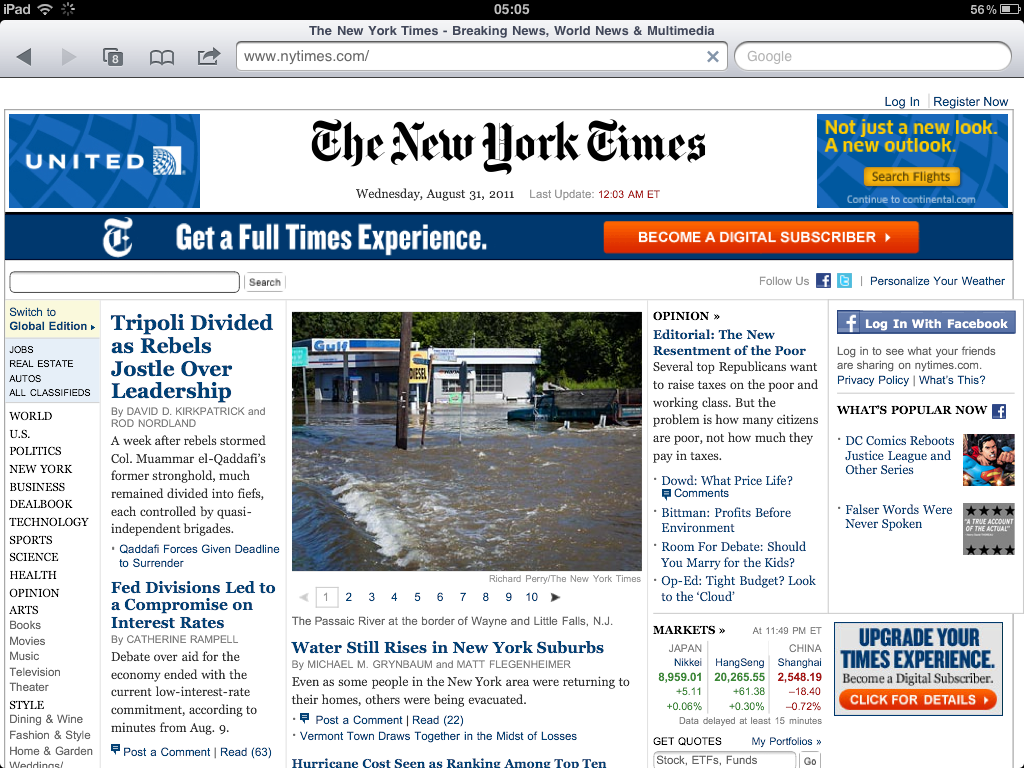
NY Times in Mobile Safari on iPad

Will this model work?  The New York Times has done its homework in designing and implementing this pay wall.  It’s not overly restrictive, yet it’s already working in growing subscriptions.  Perhaps this model works best here as The New York Times already had a huge audience, but smaller, local US newspapers like The Augusta Chronicle are also trying this out.  A report from the Reynolds Journalism Institute at the University of Missouri revealed earlier this summer that 46% of newspapers with circulation of under 25,000 said they are already charging for at least some online content.  Of the newspapers that currently don’t charge, only 15% said they have no plans for a pay model.  Get ready.


BLENDING FREE AND PAID: THE ATLANTIC
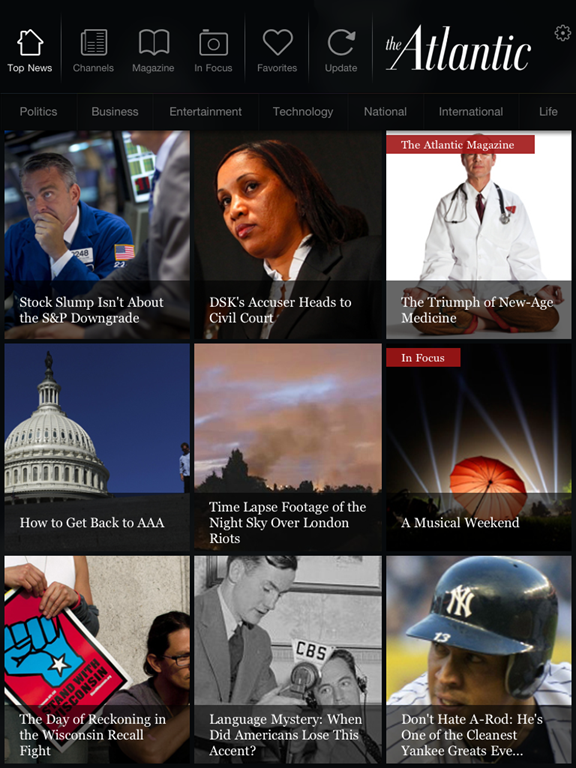
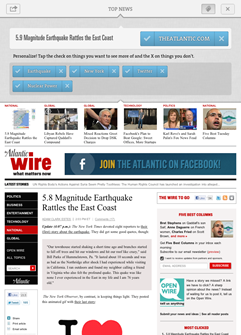
                    The Atlantic app on iPad

I have blogged previously about the nice job The Atlantic did with their combination free-and-paid content app. Their free, universal iOS app includes their great website content from both http://theatlantic.com and http://www.theatlanticwire.com. But it also includes a magazine section which allows print magazine subscribers to access the same content for free and non-print subscribers to either purchase a digital subscription or buy individual issues via in-app purchase.

This is a nice blend as it allows the casual reader of The Atlantic to purchase occasional issues, such as the annual Fiction issue, while also giving free access to existing readers.  The annual digital subscription is slightly discounted at $21.99 (print subscriptions cost $24.95 or more for outside the US) and looking at their page in the App Store shows that the annual subscription is their top-selling in-app purchase, which is a good sign that people are paying for it.
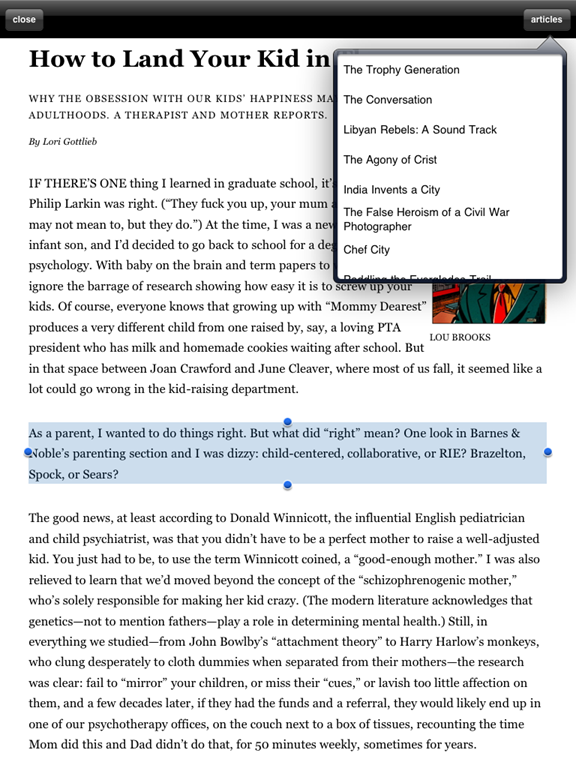
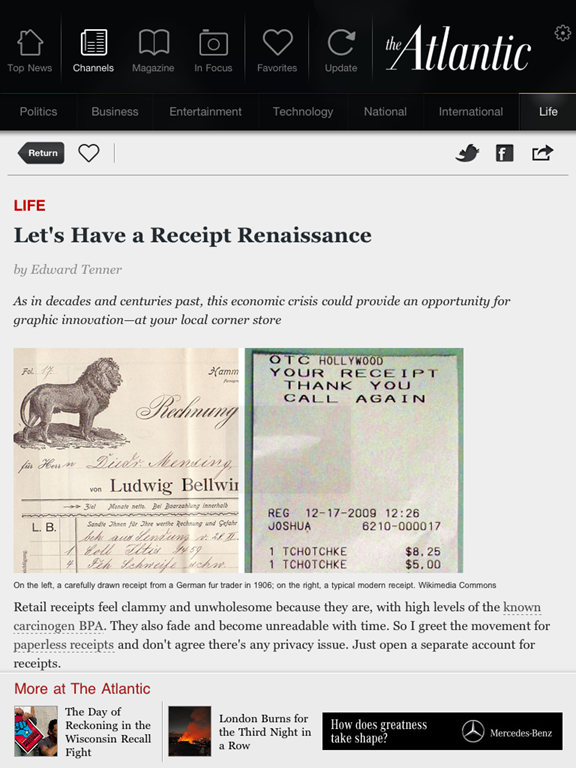
Atlantic Magazine article on iPad    Atlantic web article in iPad app

Will this model work?  I mentioned in my previous blog post that while I think their magazine reading experience is decent, I think they may suffer a bit from people reluctant to spend money just to try out the magazine.  Offering one free magazine download to app users might increase the number of people willing to purchase occasional issues or full subscriptions.  While The Atlantic already has a large subscriber base, this model would also work for publications with smaller audiences who need to build their subscribers.  It works because it allows easy access to content in a well-designed manner, and then also has something to offer the individual who is enjoying the content & still wants more.


WHAT SHOULD I DO?

Perhaps one of the above models will work for your publication. Perhaps not. If you’re scared of reader dropout with a pay wall, remember that even high traffic sites like http://theonion.com are conscious of this and testing it out as an experiment.  Now is the time for trying disruptive and experimental models because no one has found the one right way to ensure publishers make their content available in the best manner for their audience.  Not everyone can fund their site based on advertising alone, so it’s time to be creative.

Here are some other random ideas:
– What about not charging your top influentials? People that share X articles per month get free access.  Or people who comment on >X articles per month get free access.
– Instead of charging for “subscriptions”, charge a “membership fee” like some top reporting sites do.
– Give away whatever the current content (this week’s paper, this month’s magazine) is but charge for access to archives.
– Give away content for free on the site but charge for the convenience of the mobile app.
Coupon codes: Let your contributors give away coupon codes to their family and friends for free access forever or for a limited time.  Do the same with influential users so they can share more easily.
Give away summary content for free on Facebook & Google Plus (what will happen with the new Wall Street Journal idea?), charge for it on your site
– Give away content for free for a limited time to show off new design or features, ala Boston Globe’s relaunch: “Free for September, after that we lock it down.”
– Give away every new feature for free for a limited time, then put it into the members-only access pile.
– Team up with partner sites and non-competitors to offer access to several sites together, or offer discounts on partner products/sites like the Slovakian newspapers.
– Take an exclusive advertiser to sponsor the development of a new mobile app.
– Offer free trials during partner/media events. You’re the media partner for the food festival? All attendees get a free month of access.

There are loads of other ideas that no one else has come up with yet. Lots of publishers are starting to build their own, creative labs like the NY Times’ Beta620 project, the Globe Lab responsible for BostonGlobe.com, and The Guardian’s Open Platform and Data Store projects.  These range from well-funded projects to crowd-sourced experiments, but they’re all coming up with new ideas that are creating conversation.


beta620 from the New York Times    GlobeLab on Twitter


READ MORE: 

The following articles are also good sources of inspiration for new models and thinking differently about this space:
What newsrooms can learn from tech start-ups
Innovation in turbulent times
NYT Labs: Can a newspaper think like a start-up?
An Introduction to Treesaver

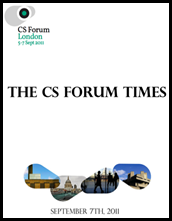
The CS Forum TimesIn my Content Strategy Forum workshop, we created a short, online magazine called The CS Forum TimesThe magazine used Treesaver to quickly layout the articles and images and make them work well on a variety of browsers and devices.  This is an overview of how we built The CS Forum Times and how you can do something similar very quickly and easily.  The before and after files we used are located here for you to download.
 

To create your own online publication, the simple steps are as follows:

  1. 1) Source your content
  2. 2) Source your art/imagery
  3. 3) Create a new HTML file for each article & paste in the content
  4. 4) Style using an HTML editor
  5. 5) Resize images if necessary & add in image tags
  6. 6) Edit the TOC file & make sure you’ve included each article
  7. 7) Upload to your server


1) SOURCE YOUR CONTENT

With The CS Forum Times, I chose published articles from well-known speakers and organizers of CS Forum 2011.  Using content that is on the web makes it much easier as converting content from a PDF or Word document into HTML can be a pain.

NOTE: As this is just a short, proof-of-concept tutorial, I am not covering rights management, copyright, asset management, etc.  It is your responsibility to make sure you have the right permissions to reuse and publish material that is not yours or not original.


2) SOURCE YOUR ART/IMAGERY

I was lucky with the articles I found in that most of them already had relevant artwork in the articles.  For a couple of the longer articles, I also added things like company and conference logos as well as headshots.

I wanted to have a cover, but it may or may not be necessary for your title.  I did this simply by creating a few full-page sized images in an image editor using logos and text from the event.


3) CREATE A NEW HTML FILE FOR EACH ARTICLE

Now here I’ve helped you out by creating a small boilerplate zip file.  Inside the WorkshopBegin folder you’ll find everything you need for a simple Treesaver magazine.  Index.html is a sample cover page.  Page1.html is a sample article page.

The best thing to do is duplicate page1.html for each article you have.  So if you have four articles, copy it three times and rename them so you have page1.html, page2.html, etc. Or use better names that make more sense to you. 

Inside page1.html I’ve added two comment tags that look like this:
<!– PASTE CONTENT BELOW THIS LINE –>
<!– PASTE CONTENT ABOVE THIS LINE –>
Inside those two lines is where you want to paste the content of the article.  What are you actually pasting? Lets say we’re including my last blog post: https://blog.martharotter.com/cs-forum-2011-my-workshop-slides-content/.  I can copy & paste from the browser, starting with “Last week…” and ending with “…excellent places to start.”  Alternately, I can do a “View page source” from my browser to take all the HTML styling with me and save me some time later.  So instead I would be starting with whatever comes after “<div class=”entry-content”>”, which is how WordPress tells you the blog post text is starting.  That would have me copying starting with “<p>Last week I …” and ending with “…</a> are excellent places to start.</p>”


4) STYLE USING AN HTML EDITOR

If you copied HTML content including the tags, you may not have to style it.  However it’s more likely that you’ll want to do a bit of styling to create paragraph breaks, make headings stand out, etc.  If you use any HTML editor such as CoffeeCup, BBEdit or something similar, then go ahead and open your new HTML files there and give them some style.  Take it slow at first and check frequently to make sure it’s looking the way you’d expect.

Due to browser security restrictions, the files will appear most accurate if you view Treesaver content running in a local web server.  A free app like XAMPP (works on Windows, OS X, Linux) is easy-to-use and adequate for viewing the files on a local server and checking to make sure they look and work right.


5) RESIZE IMAGES IF NECESSARY AND EDIT IMAGE TAGS

As you may notice if you resize your browser, Treesaver will adjust the image used for your content.  This has some great benefits, including mobile devices will not try to download an enormous image and then resize it and differently sized images don’t have to be of the same thing.

But those benefits do mean that you will need to resize and save your images at a few different sizes.  I’d recommend going for at least two, one for a mobile device (width of 280 or so) and one for a desktop browser (width of 600-ish), but you can create more depending on your style.  For the cover page, as an example, I created three to make sure the full-size image fit well for the viewer.

Any image editor will work fine, you just need to resize the image (keep the proportions intact) and save it with a different name.  I typically add the width to the end of the image file name to keep them straight.  So if my initial image was headshot.jpg, I resize and end up with headshot-280.jpg & headshot-600.jpg.

Editing the image tags can be tricky so be careful.  Each set of resized images must be enclosed in a <figure> tag.   The image tags themselves should have their height & weight attributes set.  So as an example, the two images above might look like this at the end of the html file:

<figure>
    <img data-sizes=”single” src=”
img/headshot-200.jpg
width=”280″ height=”130″ />
    <img data-sizes=”double” data-src=”headshot-600.jpg”
width=”600″ height=”280″ />
</figure>

The image tags are to be placed in the corresponding article’s HTML file.


6) EDIT THE TOC FILE

The last thing you need to do before you upload is edit the Table of Contents file.  The TOC file specifies the order of the articles and which ones are included so it’s very important.

For each article to be included, you’ll need a hyperlink to the article with the attribute “itemprop=url”.  A typical article might look like this:

<div class=”keeptogether” itemscope>
<h5 itemprop=”title”><a itemprop=”url” href=”
article1.html“>My First Article</a></h5>
</div>

The TOC file can get more complex including things like advertisements, an actual page for the TOC (the one included keeps itself hidden) with titles, bylines & thumbnails, etc.  We’re keeping it as a simple list of article titles here.


7) UPLOAD TO SERVER

Once you have everything ready to go and you’ve checked it out in XAMPP or another local file server, you’re ready to upload everything onto your server.  You’ll need to include everything that was in the .zip file including resources.html, style.css and your edited article and TOC files.  You’ll also need the image files you resized, whether they’re in the same folder or a subfolder.  Upload all of that to your webserver and navigate to it in a browser.  Voila!  Your brand new publication is online and live.


I REALLY MEANT “BRIEF OVERVIEW”

treesaver logoYes, this is a very short overview.  Treesaver is quite powerful in terms of what it can do and I’ve tried to minimize as much complexity as I could to make it a fast tool to get started with. To learn more, check out the discussion on Google Groups and walk through the tutorial on GitHub.  To do more with Treesaver you’ll need to start to understand how the resources.html & style.css files depend on each other to define the layout and customize content further.  There’s a bit about this in the GitHub tutorial, but it takes some time to get your head around it.


WHERE ARE THE TOOLS?

I know, I know, cut-and-paste is not a valid tool or method of publishing.  Treesaver is new and still building its community.  I hear there are folks working on plug-ins for a few popular CMSs like Expression Engine, WordPress and Drupal.  Your best bet for the latest news on those is the Google Group.  If you are working in an organization with a custom CMS, your tech team can look at Treesaver to see if it’s an option for them to build a plug-in for it.


SUMMARY

If you give it a shot, please be sure to let me know how it goes.  If you get stuck or confused, e-mail me or check the Google Group discussions for more information.  If there are additional pieces that are tricky or could use some more clear instructions, let me know and I’ll do a more in-depth piece on specific sections.  Good luck and publish away.

CS Forum 2011 :: My Workshop Slides & Content

Last week I delivered a half-day workshopimage at Content Strategy 2011 London on Designing Narrative ContentWe covered topics like what makes narrative content effective versus useless, how to optimise workflow for narrative content, and technology options for narrative content.  The slides are below.

During the last section of the workshop we created our own, short, digital magazine called The CS Forum Times, which  is now here: https://martharotter.com/csforum/ts/index.html.  The magazine content is recent articles and blog posts from speakers and organizers of CS Forum 2011 and was created in Treesaver.  There are materials at https://martharotter.com/csforum for those who would like a small boilerplate to start with.

The next blog post I do will be a short intro on how I built The CS Forum Times using Treesaver and will include some of the demos I did in the workshop with altering image sizes, so if you take a look at the starting point and want to know more, that blog post tomorrow will be a good overview.  If you’re interested in learning how to do more with Treesaver, http://treesaverjs.com & http://groups.google.com/group/treesaverjs?pli=1 are excellent places to start.

Tuesday Newsday: Two Approaches to Magazine Apps

Today I’m looking at two literary institutions and how they approached their app versions: The New Yorker and McSweeney’s.  I call both of them institutions because, while I know the New Yorker has been around far, far longer, both have grown from publishing regular collections of excellent writing to well-known publishing houses with large, fervent fan bases.

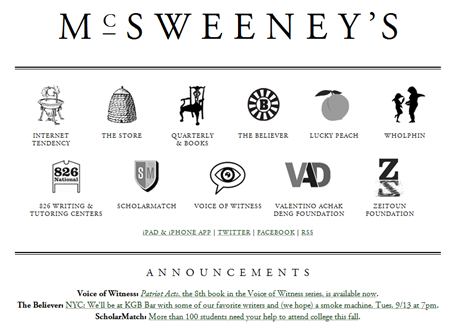
McSweeney's Website

I fell in love with McSweeney’s around ten years ago after a friend pointed me to Timothy McSweeney’s Internet Tendency collection of Lists.  From there I grew to being a regular reader of the hilarious writing which was less in-your-face-hilarious like The Onion (unless you are one of those people who shows up regularly on Literally Unbelievable) but somehow more rewardingly funny.  As if one might get points for liking it because not everyone gets it.  McSweeney’s actually started in 1998 as a journal to publish only works rejected by other magazines, but they quickly abandoned that rule and became a very attractive literary publication to write for.  They publish the print journal quarterly along with a quarterly DVD magazine called Wholphin, a monthly magazine called The Believer, and their regularly updated Internet content too.

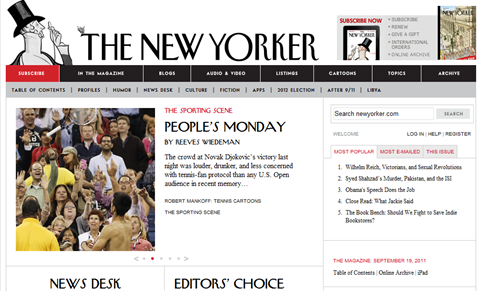
The New Yorker website

The New Yorker has always been sort of a guilty pleasure for me.  The writing and journalism is so good that I can’t stand buying a copy without reading the whole thing, but it takes me forever.  So I only buy it when I have several long flights coming up.  The New Yorker, in stark contrast to McSweeney’s, has been around since 1925 (it became part of Condé Nast in 1999), and its timeless covers, cartoons and illustrations are classic.  The New Yorker continues to publish its weekly print collection of well-researched journalism and essays as well as newsletters, cartoon collections and podcasts.  Their content is made available for iPhone/iPad, Kindle and Nook as well as an audio-only version via Audible.com.  The New Yorker artwork and covers are sold as popular wall art, diaries, and various other gift and desk items.

So both of these publishers do a lot more than just publish their excellent writing.  Both also have created dedicated, specific iPad apps for their content, so let’s take a look at them.

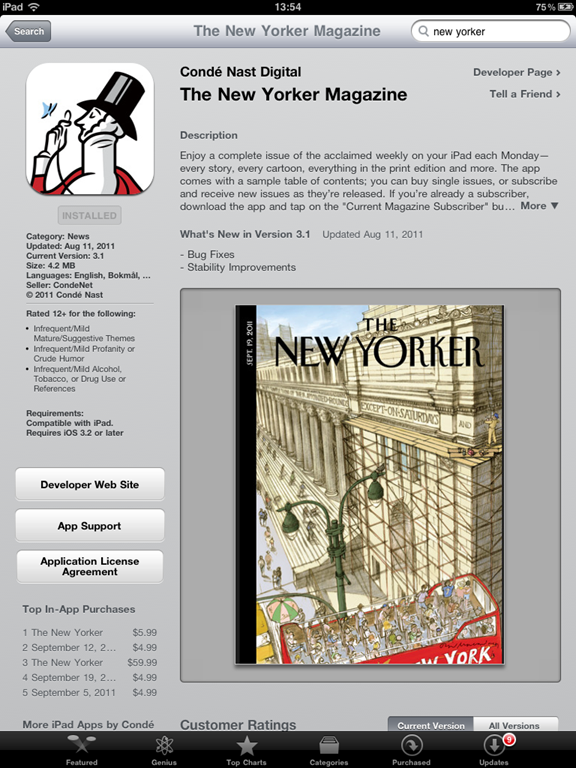
Both apps require you to pay in some way for their content.   With McSweeney’s, you pay $5.99 for the app and get six months of exclusive content.  With the New Yorker, the app is free but you pay for either a monthly or annual subscription ($5.99/$59.99 respectively), or link your existing print subscription, or purchase individual magazines for $4.99.


The New Yorker App Splash Page

THE NEW YORKER

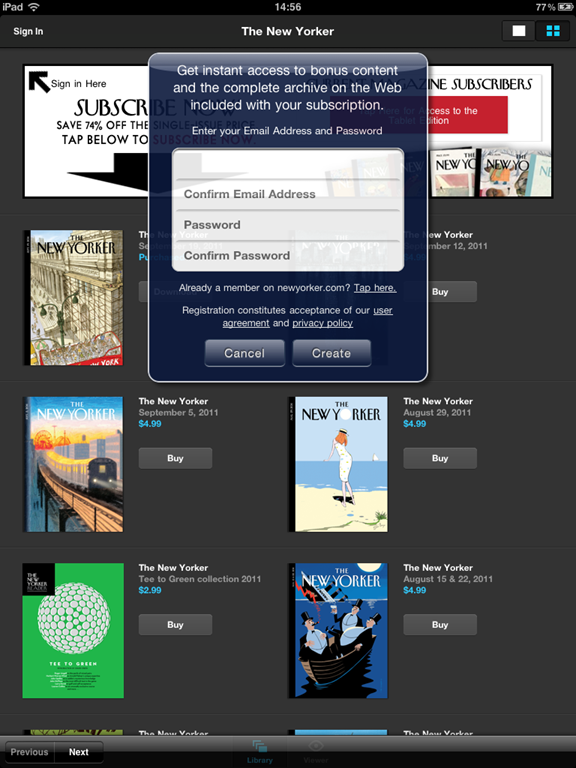
There’s really nothing to do or browse with the New Yorker app unless you buy an issue or subscribe.  Once you subscribe or purchase, you get a pop-up asking you to fill in an e-mail address & password for additional bonus content.  This is a clever move as one of the most lamented aspects of the App Store by publishers (and in fact, the reason The Financial Times claims is why they ended up creating their HTML5 app) is that they lose a lot of their personal connection and demographic information of their subscribers. 

New Yorker in App Store   New Yorker Create Account

A subscription for a month and one individual issue are only a single dollar difference, so I subscribed for a month, but I know I’m going to spend this month guilt-ridden that I haven’t gotten through all the great content yet.  Issues are heavy at over 100 MB each and take a bit of time to download.  Mine paused for a while, and I thought it might be due to space, so I cleared out some room. But it never finished downloading the issue, even after cancelling & restarting the download. I’ll try it again next week.

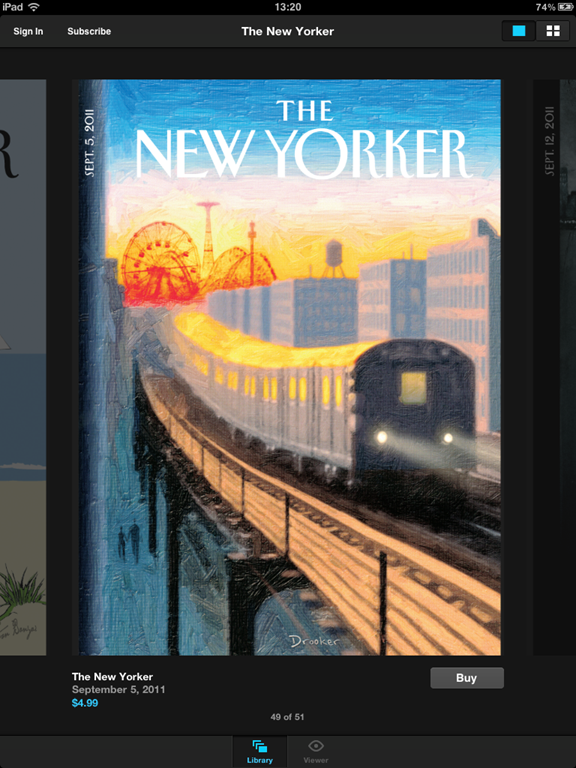
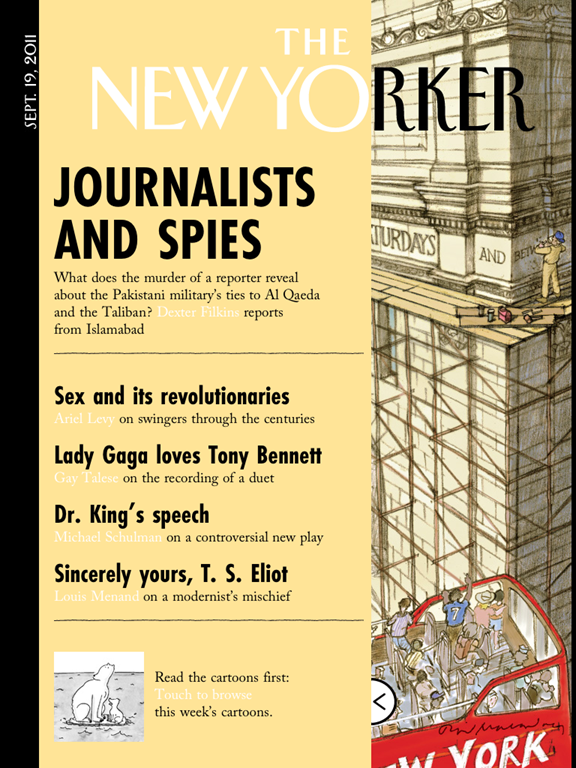
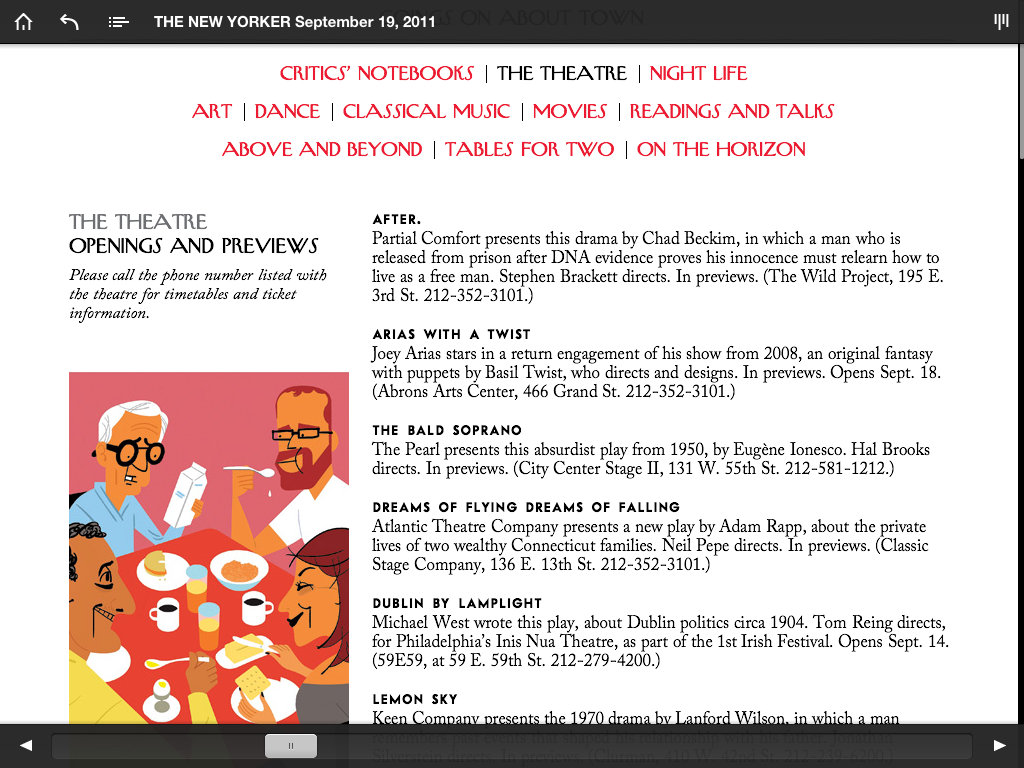
Luckily you can start reading partially downloaded issues.  Once you jump into the issue it looks just like the physical magazine, including a slide-out panel for the typical print cover overlay.

New Yorker Cover View   New Yorker Issue View

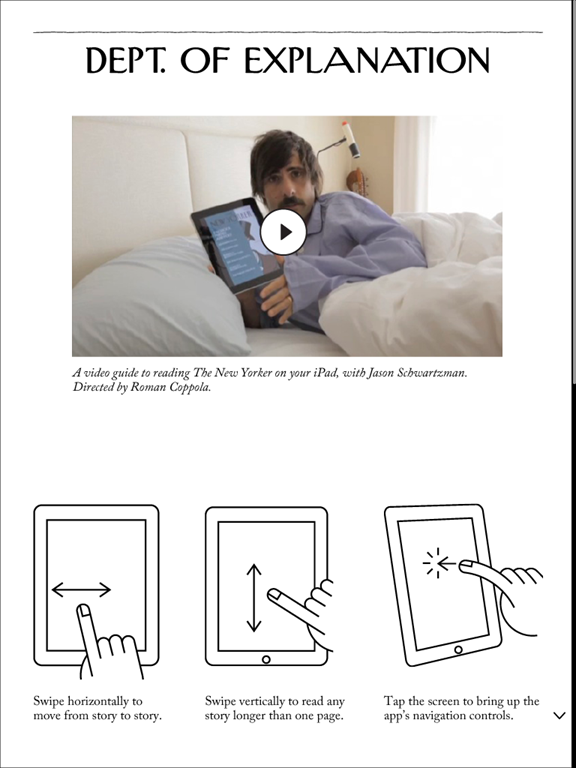
I’m torn on the “How To” pages in apps.  Part of me thinks you just shouldn’t have to explain it (i.e., if you need a page to explain how it works, yer doin’ it wrong), but part of me knows that a lot of these gestures just aren’t second nature or intuitive to everyone yet.  For this one you may dock or award points for their odd and occasionally funny instructions video featuring Jason Schwartzman.  The rest of the app is more or less what you would expect from Conde Nast. 

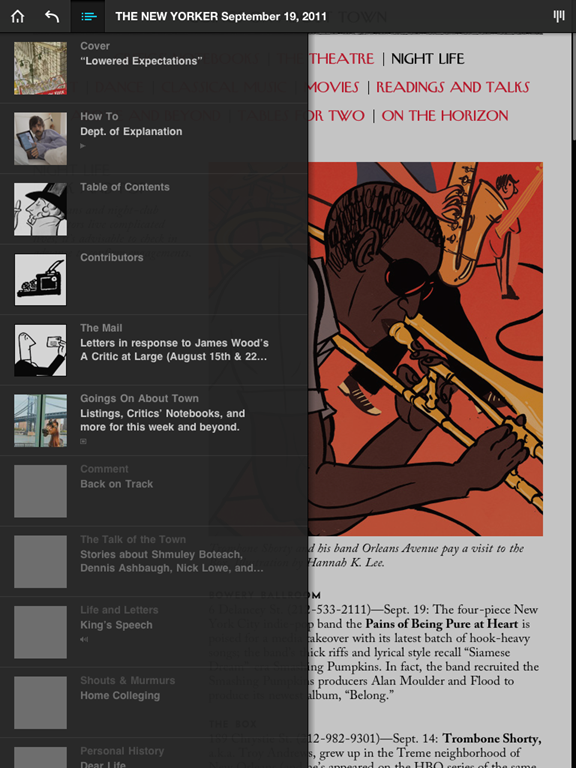
New Yorker How-To Page   New Yorker Table of Contents View

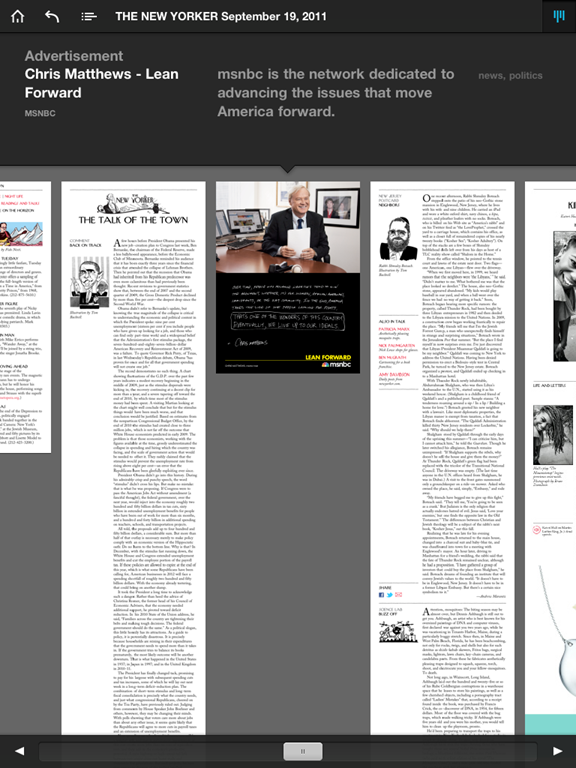
Articles scroll top-to-bottom, and a left-right swipe navigates to the next page.  There’s a zoom out button in the top right corner to navigate more quickly through the app, and a slider at the bottom of each page to move you forwards or backwards fast.  You can get a pop-out table of contents box also to jump around.

New Yorker Article View   New Yorker Zoomed Out Navigation

If you’re a frequent reader of The New Yorker, you might find this app to be an handy way to take your content with you.  It’s a nicer app than many other popular iPad magazine apps, and it’s doing the best out of all the Condé Nast iPad publications with a reported 20,000 subscribers.  Not anywhere close to their one million print subscribers (Condé Nast reported in August that their digital sales were around 1.3% of their total circulation), but still a definite lead.  There are definitely some optimizations they could do for the iPad format to make it more responsive and an overall better fit.  For example, it’s often not clear what is clickable and what isn’t (images, ads, etc.). But if you’re looking just for an easy way to get to the great content The New Yorker publishes, you’ll be very happy with this app.


McSweeney's Splash Page

MCSWEENEY’S

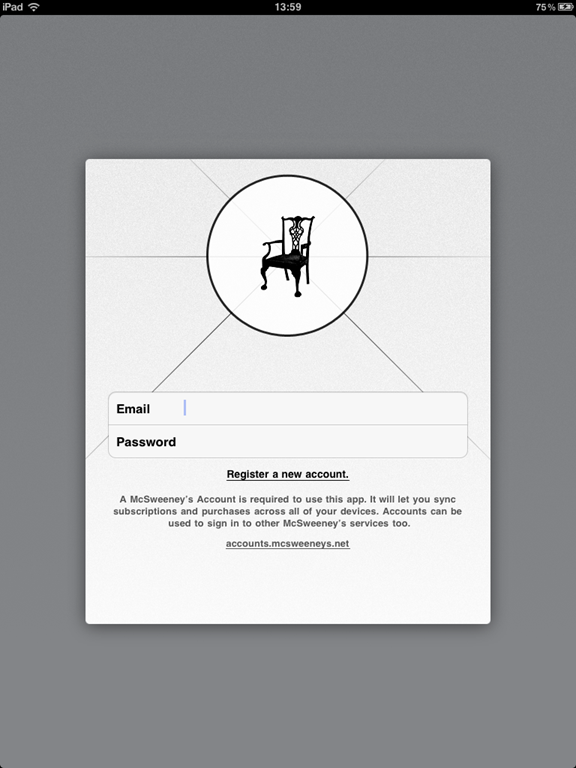
The first thing you have to do with the McSweeney’s app is create an account specifically for using their iOS applications.  Minor annoyance, but it’s a one-time thing.  The app’s $5.99 price tag includes six months of access to Small Chair content, which is a weekly selection from all things McSweeney’s.  It might include something from the Quarterly or the Believer, or a film from Wholphin, but whatever it is, it isn’t available online.

McSweeney's Create An Account   McSweeney's Main Page

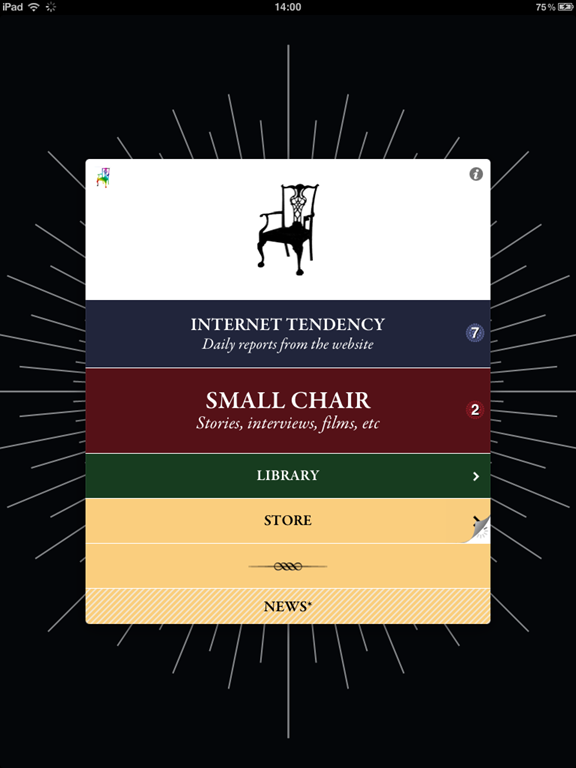
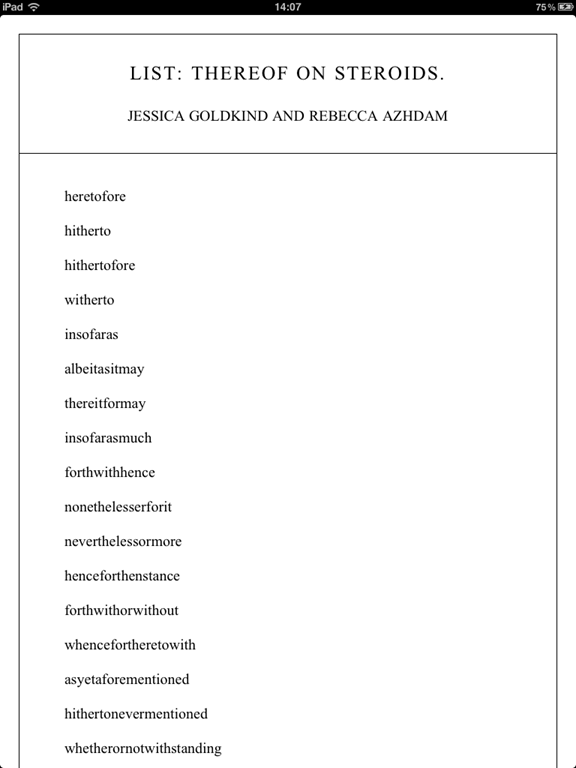
The two items of importance on the main menu are “Internet Tendency” where you can read latest short articles from their site (including my beloved Lists) and “Small Chair” which is a collection of stories, interviews and short videos.

McSweeney's Internet Tendency List   McSweeney's Internet Tendency Article

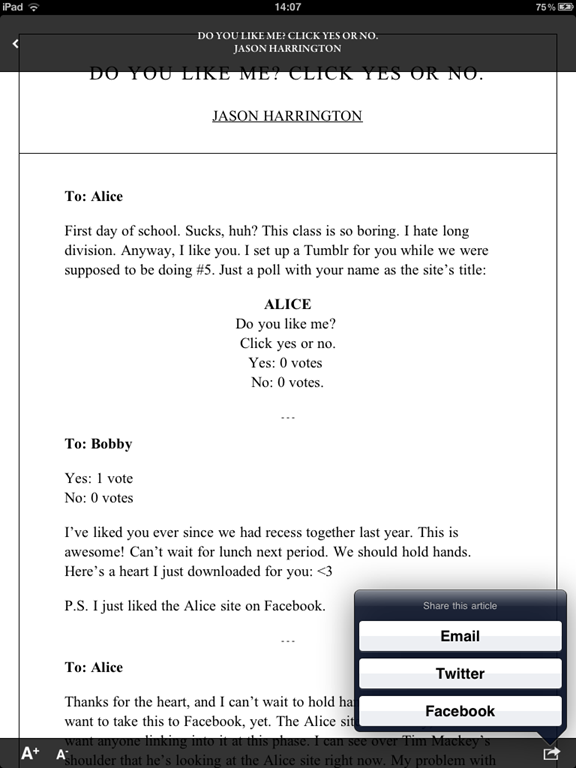
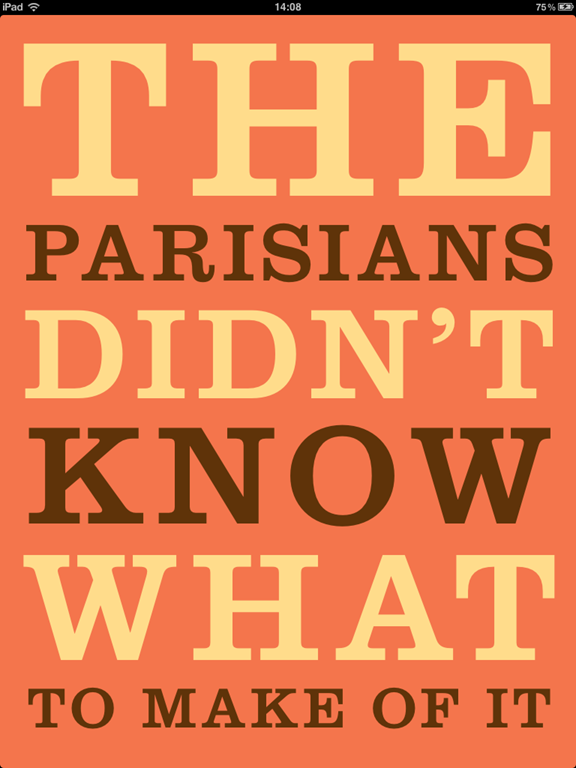
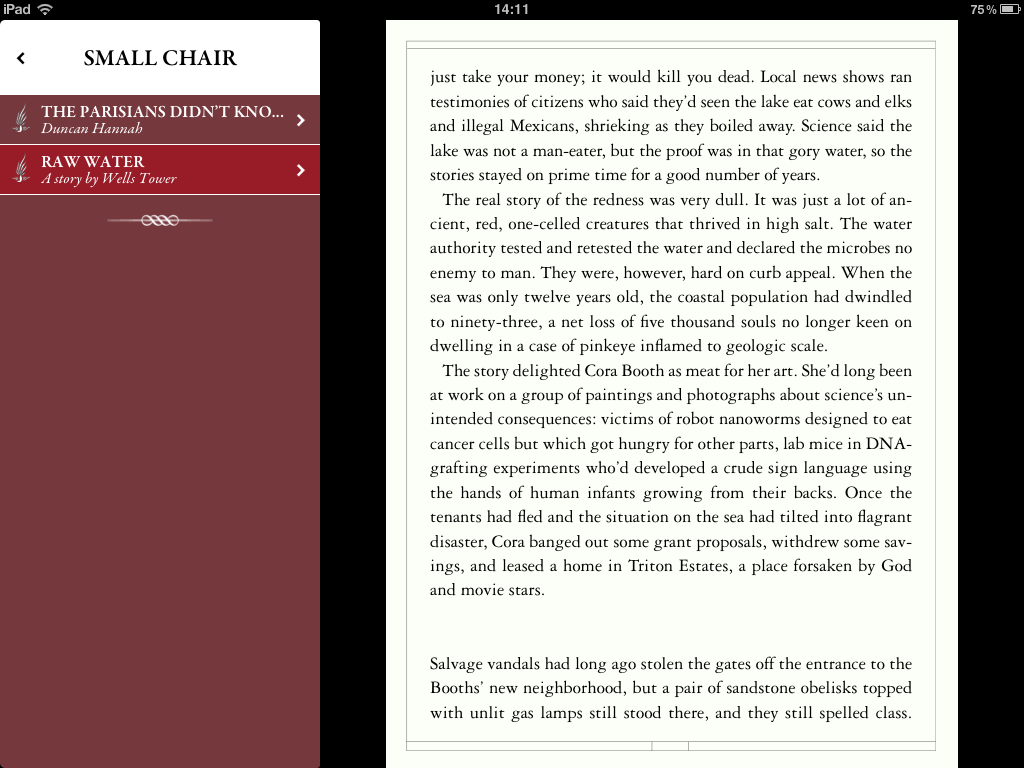
The main difference between Internet Tendency and Small Chair content  (besides the fact that one is free online and the other is accessible only from the app) is the formatting.  The Internet Tendency articles are shareable (which makes sense since they’re already online), have variable font size, and scroll top to bottom.  The Small Chair articles are paginated, not shareable (which also makes sense since they’re custom content for the app), allow the reader to set bookmarks and do not have alterable font sizes.  Internet Tendency articles online rarely have images, so they don’t in the app either, but the Small Chair articles often have a full page image or two to start the story, similar to the opening pages in The Atavist stories.

McSweeney's Small Chair Article   McSweeney's Small Chair Article Landscape

Having both scrolling and paginated styles is interesting because the two reading styles are hotly contested.  It’s a bit of a religious war, and there is very little actual proof that one is better than the other.  I talked about this in my Content Strategy Forum workshop last week, and I’ll do a blog post on it later.  I wanted to mention it simply because I haven’t seen many apps that do both; generally a designer feels strongly about one over the other and that’s the style used.
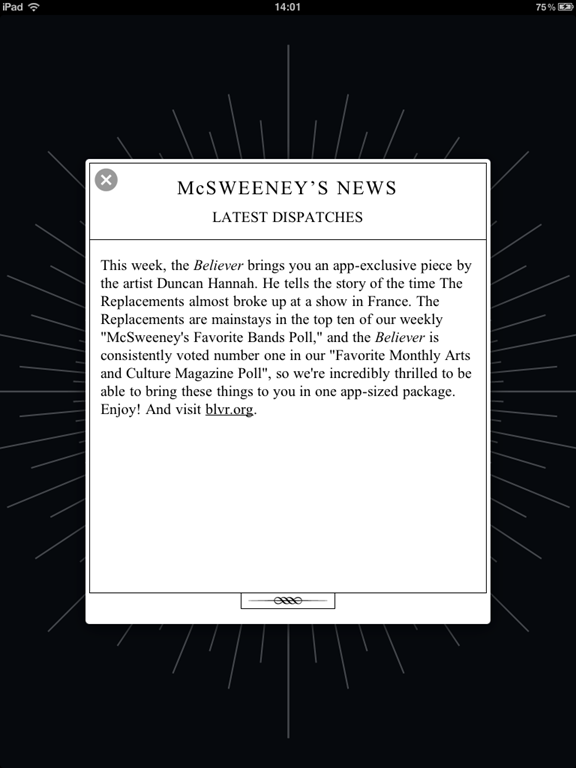
McSweeney's Weekly Update

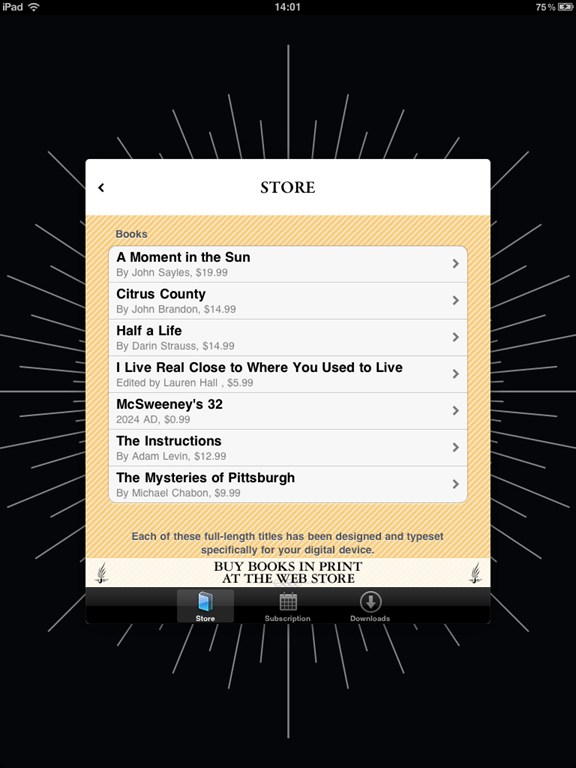
The main menu contains a link to a store where you can purchase additional reading material specially formatted for your device, extend your subscription (your purchase of the app includes a six-month subscription to weekly Small Chair content), or view content you’ve downloaded. There is also a small News section at the bottom to tell you what’s included in the latest content.

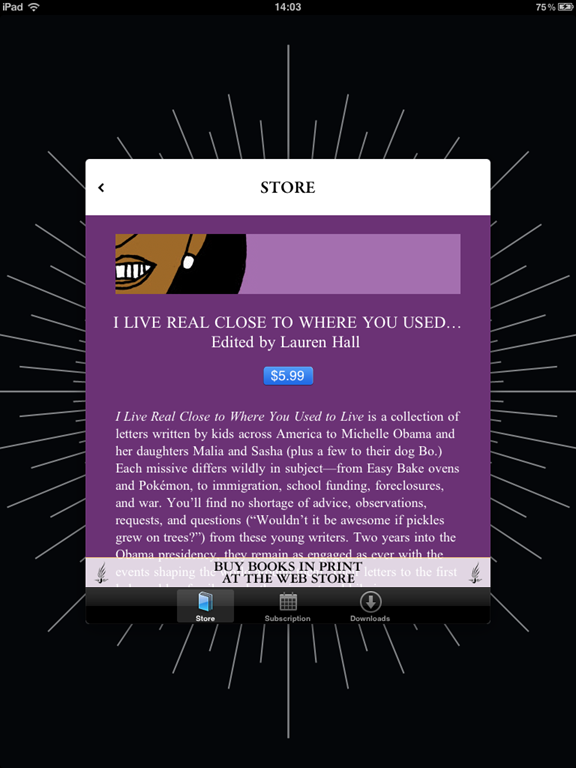
McSweeney's Store   McSweeney's Purchase Article

The McSweeney’s app is utterly charming.  It’s well-designed and has several animations and transitions that will make you smile as you use it.  $5.99 might sound pricey for an app which contains a lot of content that is free on their website, but the additional surprise writing and videos are excellent and it’s definitely worth trying out.  McSweeney’s is the type of company who will try anything and see what sticks, so I’m sure they’ll have more interesting, useful and of course funny updates later as well.


ONE LAST THING

Seth Godin wrote a short, interesting piece a couple of weeks ago called “Should the New Yorker change?”  In it, he says that for the first time, the editors at The New Yorker know which articles are being read and who is reading them.  I noticed that in the McSweeney’s app, they also take a lot of feedback from reader activity.  The question is, should this dictate what the publishers create and produce?

It’s one thing when the app is curating content it serves you from many different sources like Zite does.  But letting the reader activity and behaviour change what gets written or investigated seems like one step too far somehow.  It makes me think of Eli Pariser’s TED talk about filter bubbles, and how so many articles I’ve loved in The New Yorker were interesting to me because I knew nothing about them.  If my current knowledgebase and interests dictate what I read and learn about in the future, I suspect I would slowly grow bored of reading. Unthinkable! Reader feedback is great for UI, UX, design, but I rely a lot on great editors, journalists and authors to find unique and interesting stories to tell.
Free eBooks, Audiobooks and More, Courtesy of Your Local Library

I’ve explained how to do this to so many people that I thought it was worth writing a blog post about it. For several months, I’ve been enjoying downloading free audio and eBooks from the Dun Laoghaire library website.  A friend of mine told me about this in the US earlier this year, and I was incredibly jealous.  I was delighted to come back to Dublin and find that my local library has this capability also.
 

HOW DOES IT WORK?

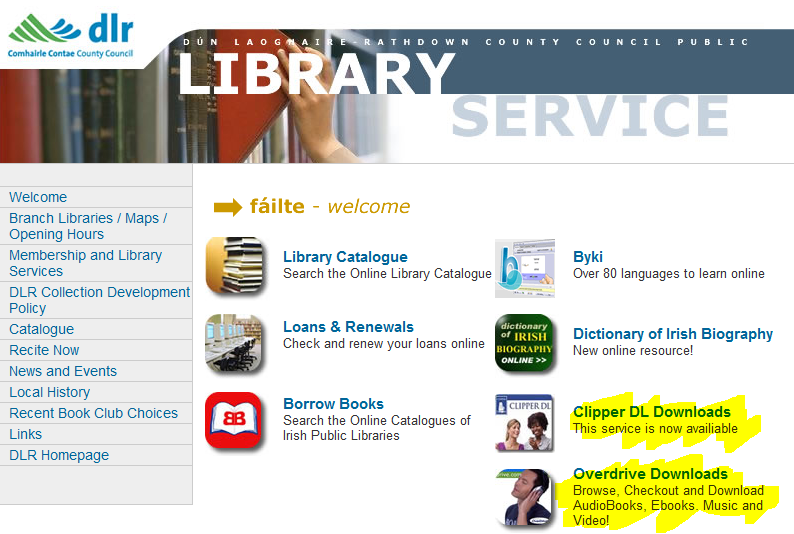
On the Dun Laoghaire-Rathdown County Council library page, you can see links to a few different services: Clipper DL, which are audiobooks, and Overdrive, which are audiobooks as well as eBooks.  Without a membership, you can still browse a bit to see what the selection looks like.

DLR Library Website

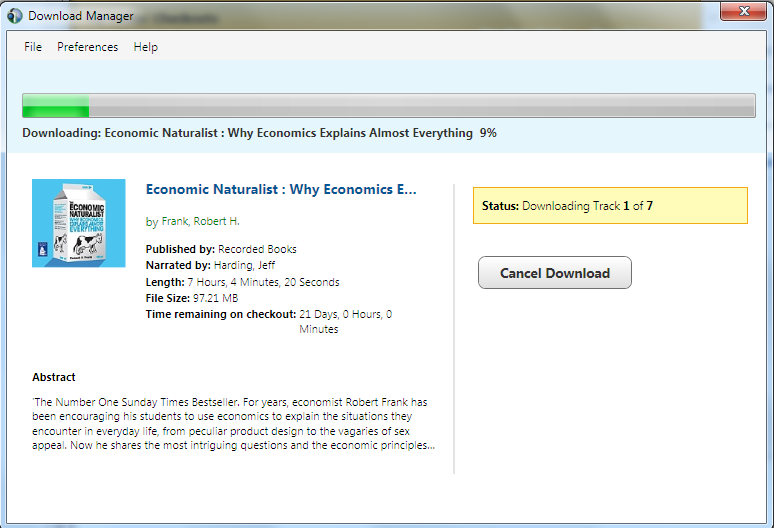
For Clipper DL, you’ll need to log in to the library site with your library card number & PIN first, then get redirected to the Clipper DL site where you’ll need to create a one-time user ID & password.  To download content, you’ll have to download their Download Manager, which works on both Mac and PC.  As you’re installing that, you can decide if you are going to listen to the books via Windows Media (if you’re on a PC) or use iTunes to put it on an iPod or other Apple device.  It might sound painful but the whole process for your first download will take less than three minutes to install & set up, and after that it will be much quicker.

Clipper DL Download Manager on PC

Each audiobook you download you can keep for 21 days after which the DRM expires it and you have to renew if you’re not finished listening to it.  Clipper DL has a catalogue of around 600 titles, and each month they add five new ones, so the selection is a bit small.  It’s definitely better for fiction than non-fiction titles.


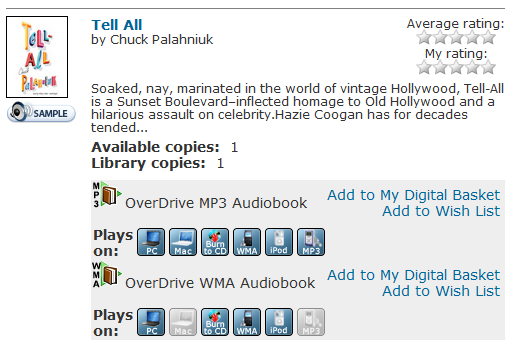
Overdrive has a bit better selection (though neither one is Amazon, so you usually won’t get cutting-edge, brand new or niche topic books).  You can browse through audiobooks, eBooks, and even music and video.  The audiobooks have samples, which is great as the reader’s voice matters a great deal in audiobooks.  Most audiobooks can be downloaded to Mac, PC, burned to a CD, or downloaded as WMA or MP3 for various portable audio devices.

Overdrive Download Options

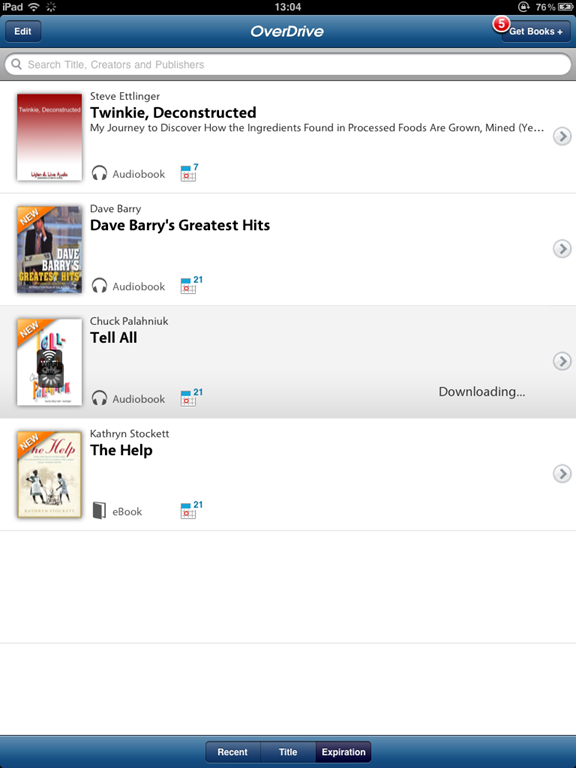
Similarly to Clipper DL, Overdrive gives you a checkout of 21 days for most downloads, with the exception of music and video which are 14 days maximum.  One of the things I love about Overdrive, though, is that there’s a native iPad app which lets you download, view and listen to eBooks and audiobooks you’ve checked out.  The process is a little clunky but it works and it’s nice to be able to access your checked out books anywhere.

OverDrive App Splash Screen    OverDrive App Contents

With both of these services, there are limited digital copies at a time due to licensing restrictions, so you can request books that are checked out.  You’ll get an e-mail notification when the book is returned or has expired and then it’s held for you for three days to go to the site & check it out.


AVAILABILITY

I don’t know if every library in Ireland has this capability or if Dun Laoghaire-Rathdown is the only one, but for the amount of free content, it’s worth investigating your local library to see if they offer access to this or similar content.  It’s such an amazing resource.  I’m embarrassed to say I was a little shocked at how forward-thinking this library system is to offer these services but also things like language lessons, the Dictionary of Irish Biography, and many other interesting and useful resources.  So if you are spending a lot of money on eBooks or audiobooks, it’s definitely worth your time to go find your local library’s website and take a look.

Tuesday Newsday: Long-Form Content Apps

I have focused on many apps and sites with a wide variety of content. Things like newspaper sites and multimedia magazines. Today we’re covering two apps which focus on doing one thing and doing it well: presenting long-form reading.  The Atavist and Palimpsest have created ideal environments for reading both magazine articles and nonfiction stories.


The Atavist Splash Screen

THE ATAVIST

The Atavist is basically a publishing house for original, bestselling nonfiction stories.  The content tends to be longer than most magazine articles but shorter than a book.  Created by Jefferson Rabb, the app reflects his creative and innovative style reflected in his other well-known digital work for writers like Harkuki Murakami and Jhumpa Lahiri.   The Atavist app is available for the iPhone & iPad, but the individual articles can also be purchased on the Kindle and Nook.


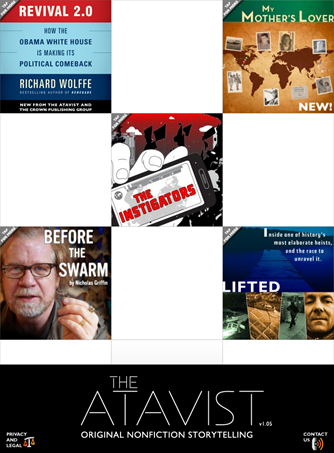
The Atavist Main Page

Stories from The Atavist are all researched, reported & crafted by reporters and writers who specialize in longform content. Most stories are narratives which focus on some kind of human drama: a crime, a science mystery, an adventure, etc.

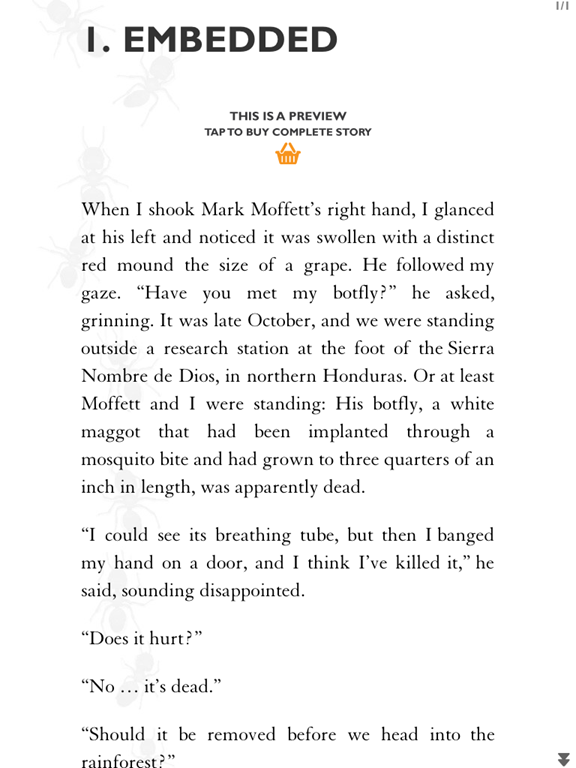
Let’s start with the reading experience because it’s just so great.  Most of the stories have a preview that you can read, and when you decide to purchase one they are between $1.99 & $2.99.  Each story has a cover from which you can decide whether you want to listen to or read the story.  Stories have full-text search and the ability to change font sizes for ease of reading, too.

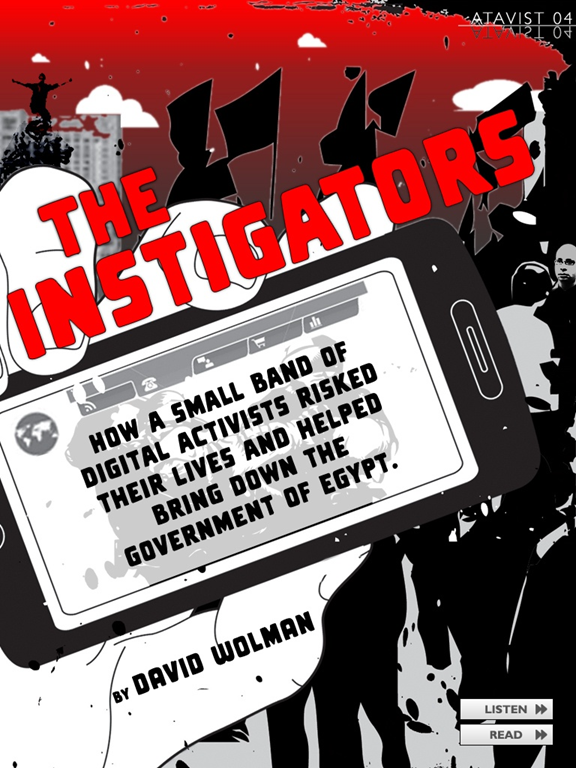
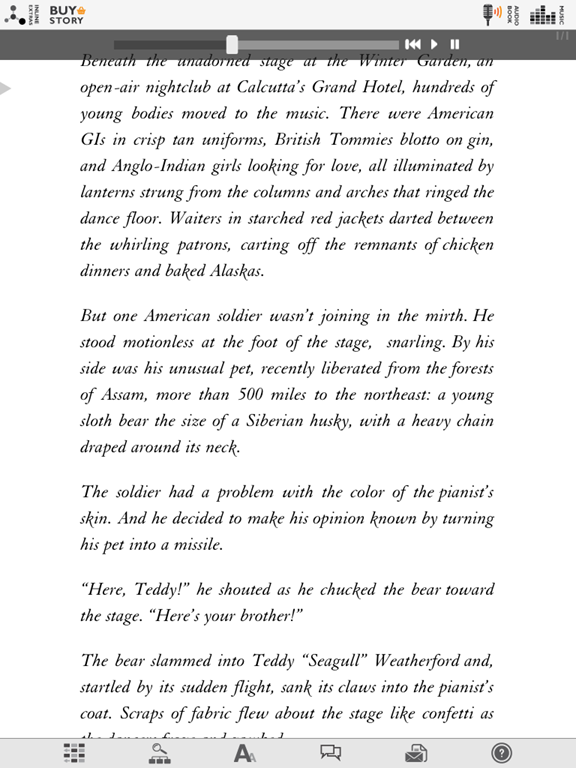
Piano Demon    The Instigators

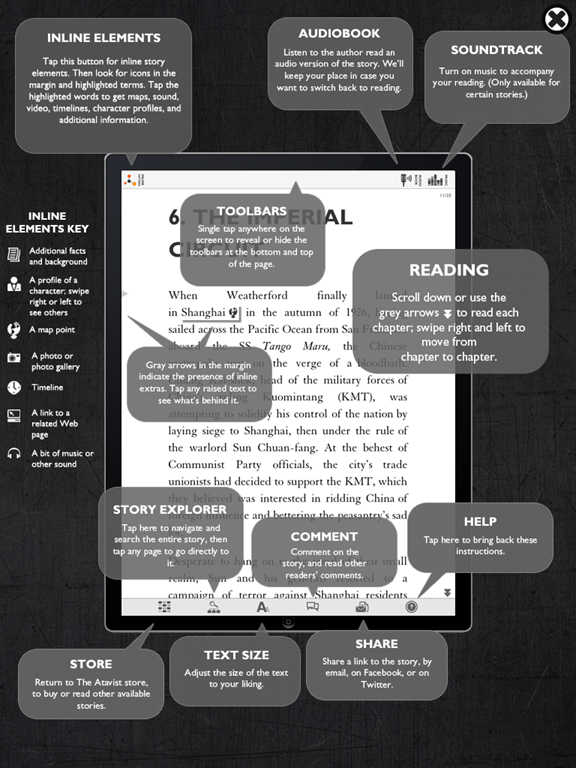
Each story on the iPad is laced with video, audio, imagery and additional layers of information.  I read of it being referred to as “cinematic journalism” which is a great way to describe the experience. Piano Demon, shown above, has lovely accompanying piano music (which you can turn on and off) while you read.  You can also turn on and off the inline elements, which might display things like an interactive map, an image describing a referenced work, relevant definitions of obscure terms and more.  You can share the articles with friends and post comments and read those left by others as well.

The Atavist Article View  The Atavist with Audio Turned On

Or not.  The Atavist does an excellent job of giving you an isolated reading experience if you want that, or a social and interactive reading experience if that’s your preference.  You have options, and that is one thing that is missing from so many digital reading experiences.  I’m tired of being told I need to share and comment and tweet.  I don’t. I just want to read. That might make me an old curmudgeon, but I’m still an old curmudgeon who is willing to pay for stuff to read if you consider the quieter reading experience in your apps. Now get off my lawn. </rant>

The Atavist Help

I love audio books, so for me one of the nicest options is the option to have the audio version read to you as the page scrolls.  It’s a real voice, like real audio books, not a computer-generated voice as with the Kindle’s “Read to Me” functionality (which I do use frequently, but I prefer a human voice).

To support their publishing, The Atavist has built its own custom content CMS called Periodic Technology.  You can read more about their platform here as it’s available for licensing and includes many of the nice features you see in the app itself.  After spending the last few days at Content Strategy Forum 2011 in London to deliver a workshop on publishing narrative content and listening to everyone complain about how inadequate their CMSs are, this one might be worth a look if you’re doing digital publishing.

Overall I am a huge fan of this app and the very high quality stories, each of which is worth every penny.  The Atavist publishes new content every so often, and the best way to stay up-to-date on that is to follow their Twitter account.  Or install the app & make sure to turn on the notifications so you get a pop-up when a new story arrives.


Palimpsest Splash Screen

PALIMPSEST

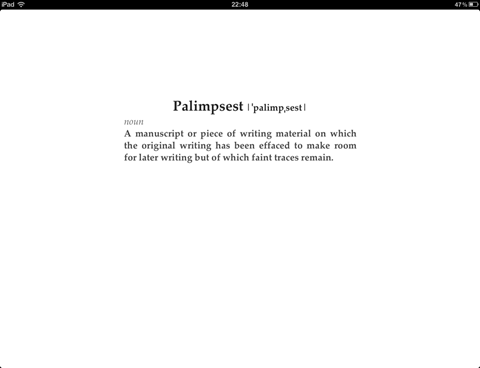
Palimpsest, which as shown on the splash screen above means a manuscript which has been scraped for reuse, is different from The Atavist in that it does not produce original content but rather hand-picks it from excellent sources.  Palimpsest articles might have been originally published in The New Yorker (there are Malcolm Gladwell articles, for example), Vanity Fair, GQ, The Atlantic and many other sources.

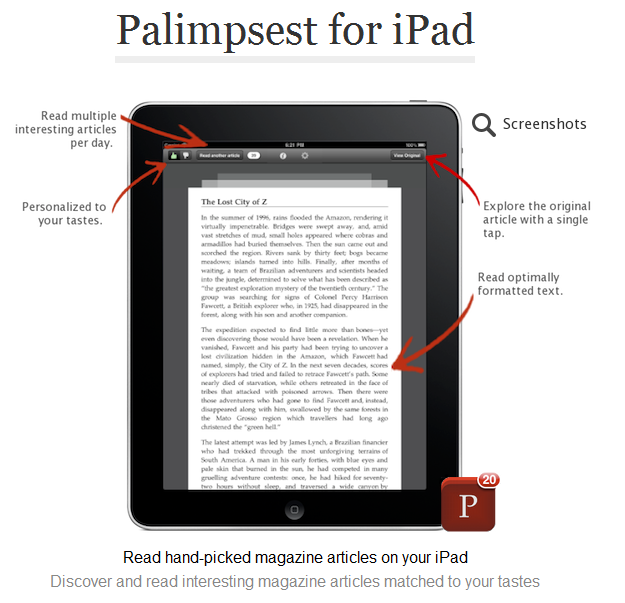
The user interface is quite simple – it’s basically just the content.  One article at a time, and when you’ve finished that article or if you decide to skip it, you can move along to the next.  It’s incredibly easy to use and works very well.

Palimpsest Instructions

When you open Palimpsest, you are provided with several feature-length magazine articles which are curated for you.  As you use the app and indicate what you like and don’t, your tastes and preferences are taken in to account to provide further articles.

Palimpsest Article View

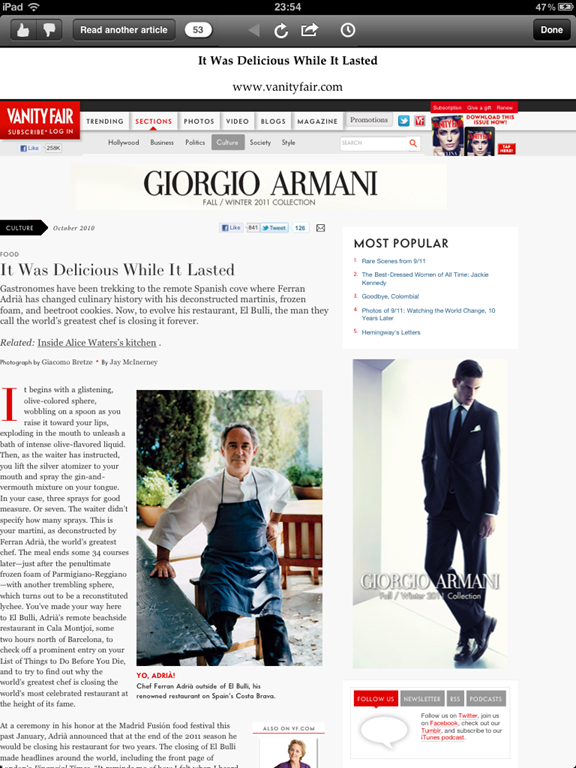
Reading the articles consists of a delightfully focused interface.  The articles scroll and the scroll bar gives you a vague idea of how long the article you’re reading is. If you want to view it in its original source (which is loaded in the background for you if you’re online), click the “View Original” button to be taken to a web view where you can see the article on its initial place of publishing.  You can change article text or send it to your Instapaper account if you prefer to read it there.

Palimpsest Article Options  Palimpsest Information

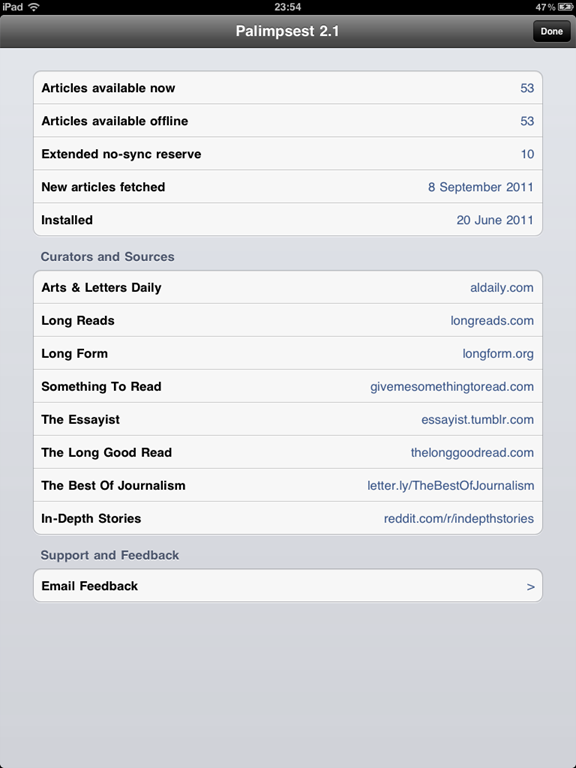
An information tab tells you how many articles you have, how many are available offline, when the last batch was fetched, and from where content is currently being curated.  The offline part is useful because if you don’t have a data plan or you’re offline for several days at a time, you can still enjoy several new long-form articles.

Palimpsest Original View

Palimpsest is perfect for travelling since it works so well offline, but it’s also perfect for finding great articles for you that you might not have found otherwise.  It removes the clutter and distraction in the interface, but still lets you enjoy things like photos if you like by clicking on the original source.  The more you use it, the more interesting and relevant the sourced articles will be for you.

*Late post this week due to being in the UK the last week for dConstruct and CS Forum*

Tuesday Newsday: Worldwide News Sites

This week I’ve done an analysis of how news sites worldwide approach apps and mobile web sites. To get some variety, I’ve chosen The New York Times, The Guardian, Al Jazeera, The Irish Times and The Onion.  If there’s a worldwide news site or app you’d like to see reviewed, just let me know and I’ll do a follow-up post with additional news sites in the future.

For those who want the quick version, I have a table below showing how the sites and apps compare in certain areas:

News Source Mobile-friendly website iPad App iPhone app Other apps Pay wall
           
New York Times sort of – m.nytimes.com jumps you to regular site on tablet; works on phones yes yes Android, Blackberry, Windows Phone 7 & Palm Pre; Also Kindle & Nook yes, after reading a certain number of articles
The Guardian yes – m.guardian.co.uk not for news (it’s a photo viewing app) yes Nokia and HP TouchPad apps; Also Kindle and a Flipboard channel currently no; rumoured to be considering one
Al Jazeera yes – m.aljazeera.net yes – live news stream & news headlines yes, live viewing of video news only Android, Blackberry, Nokia, and Samsung Bada; unofficial WP7 no
The Irish Times yes – m.irishtimes.com yes but you must buy individual copies yes, ePaper for $1.99 Android, Nokia, had one previously, removed in 2008
The Onion not really, m.theonion.com resolves but isn’t any more mobile-friendly yes yes Android & Kindle, unofficial WP7 Testing one currently: users must subscribe after reading five articles in 30 days


THE NEW YORK TIMES

[For a wonderful non-mobile browser-based reading experience of the NY Times, read my previous article on the Ochs extension for Chrome and give it a try.] 

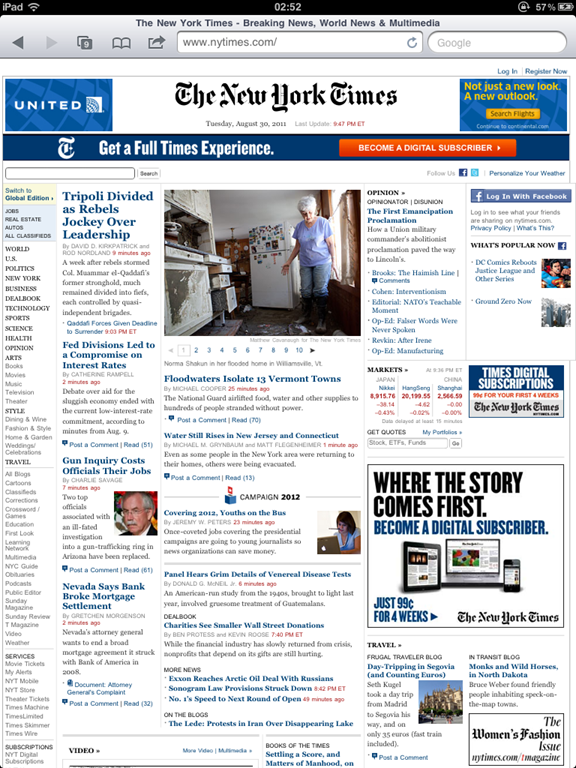
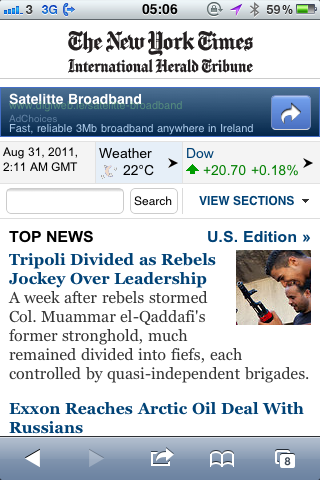
Visiting http://m.nytimes.com on an iPad redirects you to the full NY Times, whereas on an iPhone and a Windows Phone 7 you are taken to a more mobile-friendly site. It doesn’t matter that much, actually, because when you click into an article on the iPad, you get a big enough view to read, whereas the main page and category pages have quick small text and tiny navigation which is hard to use without pinching and zooming frequently.
NY Times website on iPad   NY Times website on iPhone

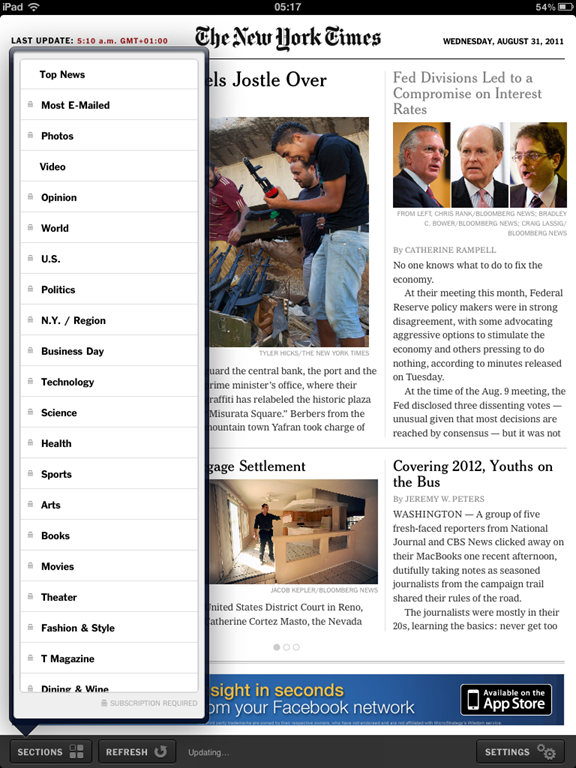
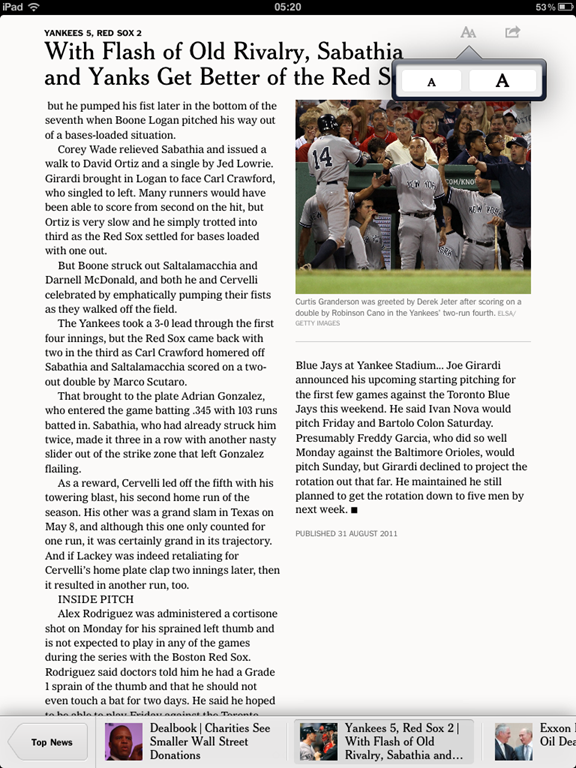
The NY Times iPad app is much nicer, although only the top news is free.  To get access to additional content, the app has in-app subscription options of either NYTimes.com + Tablet app for $19.99/month or the all digital access for $34.99/month.  Without the subscription, you see all categories locked as shown.  When you click on them, they show you the section’s front page, but trying to read the article gives you a subscribe prompt popup. The top news is nicely laid out, though, and the paging navigation inside the articles is nice to read.  Occasional but nice-looking ads might pop up as you’re reading but they are easily closed.  Another nice feature of the iPad app is the ability to set Offline Reading preferences so that articles are automatically downloaded for offline reading & images are cached.

   NY Times iPad App Menu   NY Times iPad App Article View

The NY Times iPhone app is the same content as the iPad app, with the addition of a bottom navigation bar allowing you to see the most e-mailed articles as well as those articles, sections and blogs you’ve marked as favourites. As you read, the navigation goes away so you have more space to read. As with the iPad app, some ads may pop up but they’re nicely done and not annoying.

NYT iPhone App Article View NYT iPhone App Article View (no nav) NYT iPhone App Ad

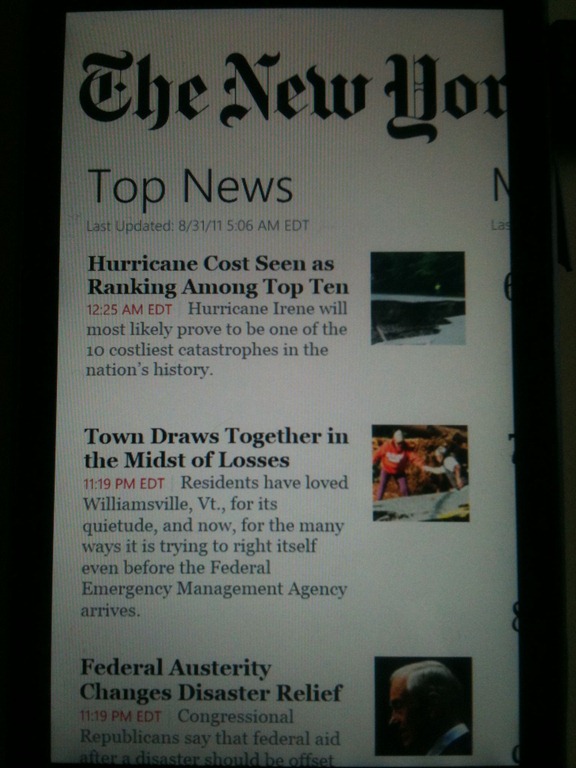
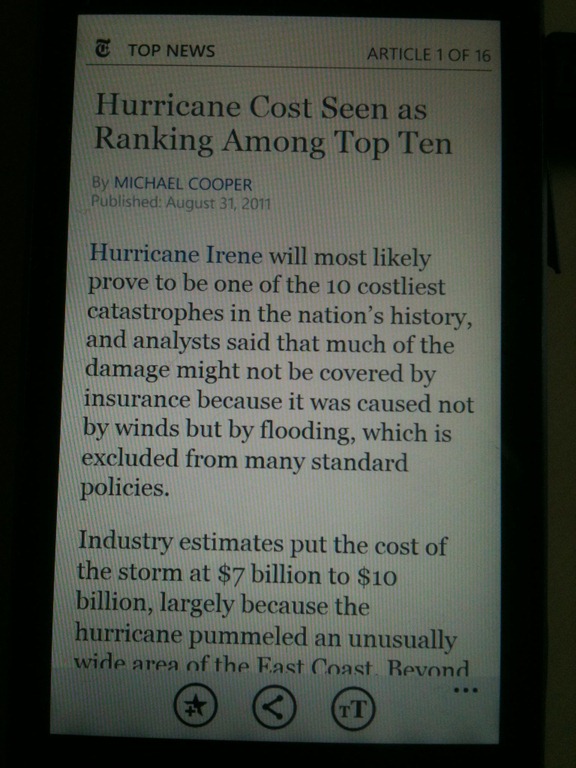
The Windows Phone 7 app for the NY Times is similar to the iPhone app, with top content available but digital subscription required to read additional articles or other sections.  The only other differences I noticed were that the WP7 app doesn’t have advertising embedded in the app, and in the iPhone app you can only increase text size, not decrease it, whereas WP7 lets you select small, medium, large or huge text.

NYT WP7 App Top News    NYT WP7 App Article View


THE GUARDIAN

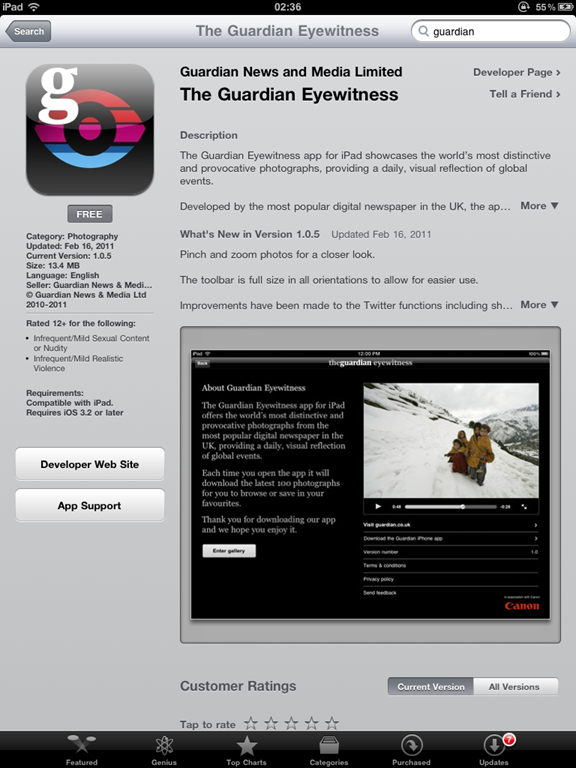
The Guardian officially launched their newspaper website in 1999, and in 2008 it became the first UK newspaper website to break 20 million unique users per month. They have a very thorough page explaining their mobile capabilities here http://www.guardian.co.uk/mobile as well as a frequently updated blog about the changes they’re working on here http://www.guardian.co.uk/help/insideguardian.  Although they have an iPad app called The Guardian Eyewitness, it is a photography display app and not a newspaper app.  They do have a news-focused iPad app currently in the works, and you can see previews of it here: http://www.guardian.co.uk/help/insideguardian/2011/jul/11/kindle-ipad-android.  The article states it was a completely new redesign and indeed it looks very interesting.

The Guardian Eyewitness on App Store   The Guardian iPhone Splash Screen

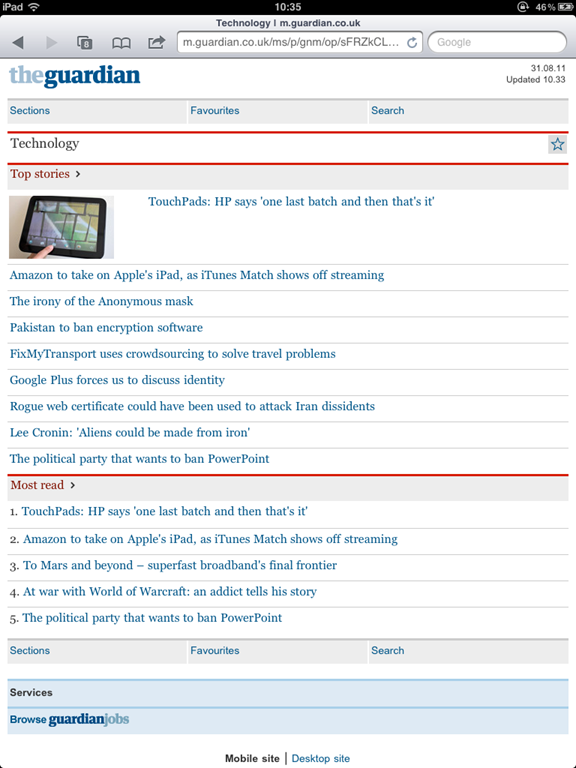
The Guardian’s mobile website, http://m.guardian.co.uk, shows the top three stories from several sections and lets you browse to different sections, mark favourite sections, and search. There isn’t a limit on content you can read as there’s no pay wall, but as mentioned in the table above, they are rumoured to be considering one.

Guardian Mobile Website

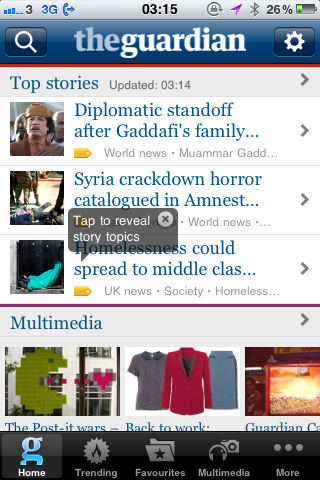
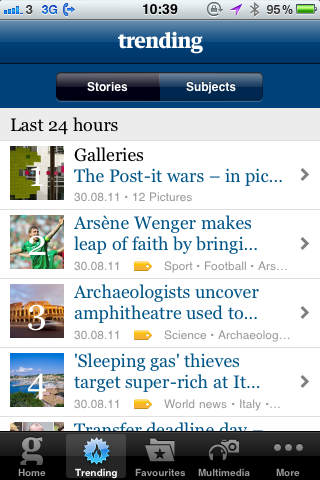
The Guardian’s iPhone app is a slightly nicer experience than the mobile website.  The look and feel is similar, with the top stories from various sections on the main page. They have also added a Trending and a Multimedia tab to show, respectively, the top ten trending stories and subjects in the last 24 hours and a video, audio and photo gallery.  Additionally you can add favourite stories as well as sections.

The Guardian iPhone App Front Page  The Guardian iPhone App Trending page

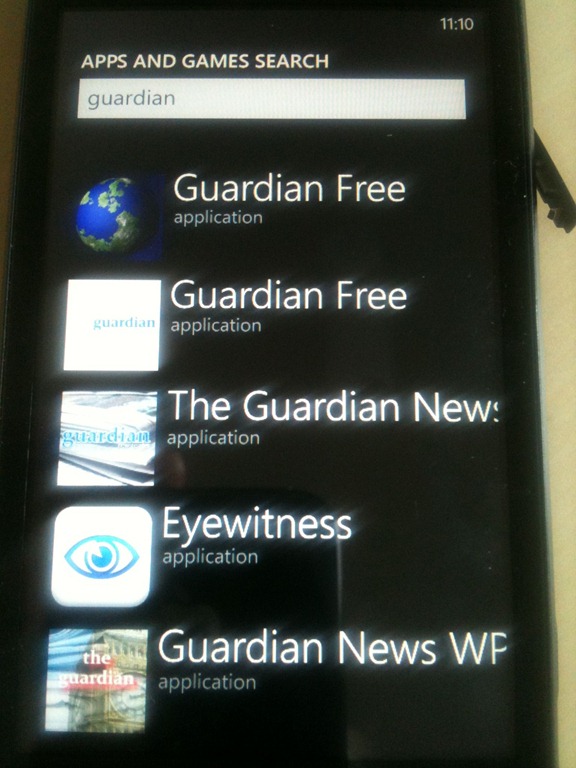
One of the slightly annoying things about Windows Phone 7 is that when you’re browsing the Marketplace for apps, it can be very difficult to tell which ones are official and which ones are just some random developer. You have to click on the app and scroll to the bottom to see who is listed as the developer.  In the case of the Guardian, there is no official app, but the Guardian Newsreader grabs content from their site and populates a basic WP7 app which actually looks decent and works quite well.

WP7 Marketplace Search for Guardian


AL JAZEERA

Al Jazeera’s mobile website gets it so right for phones. The front page shows simply one large top story and three sub-stories, followed by a list of their categories.  Click on “In Depth” in the navigation bar to get various sections such as Opinion, Features, Spotlight, etc. Click on “Watch” in the navigation bar to watch or listen to live coverage from their television channel.  Very simple, but contains all the types of things a reader would want in an easy-to-use mobile website.  The mobile site on a tablet leaves a bit to be desired, as it doesn’t really take advantage of the screen real estate, but it’s still just as usable and effective.

Al Jazeera Mobile Website Front Page Al Jazeera Mobile Website Article View Al Jazeera Mobile Website Article View

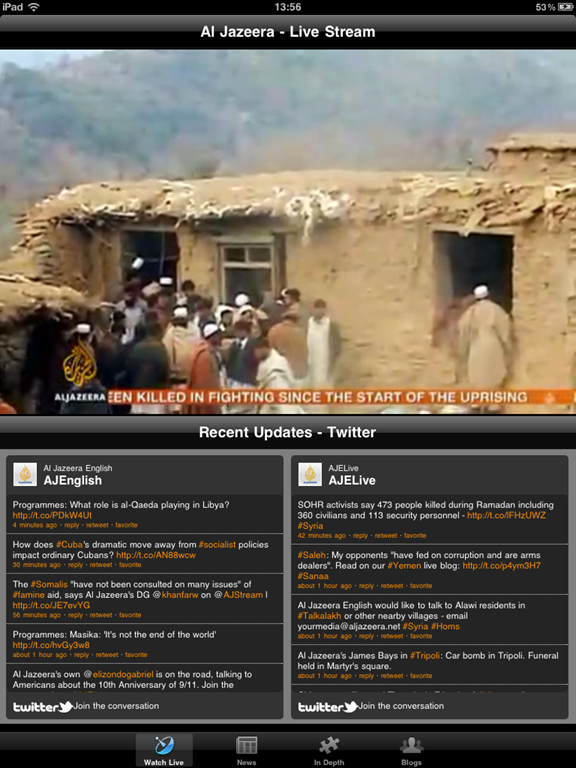
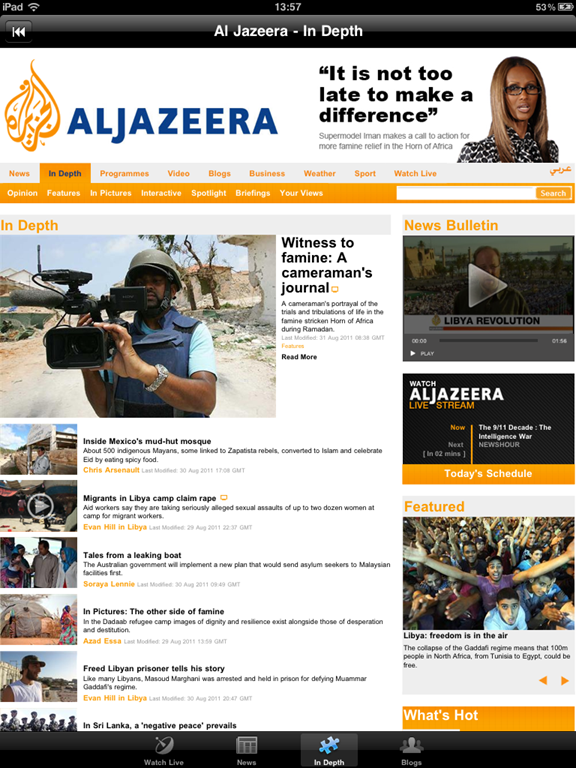
The Al Jazeera iPad app takes an interesting approach to the front page. It starts with a live stream of the video channel and updates from Twitter feeds. From there, users can click on “News” to see the front page of the website (basically the exact same as the regular website), “In Depth” which is the In Depth page from the website (again, almost exactly the same) and “Blogs” which is the Blogs page from the website.  The video feed is fantastic and works great.  The other pages could maybe be tailored a bit, more in the style of the mobile website as readers will end up doing a lot of pinching, zooming and panning to read the content.

Al Jazeera iPad App Live Video Feed    Al Jazeera iPad App In Depth Page

On the iPhone and Windows Phone 7, the app is mostly just the live video feed. The iPhone app uses similar navigation to the mobile website, so you can still click on “News” and “In Depth” to see top stories there. I couldn’t find an English version of the Windows Phone 7 app, the one there streams the live Arabic coverage. The front page is quite strange and just has links to the video feed and the website, where the website link opens up a browser window to see the normal site instead of the mobile site which is strange.


Al Jazeera iPhone App Splash Screen   Al Jazeera iPad App Front Page

Al Jazeera iPhone App Live Video Feed   Al Jazeera Windows Phone 7 App Splash Screen


THE IRISH TIMES

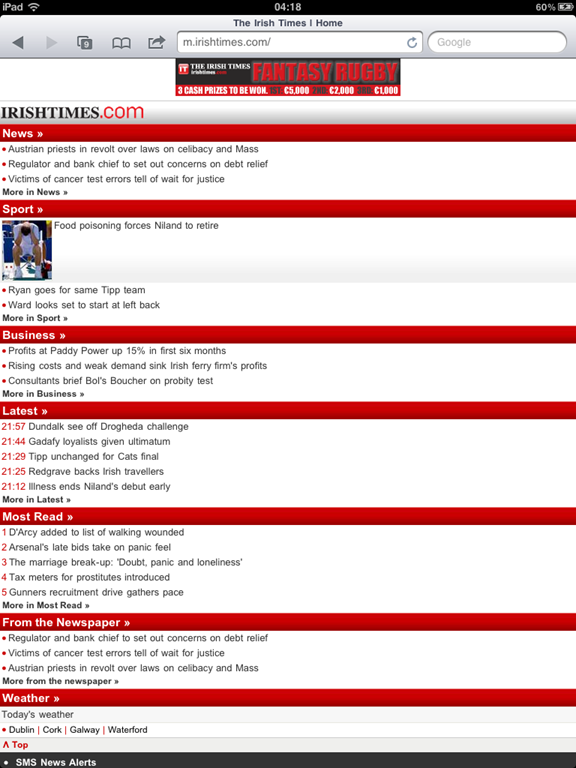
The mobile website for the Irish Times works fine on a phone, but it’s a bit oddly formatted on a tablet.  On a tablet, you’re probably better off going to the regular website and using pinch/zoom to read and browse. On a phone, the site works better. The front page has the top three stories from several different categories with some thumbnails. Reading the individual articles is pleasant and focused, even if it’s mostly text.  The website is plain but it’s functional and easy-to-use.

Irish Times Mobile Website

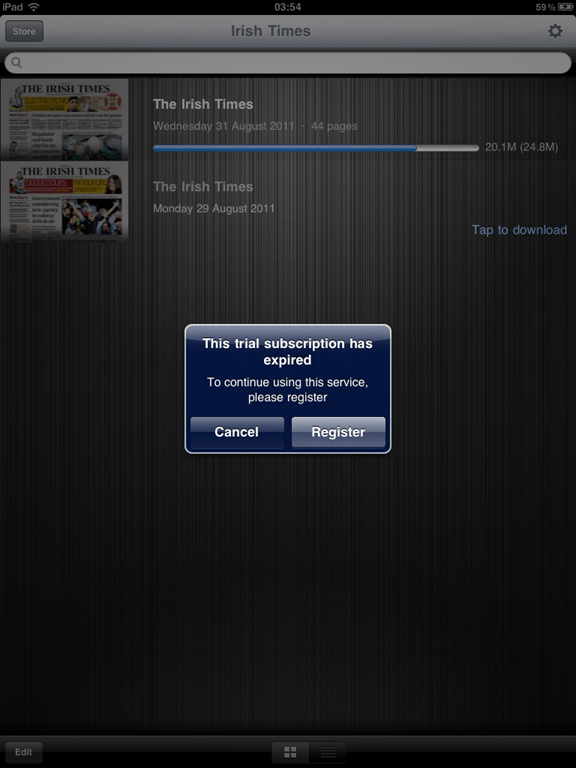
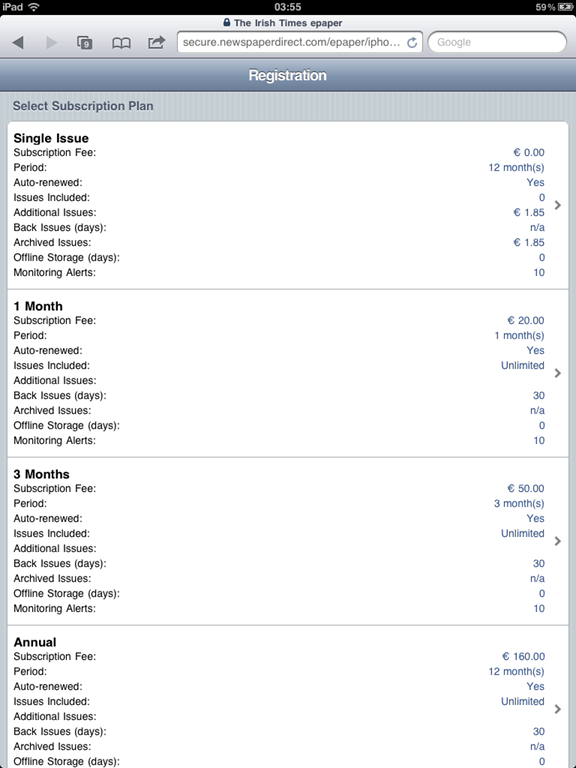
The iPad app for the Irish Times, called the Irish Times ePaper, is where their mobile experience falls over.  Downloading the app is free, and you can download one free issue of a daily edition. Additional papers to download require a subscription which forces you to register with The Irish Times and then go to a website which has you select a subscription plan, either a single issue, 1 month, 3 months or annual. The whole thing is strange because I thought Apple were forcing in-app purchases and subscriptions, that is, the ability to purchase new issues or subscriptions from within the app, to happen via the App Store. I know they reversed the harsher terms from February, but I thought it still applied to purchases which happen inside the app?

Irish Times iPad App Subscription Page   Irish Times Subscription Options on website

The reason I mention this is that the process for going through the Irish Times registration, selecting a subscription plan and entering payment details is quite tedious. I’m sure they don’t want to lose the 30% cut to Apple, but I actually think the App Store ease-of-use would help them sell more and make up for the revenue Apple deducts.

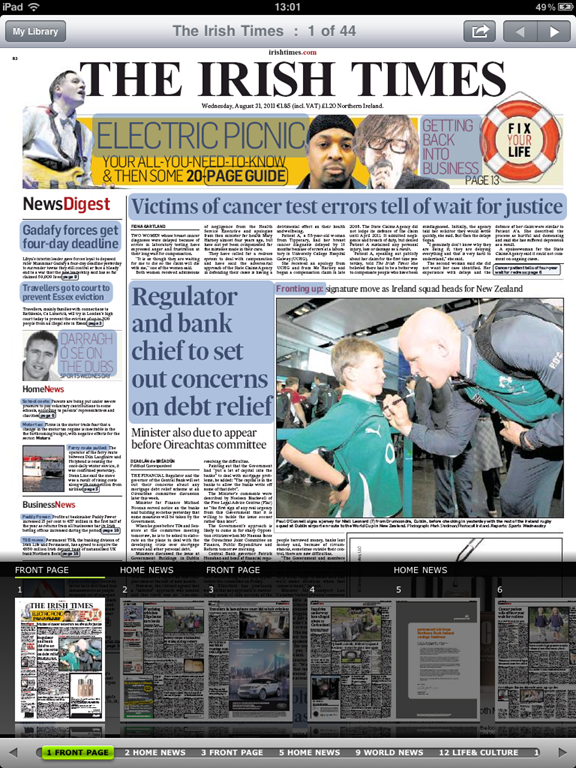
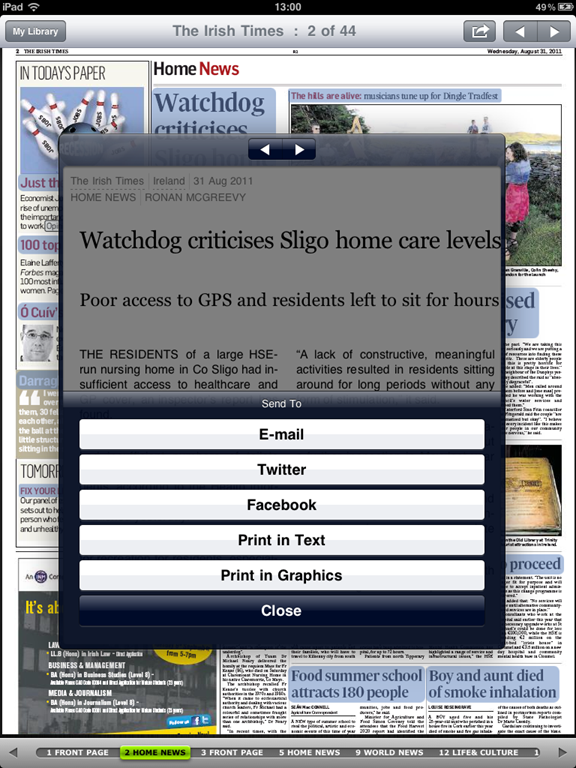
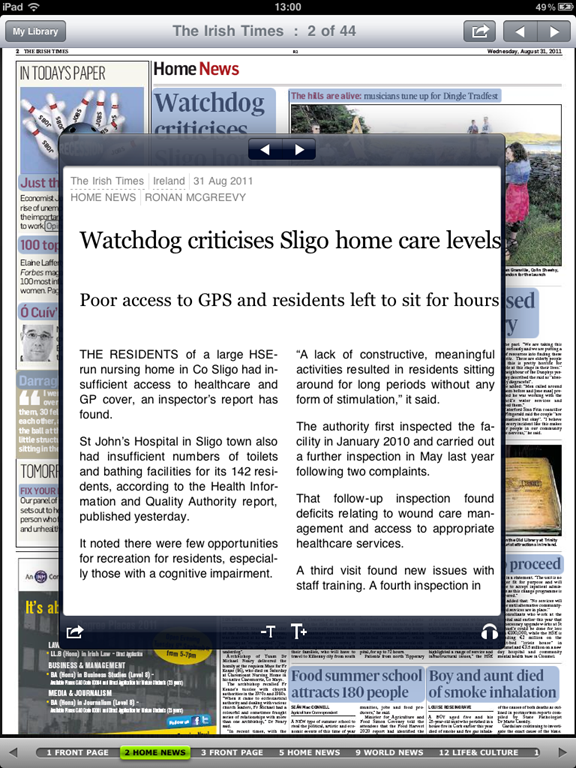
Anyway it actually won’t matter much because once you download your trial copy you’ll be hesitant to spend any additional money. It feels like looking at microfiche at the library. It’s a giant image of the actual pages of the print newspaper, ads, crossword puzzles, classifieds and all. There is weird hyperlink behaviour which automatically highlights any clickable text (such as an article title) in blue, and clicking that text pops up an overlay with the content of the article or blurb inside it.  Reading these articles is okay, you navigate by swiping left and right as if they were pages, but it has some strange sharing options like “Print in Text” and “Print in Graphics” along with the regular Email/Twitter/Facebook options.

Irish Times iPad App Daily Issue View   Irish Times iPad App Article Sharing Options

One thing I haven’t seen anywhere else, however, is the ability to have an article read to you. Click the small headphones icon on an article and an computerized Irish voice will read the article to you.  However when you close the article, the voice continues talking and the only way I could get it to stop reading was by opening another article.

Irish Times iPad Article View with Audio Option   Irish Times iPad App Zoomed In

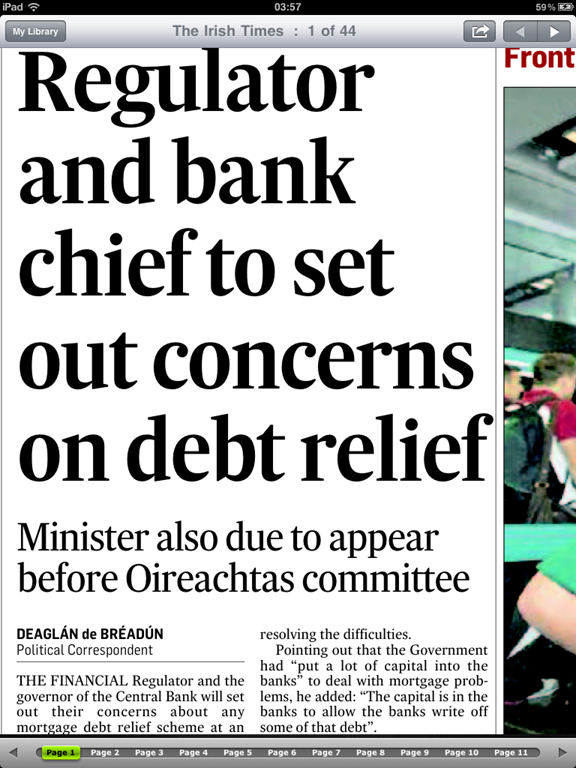
I get the feeling this technology, whatever they’ve used to create this, was some sort of knee jerk reaction to someone deciding “WE NEED AN IPAD APP NOW!” To me, it’s a poor compromise of wanting to have an app quickly  and wanting to make sure all the content is there, but the readability, searchability, image quality and usability unfortunately all suffer here. I don’t know what their digital subscriber numbers are for this app, but I would be surprised if many people are able to read a newspaper in this format on a daily basis.

Irish Times iPad Zoomed In Fuzzy Imagery   Irish Times iPad App Article View with Navigation

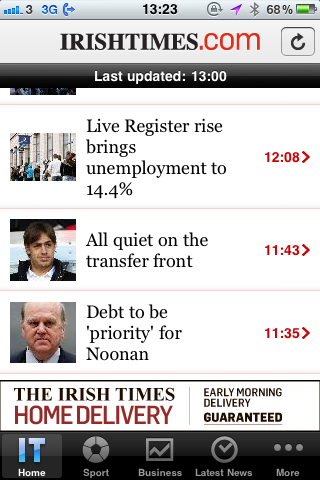
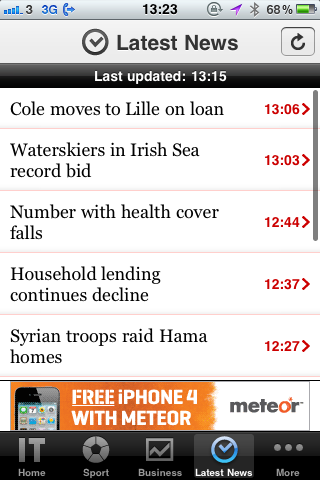
Now let’s look at their iPhone app.  The iPhone app is basic, works great and seems like a much more thought-through approach to a mobile application. Its navigation bar has a Home, a Sport, a Business and a Latest News section, as well as a More tab which shows weather, podcasts (podcasts buttons take you to iTunes, they don’t play inside the app) and most read articles.  Ability to change text size, share articles, and navigate to the next article all work very well.  The articles seem to be text only while some of the section pages have thumbnails, but in the same way only the section pages have ads so no ads clutter your reading experience. Like the mobile website, the iPhone app is basic but usable. And for many users of news apps on phones, it’s the functionality and usability that are most important.

Irish Times iPhone App Front Page  Irish Times iPhone App Latest News  Irish Times iPhone App Article View


Literally Unbelievable

THE ONION

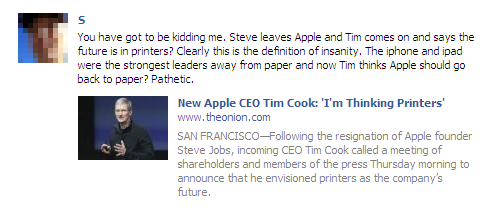
America’s Finest News Source has been one of my favourite news sites ever since discovering it during college (and that was way before http://literallyunbelievable.org/ was on the scene).  I have been impressed over the years at their willingness to try new strategies and new technology so readily.  Their current experiment, which they’re getting some slack for, is a pay wall for foreign readers (i.e., readers outside the US) who view more than five articles per month.  Their CTO says it truly is an experiment in which they’re looking for reader feedback and that nothing is set in stone.  Their digital subscriber numbers, however, suggest that it may in fact stick around. Readers pay $2.49 on the Kindle store for a monthly subscription, and they’re number five in the newspaper category there, which means they definitely have a loyal fan base of people willing to pay to access their articles.

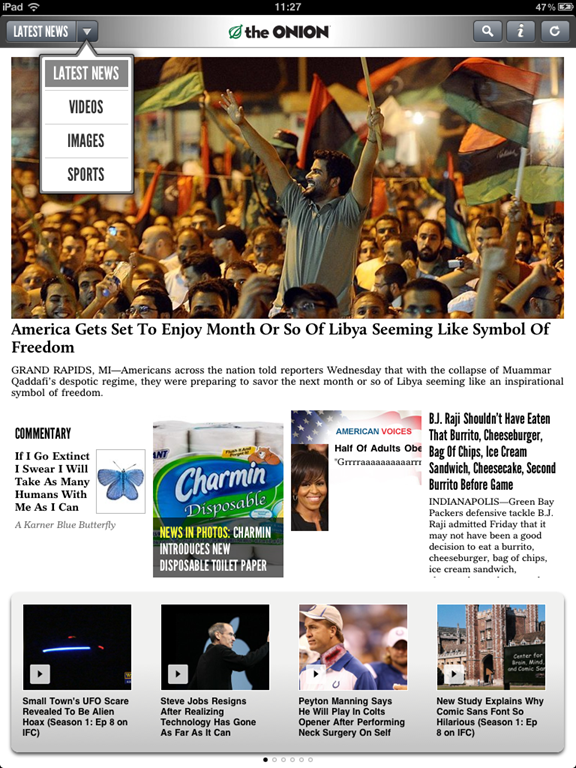
The Onion iPad App Front Page   The Onion iPad App Refresh Screen

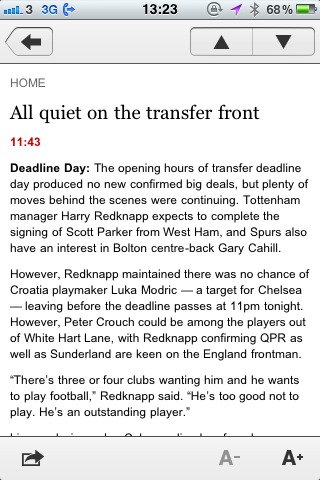
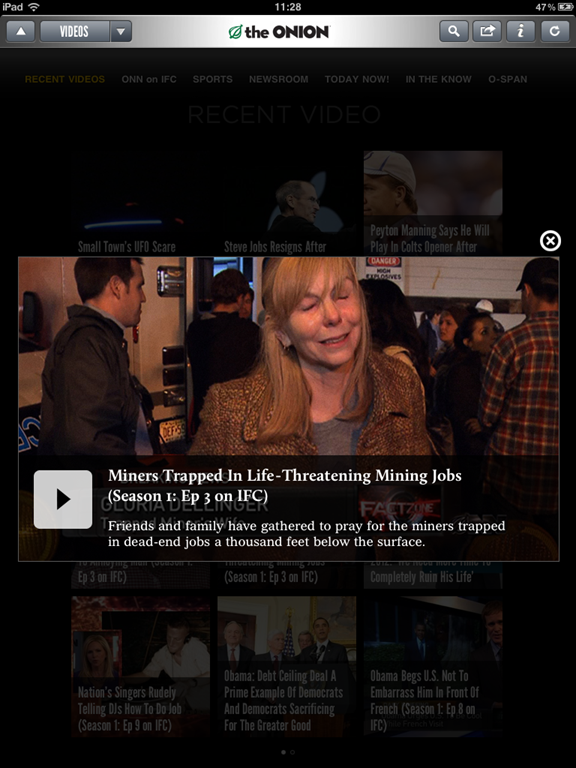
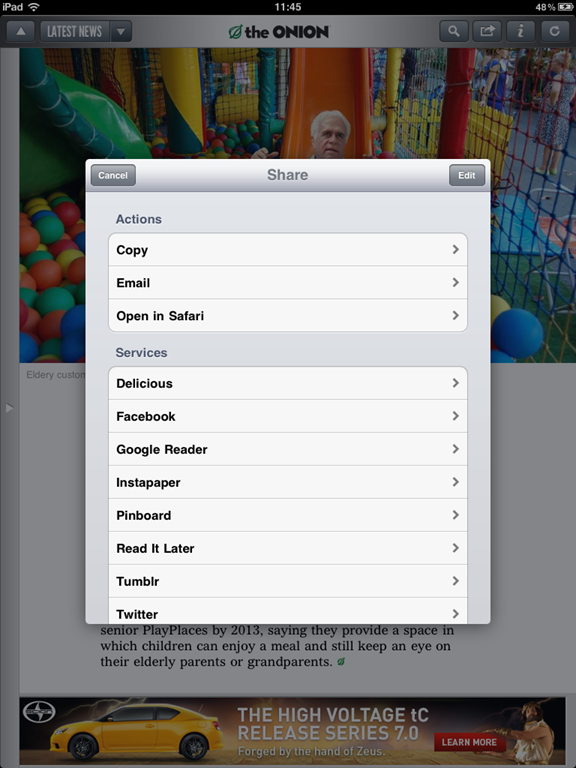
Since their mobile website isn’t much to talk about, let’s start with their iPad app.  The iPad app is a fantastic app which has a lot of their great content  laid out in a familiar, Flipboard-like style. One of the things that The Onion get very right is advertising. Articles may have small banner ads at the end, but the only time you see anything larger than that is when you click the “Refresh” button: it shows you a half-page ad while you wait for new content to update. I saw one other advertorial as I was browsing images, but it was so well done it was not obvious that it was an ad. The video and photo integration is excellent and it’s easy to spend a lot of time in both sections. The only thing I could think of that I would have liked in this app was the ability to view different sections without searching, to click and see all the Commentary or the Infographics or Statshots or Local News.  The only sections categorized are Latest News, Videos, Images and Sports. But it’s a great app and has one of the most capable sharing mechanisms I’ve seen including Pinboard, Tumblr, Instapaper and several other sharing apps.

The Onion iPad App Video View   The Onion iPad App Article Sharing Options

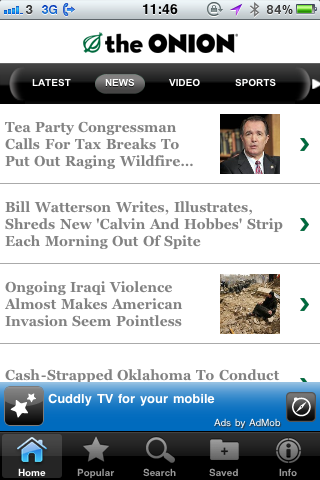
The iPhone app is similarly great, and perfectly adapted for the smaller screen. Instead of the gridded, Flipboard-style interface, it’s lists of articles and some small thumbnails.  The iPhone app has a bit more sections to navigate, including Twitter, Voices, Audio, Images, Opinion, Horoscopes and more.  You can save up to 25 articles as favourites or to read later, and the sharing options are a more regular email/Facebook/Twitter.

The Onion iPhone App News Section   The Onion iPhone App Video View

Again, on Windows Phone 7, I’m not sure if “Crazy Hot Solutions” is the most official Onion app to get, but they offer both a free and a paid version of The Onion (paid app removes the ads). The panorama scrolling is nice and shows popular stories, breaking news, video and radio news. The app is nice if slightly less polished than some of the others, but it also has a few interesting features like customizing the colour, turning on a profanity filter, and live tile customization.


SUMMARY

It’s quite obvious that news sites who think about the use cases and likely situations of their readers end up designing a better, more usable application and/or mobile website. Those that don’t who simply end up building a frame to shove their existing web content into, offer very little value to their customers, whether those customers are paying or not.

The New York Times digital subscriber numbers suggest that people will not be afraid to pay for access to the content they want. It will be interesting to watch what happens with The Onion’s pay wall experiment and The Guardian’s attempt at creating one.

[NOTE: There currently is not a way to take screenshots with Windows Phone 7, so those photos were taken of the phone itself; apologies if they’re hard to read or fuzzy.]

Fun With Data & Goal-Setting

I’m working on a small project which involves personal data tracking, so I’ve been doing a bit of user research on people who set goals and track their progress towards them.

image

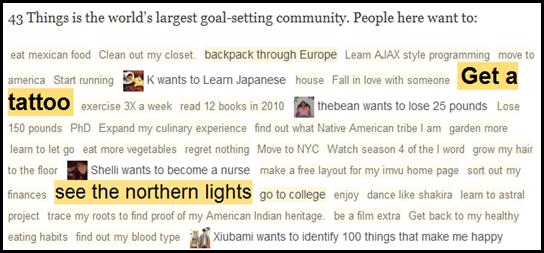
43Things is a popular and easy-to-use site for setting goals and recording your progress, and I’ve enjoyed using it in the past myself.  I figured they might have some useful information on what types of goals people are setting and tracking today as well as some predictors for success.

On their “Zeitgeist” page, 43Things aggregates some interesting lists from member data such as all-time most popular goals (“lose weight” is the top goal by far), new goals (“Become the next Frank Sinatra” was on there as I was writing this), popular goals today, and more.

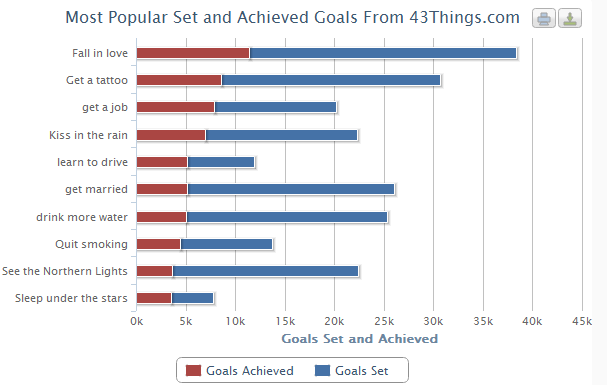
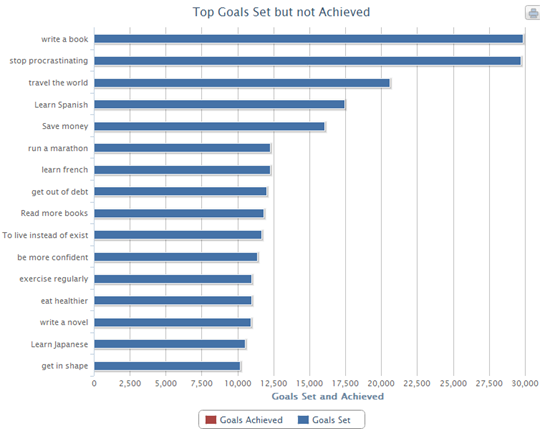
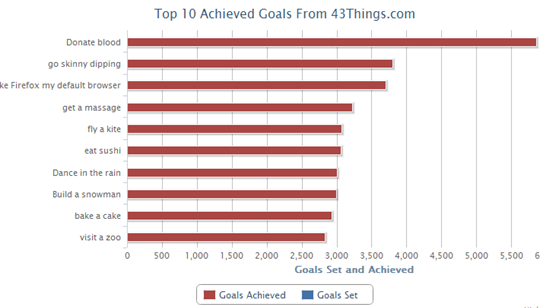
I took the list of top 100 all-time goals and list of top 100 achieved goals and merged them to see where the overlaps are, where the gaps are, and if there is a correlation between popular goals set and popular goals achieved.  I found some interesting things.


THINGS PEOPLE ACHIEVE:

If you regularly set personal or professional goals for yourself, it won’t surprise you to learn that the goals with the highest number of achievers are generally measurable. It’s probable that no one marked off having achieved “Get in shape” or “Be more confident” because they’re hard to quantify. “Lose weight” is a bad goal because unless you give yourself a bit more guidance, it is difficult to say when it’s accomplished.  “Lose ten pounds in three months by decreasing my soda and snacks intake and working out three times a week” is definitely more wordy, but it’s also more concrete and has a higher likelihood of success.

I won’t try to argue if the top achieved goal, “Fall in love”, is quantifiable, but most of the top achieved goals are, in fact, very measurable.


THINGS PEOPLE IDEALLY WANT TO DO BUT DON’T:

The next interesting thing is the gaps where lots of people are setting goals but no one seems to be achieving them. Some of these are, as above, not so measurable.  But others are more along the lines of “things I’d like to say I did, but I don’t have the time or the passion.”  There are quite a few language learning goals in this category, as well as things that require a large commitment of time such as running a marathon, traveling the world or writing a novel.

THINGS PEOPLE DO WITHOUT EXPLICITLY SETTING A GOAL:

Have you ever written a to-do list, and then thrown an item or two on there that you’ve already finished? Just to make you have some feeling of accomplishment? I have, especially if the day’s task list looks endless. The last interesting category I noticed seemed to be these things. Things people did without realizing it was a goal they wanted to achieve. Graduating from school, getting a passport, donating blood, doing ten full push-ups all fall into this category.  They’re often not the types of goals people think they need to be strategic to achieve, but that’s not to say they’re any easier than the other goals.

CREATING THE CHARTS:

I used a JavaScript charting library called Highcharts. Highcharts is incredibly simple to get up and running, and they have a larger variety of chart types than many other charting packages, including stacked bar charts which I wanted to use to show some of the gaps in certain goals. 43Things actually has an API you can use to pull this type of information dynamically, so it would be possible to create a dynamic version of these goal numbers quite easily to do something interesting like track increases or decreases of certain goals over the course of time or with respect to current events (e.g., there are probably more people with the goals of “Get out of debt” and “Pay off mortgage” today versus five years ago!).


[UPDATE-30/8/2011]BLOG POST FROM 43THINGS:

The creators of 43Things.com, The Robot Co-op, featured my blog post on their  excellent blog about 43Things & the other projects they build.  You can read the post here: http://blog.robotcoop.com/2011/08/30/fun-with-43-things-data/.  Thanks for taking a look, Robot Co-op, and keep up the great work!


[UPDATE-27/8/2011]ALTERNATE VIEWING OF INFORMATION:

It was suggested that since Highcharts doesn’t work in some mobile browsers, I include an alternate form of viewing the data, so I’ve added the images below in case that helps.  Thanks for the great suggestion.


Most Popular Set And Achieved Goals


Top Goals Set But Not Achieved


Experiments in Formatting News: A Better New York Times

Last week, I came across a Chrome extension called Ochs which takes the New York Times and provides a cleaner, easier-to-read layout for it.  The creator, Michael Donohoe, recently left the Times after seven years there and built Ochs to scratch his own, longtime itch.  This is the lovely and very usable result:

NYT Front Page With Ochs extension


WHY DOES IT WORK?

Lots of people have worked hard to try and reinvent The New York Times website, yet most attempts are idealistic and don’t take into account the hard reality of needing to include ads, of dealing with paywall material, of content ownership across a large company, of the demands of a site that is updated constantly for an audience of millions.  So what works about Donohoe’s design with Ochs?

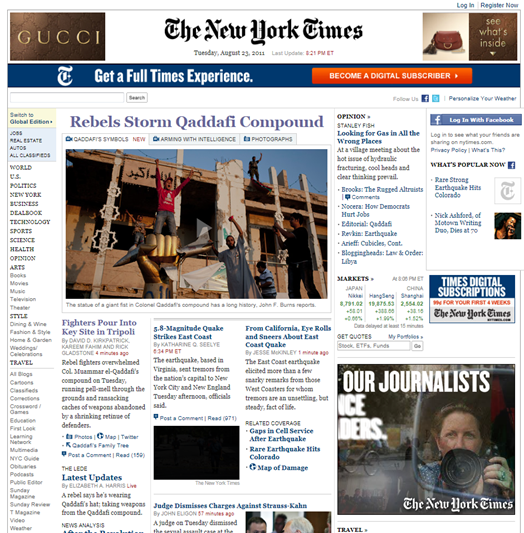
Front Page of NY Times with Ochs

versus:

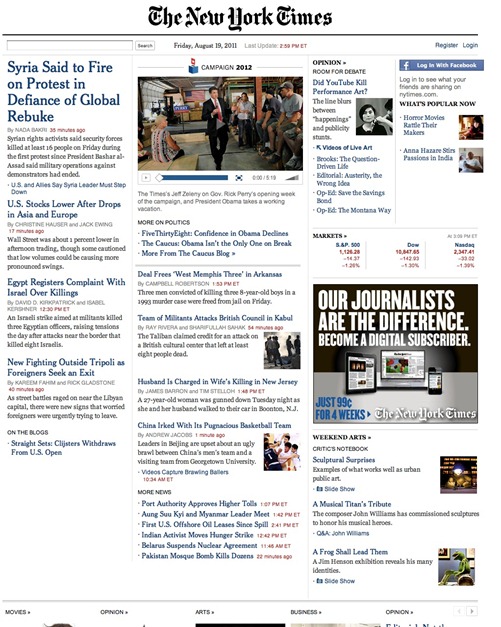
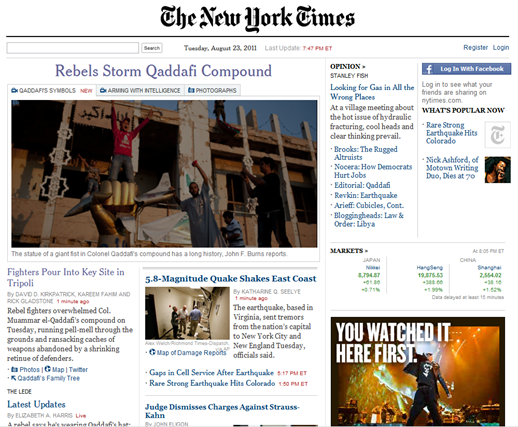
Front Page of NY Times without Ochs

The look is uncluttered and cleaner with more white space. The familiar left-hand navigation menu, ignored by most Times website visitors, is removed.  If you look at the type, you’ll notice Typekit-powered Cheltenham replacing Georgia for most headlines and Helvetica replacing Arial for bylines and timestamps.  Article body text remains in Georgia.  The slightly thinner, taller Cheltenham gives more white space and a more relaxed feel.

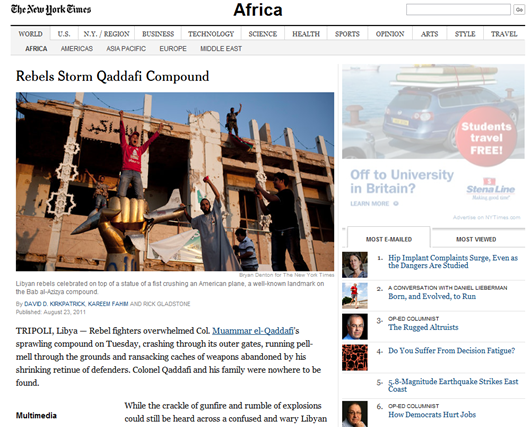
Article with Ochs

versus:

Article without Ochs

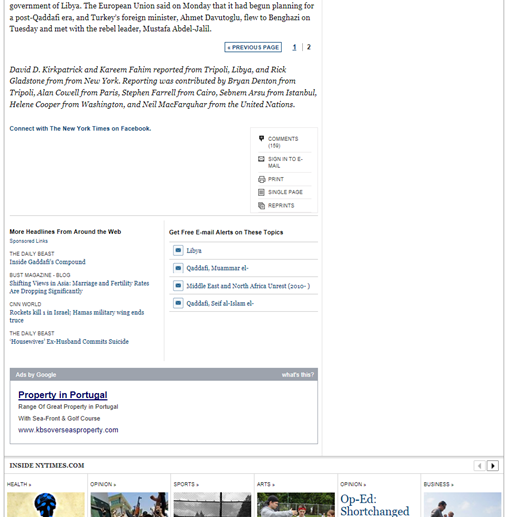
You’ll notice if you click on an article that the individual articles are much less cluttered as well.  The sharing bar is removed so the text column is a bit wider.  The optimal line length for ideal legibility is around two-three alphabets, or about 60 characters. This redesign brings readers close to that and keeps them there.  The “Most e-mailed / Most viewed” section is shortened and many of the other “popular on facebook” and “sign up for e-mail updates” sections are also taken away with a nice result.  The end of the article leaves the reader, quite simply, with tiny options to recommend on Facebook, tweet or e-mail, followed by some photos and links to stories in other sections.

End of Article with Ochs 

versus:

End of Article without Ochs


I SUPPOSE THE ADS ARE REMOVED, AREN’T THEY?

How many redesigns have you seen which include ads?  Probably not many, because it’s one of the first eyesores designers choose to get rid of when they’re starting from scratch.  However, Donohoe has stated that the missing ads in this case are due to technical reasons, and that eventually he intends to restore as many ads as possible to keep it realistic.  He has interesting ideas about the ads including things like “Progressive advertising” (the more you use the site the fewer ads you see), “Merit advertising” (show more ads to non-paying subscribers), and “Staggered advertising” (ads the first time you visit, but then not for the next five visits, etc.). He’s open-minded and still looking for other options.  There are still some ads in Ochs, occasionally they are muted unless you mouseover them, which is nicely done.


WORK[S] IN PROGRESS

Donohoe continues to make progress and update Ochs as a side project, and you can check out the page on the Chrome store to see the latest enhancements as well as the roadmap for future updates.  You can also follow his tumblr page at http://nytochs.tumblr.com/.

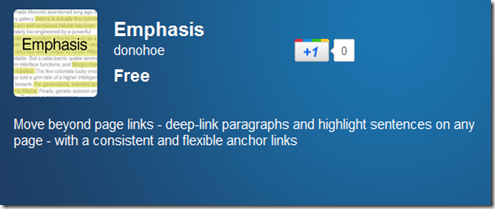
Donohoe has another new Chrome extension, called Emphasis.  It allows deep-linking to paragraphs and sentences, so you can highlight or share phrases instead of e-mailing your friend something like, “It’s about two-thirds down the second page of the article, that part about Air Supply coming to Dublin.  Read it and then tell me if you want a ticket to their show in September.”

Emphasis Chrome Extension

Tuesday Newsday: Zite and the Best Aggregators

With the announcement yesterday that Zite is in talks with CNN for a very sweet deal, today seemed like a great day to review a handful of my favourite news aggregator apps. 

zite iPad app


ZITE:

Zite has been a favourite app of mine for a while, and I have even recommended it in the past on the PC Live podcast.  It’s still one of the only apps I use every single day.  Simply put, Zite is a free, personalized magazine which begins to understand your likes and dislikes, therefore improving the content it provides you.

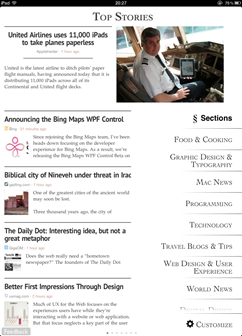
 Zite front page   Zite section selector

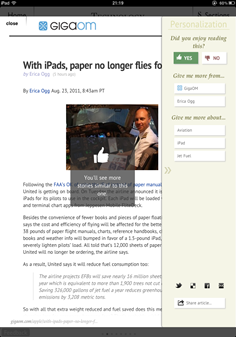
I love Zite for its simplicity.  The “choose your topics” section is easy-to-use.  The layout makes sense. The app uses familiar “thumbs up/thumbs down” icons so you can let it know if you want more or less like the article you’re reading.  The reading layout is uncluttered and relaxed.  Customization allows you to change font size and move from serif to sans-serif fonts.

Zite Top Stories    Zite story with Preferences

But behind all the simplicity, Zite has a lot of smart things going on. Zite is also taking note of whether you prefer longer or shorter articles, news or opinion content, various sources you click on more than others, and building all of this into its intelligent algorithms. At the same time, it tries to still bring you new content that you might not have otherwise found to help avoid the information silo problem.

If you haven’t used it, this video is a great short overview of what to expect, and it says a lot more in just about a minute than I can:

Zite pro – This app provides the best information to me out of all of them with surprising new sources but always interesting content.

Zite con – I could spend all day reading it.


AOL EDITIONS:

AOL Editions is one of the more recent additions to my iPad assortment of news readers.  Launched just a few weeks ago, it’s a bit later to market than most others mentioned here, but for that reason it has taken the time to add some unique features.

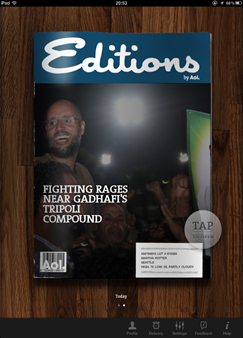
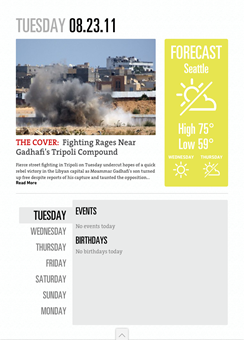
AOL Editions Front Page   AOL Editions Opening Page

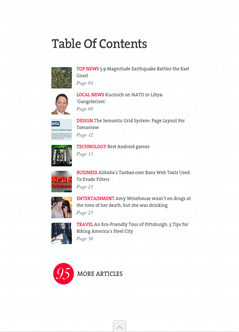
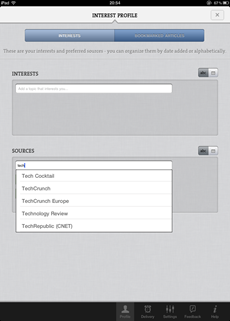
First of all, Editions is very personalized. Almost to a fault. It pulls information out of iCal and your Facebook friends list to give you a sort of agenda.  It gives you a weather forecast.  Mine however has to be from Seattle as the input section for location is zipcode, so location information is not usable outside the United States.  It lets you add sources and interests, but not remove them.  For example, I don’t want local (since it’s not relevant as I’m outside the US) or entertainment news, but I cannot remove those sections.

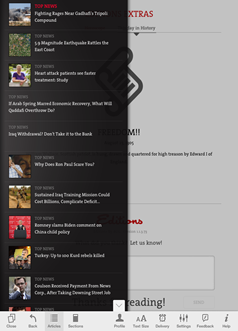
AOL Editions Table of Contents      AOL Editions Interest Profile

Now for the good stuff.

One nice and unique feature is that AOL Editions actively weighs the importance of each story.  So as your daily edition is being built, stories appearing towards the top of a source’s homepage as well as stories being shared very actively are featured more prominently.  Many times, when you click on a story, you get some keywords to select or remove to help train the app for future news.

AOL Editions Article View    AOL Editions Article List

Something else AOL Editions has which other apps don’t is an end point. With most of the apps, you feel like you can read forever.  That’s good if you’re bored, but bad if you’re one of those people who never feels like you’ve “caught up.”  Each daily edition is designed to be about 20-25 minutes worth of reading time, so it’s possible to get through the whole thing each day if you like.

AOL Editions Pro – The personalization features will appeal to many folks, and regular users will benefit greatly from the way the app learns and weights their content

AOL Editions Con – Keeping the content in the original website view is ugly and doesn’t make for a nice reading experience. Also, the US-ness of the app is a bit of a turn-off for folks outside the United States.


NEWS.ME:

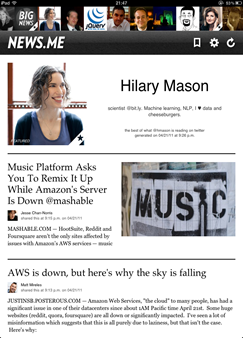
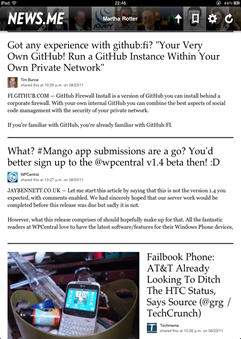
News.me is the only app discussed here that isn’t free.  It’s subscription-based: you pay 99 cents a week or $34.99 for an annual subscription.  The app was created by the folks at bit.ly & betaworks, and it works only if you have a Twitter account.  On News.me you can read your filtered stream as well as the stream of people you follow on Twitter who also use News.me.  It’s great if you are curious to know what someone like Clay Shirky or Hilary Mason or Anil Dash is reading.

News.me Individual Page    News.me Article List

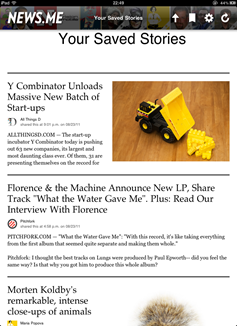
News.me partners with publishers like the New York Times and the Associated Press which haven’t been very friendly to other aggregators.  Because there’s no search or “subscribe to a specific publication” features, people can’t use the app to get around paywalls.  The subscription fee charged by News.me goes towards paying the partner publications for their content, which is a nice surprise.

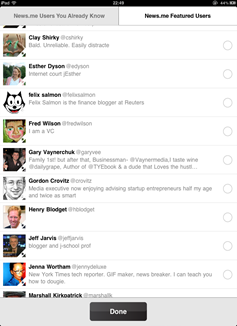
News.me Saved Stories    News.me Add People

For me, it’s very much like when Twitter first came out.  If you were an early user of Twitter, clicking on someone’s profile showed you what they were seeing, instead of just their tweets.  That was a long time ago, though; I can’t imagine it could handle doing that anymore!  The idea grew from people simply wanting to know what others they follow are reading and what’s important to them.  You can get some of that from their retweets and +1s on Twitter and Google+, but this is more like looking at someone else’s Flipboard or Zite. How meta is that?

News.me pro – Perfect for feeling like you can get inside the head of people you follow on Twitter, whether they’re your smart friends or celebrities or tech icons or whatever.

News.me con – It *is* the only aggregator that is charging these days, albeit for some content that you probably can’t get on other apps. If you use it, it’s a very small price to pay (less than a weekly paper), but if you don’t use it it adds up.


PULSE:

Pulse is an underestimated player in this space who has focused on making their content the highlight in lieu of a sexier UI.  If the name sounds familiar to you, it’s likely because last year it was mentioned by Steve Jobs in his keynote at WWDC as one of the most promising new apps for the iPad. Later that afternoon, Apple pulled it as the New York Times sent a written notice that Pulse was infringing on their rights.  Those problems were solved and the app has been successful in the App Store since.

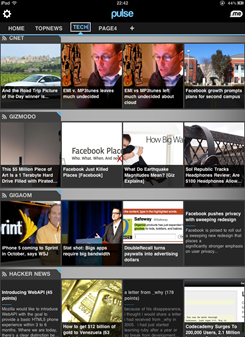
Pulse Splash Screen    Pulse Front Page

The thing that Pulse gets right that other apps like AOL Editions have missed is a focused reading experience.  It’s even less cluttered than Zite’s, but it does let you view on the web if you prefer (here’s a spoiler: you won’t).  Pulse integrates feeds from Google Reader and, like Flipboard, has a few prepopulated categories you can choose from.

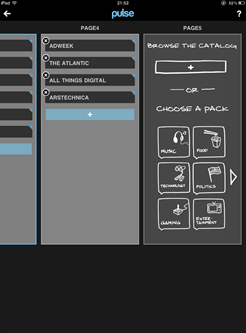
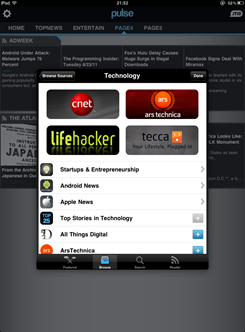
Pulse Add Section    Pulse Technology Section

I mentioned that their UI is slightly less sexy than some other apps, but it’s only because the app has been around longer. I probably would not have said the same thing this time last year.  Last year, this UI with its large images and alternating text was pretty ground-breaking.  However now several apps have stolen the same layout so it’s fairly familiar.  They haven’t replaced it because it still works really well.

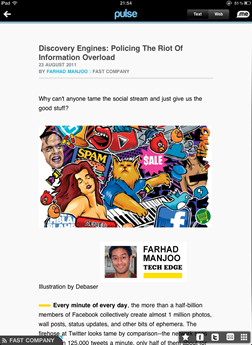
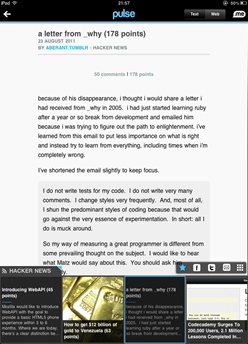
Article View    Pulse Article with Index

Pulse pro – I love reading in this app. If you prefer a visual UI for the blogs and websites you read, this is custom-made for you.

Pulse con – It’s the least personalized content. Integrating from Google Reader is clunky and manual so it’s not great as an RSS reader unless you have a lot of time to set it up.


FLIPBOARD:

No discussion of iPad news aggregators would be complete without mentioning Flipboard of course.  However if you have an iPad, I am pretty sure you have used Flipboard, the original, free social iPad magazine, so I’m going to skip it.

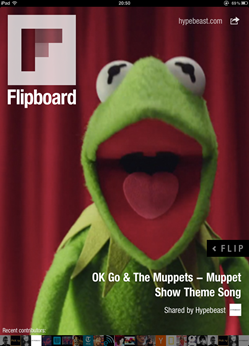
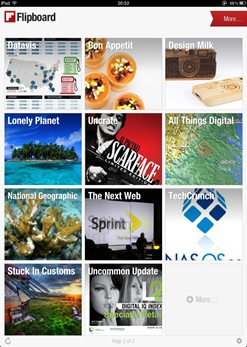
Flipboard Splash Screen   Flipboard Index Page


SUMMARY:

There are loads of news aggregators showing up for the iPad, and with Zite’s announcement this week, I’m guessing there will be a lot more competition in the very near future.  Check out the above apps if you’re looking for a new one or use the “Genius” feature of the App Store to find one that suits your taste and needs.  Be sure to let me know if you find any new and interesting ones.